

Better and more attractive content has a higher chance of going viral on social media. You have just a few seconds to grab someone’s attention before they scroll past. So, how do you make your posts pop?
One powerful way is by using animated text! Whether you’re promoting a product, sharing a message, or just trying to spice up your content, animated text can make a huge difference. It catches the eye, keeps people watching, and makes your content way more fun and engaging.

In this guide, we’ll show you exactly what text animation is, why it’s so important for your social media posts, and how you can easily create stunning text animations using Wondershare Filmora animated text maker.
Part 1: Understanding Animated Text for Social Media Posts
When we talk about social media animations, we’re talking about digital content that combines pictures, colors, and movement to tell a story or share information in a fun way. Unlike regular video clips or still images, these animations are made specifically to grab attention on social media. They’re exciting to watch, easy to understand, and can convey a message in just a few seconds.
Text animations can explain something complicated in an easy way and bring short stories to life with simple movements. Social media animations are a great way to connect with your audience and share your brand’s message in a way that sticks with people.
The Benefits of Using Social Media Animations
1. Better Engagement
Animations are great at getting people interested in your posts. Unlike regular pictures or plain text, animated content grabs attention and makes people want to interact.
This could be liking, sharing, or even starting conversations about your brand. When people engage with your animations, it helps spread your brand’s message even further online.
2. Improved Information Retention
People are naturally better at remembering visual things than words. Animations help explain complicated ideas in a way that’s easy to follow, making it easier for viewers to understand and remember the information.
This is especially helpful for businesses that deal with complex data or products. Animations can simplify everything, making it clearer for both employees and customers.
3. Cost-Effective
While creating high-quality animations might seem expensive at first, they’re actually a great investment. You can reuse them for different social media platforms, marketing campaigns, or target audiences.
This means you get more value from your animations over time, making them a smart and cost-effective way to promote your brand.
Part 2: Creating Stunning Animated Text for Social Media Posts with Filmora
If you’re making videos for social media platforms like Facebook or video streaming platforms like YouTube, you should pick text animations from the “Social Media” category in Filmora. There are over 200 text animation templates available! You’ll find common animations you often see and some really creative ones that will make your video stand out.
Key Features
Wondershare Filmora’s text animation tool offers a variety of features that make it easy to create engaging and dynamic text effects for your videos. Here are some key features:
- Extensive Animation Presets:
Filmora provides over 80 animation presets, including typewriter, wavy, and cinema styles. These Style Presets allow you to add professional-looking animations to your text quickly. - Customization Options:
You can personalize your text animations with various fonts, colors, sizes, and effects. This includes advanced options like shadows, gradients, and 3D animations. - Audio-Driven Text:
This feature synchronizes text animations with your video’s audio, making it easy to create text that moves to the beat of your music or sound effects. - Easy Navigation:
The drag-and-drop interface simplifies adding and editing text animations, even for beginners. You can easily preview your changes in real-time. - Dynamic Typography:
Filmora offers dynamic transitions and effects that can turn simple text into powerful visual statements. This includes effects like fade-ins, parallax scrolling, and neon text.
Step-by-Step Guide
Here is the step-by-step guide on how to make social media animated posts.
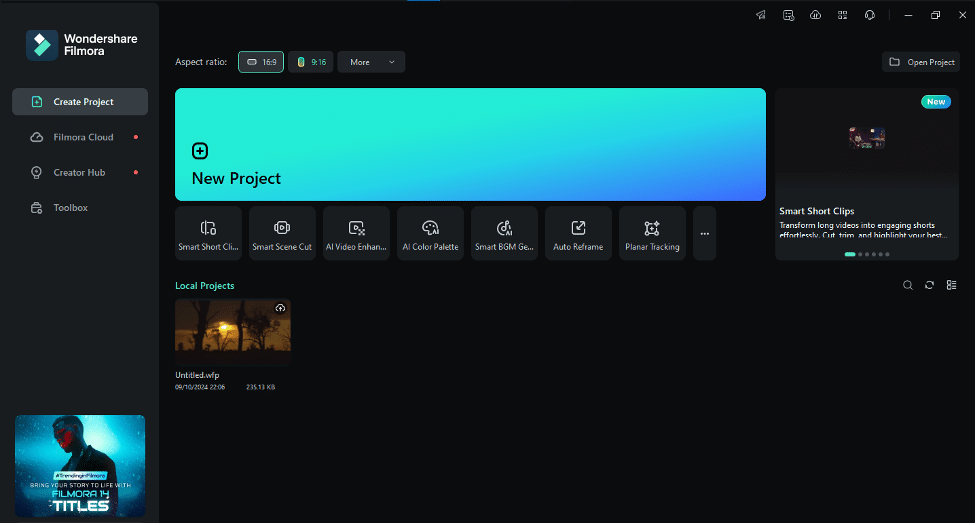
Step 1: Import Your Video or Choose a Background
Open Filmora animated text maker. You can import the video you want to use as the background or go to “Stock Media” to choose a photo or video background.
Step 2: Add a Text Layer
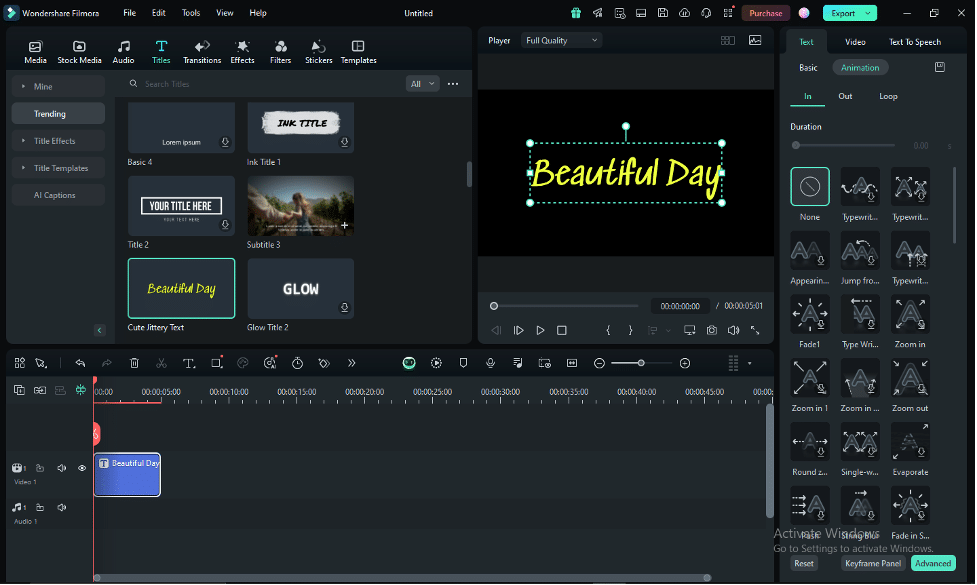
Click on Title or “Quick Text” in the toolbar above the timeline. A text layer will appear over your video. Double-click the text layer to change the default text.
Step 3: Position the Text
Make sure the text layer is above the video layer on the timeline. In the Viewer, drag the text to the position where you want it to appear on the video.

Step 4: Change the Font and Style
Go to “Title > Preset > Font” to select the font, size, and alignment. If the template has multiple text areas, edit them one by one in the Viewer.

In the ” Settings ” section, you can adjust text color, spacing, and other styles. You can also choose from various text style templates.
Step 5: Add Animation to Your Text
Go to the “Animation” tab. On the left panel, hover your mouse over different animations to see previews. Double-click your favorite animation to apply it and click “OK.”
Step 6: Use Text Presets
Go to the “Titles” section to make your text stand out. Look at the left panel to explore different text effect categories. Find a category that fits your video style and drag a template to the timeline. Double-click the text layer to edit the text and style.

FAQ’s
Q1: How many types of Text Effects Are Available in Filmora?
Filmora provides a variety of text effects like fade, slide, pop, and bounce animations. You can also adjust the direction, speed, and length of these animations to match your video’s style perfectly.
Q2: How Do I Add Text Animation to My Video Project?
Open Filmora, click on the “Title” option, enter your text, and choose from a variety of preset animations or create your own custom animation to apply to your video project.
Q3: Is it Possible to Customize the Text Animation to Fit My Video Content?
Yes, Filmora provides customization options like font styles, colors, animation speed, and more, allowing you to tailor your text to match the style of your content perfectly.
Q4: How many Text Animations can I add?
You can add as many text animations as you want in Filmora, giving you total creative freedom in your video projects.
Conclusion
Creating animated text can completely transform your social media posts, making them more engaging, eye-catching, and fun. It’s an easy way to grab attention, whether promoting a product, sharing a story, or getting creative.
With Wondershare Filmora, you can create stunning animated text in just a few simple steps; no technical skills are required. So, are you ready to take your social media posts to the next level? Try out Filmora’s text animation features today, and watch your content shine!











