

This tech-driven world has made QR codes (Quick Response codes) commonplace. With only a simple smartphone scan, you can access a startling amount of information stored in those black and white squares. However, have you ever wondered how these mysterious designs are made? Don’t worry anymore! This comprehensive guide will give you the information and tips you need to easily create personalized QR codes online.
Understanding the Power of QR Codes
Let’s examine QR codes’ adaptability before getting started. Many types of data can be encoded by them, such as:
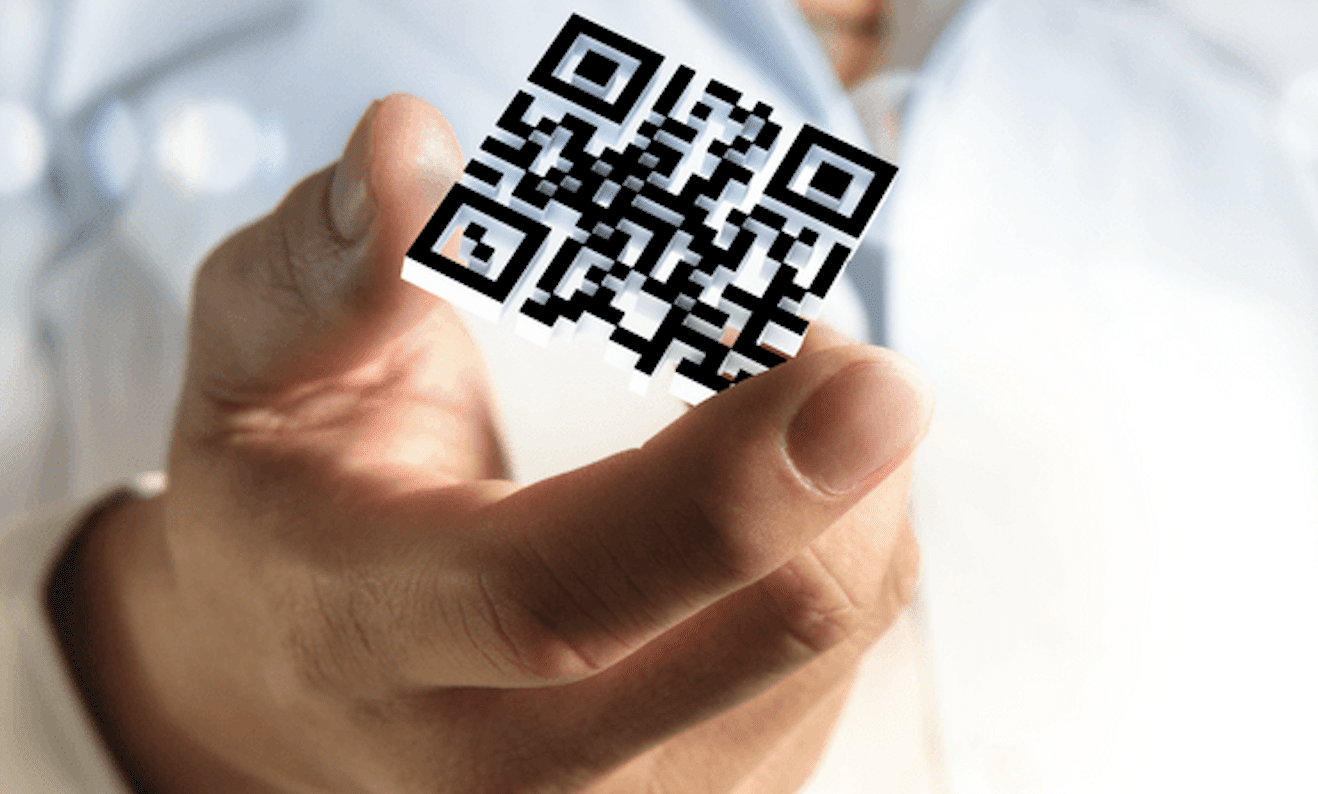
URLs: Send visitors to landing pages, websites, or social media accounts.
Contact Details: Encrypt your name, phone number, email address, and even links to social media platforms to make information sharing easier.
SMS Texts: Pre-fill a text message with the contents and recipient of your choice.
Wi-Fi Login Information: Put an end to the headache of having to type in your Wi-Fi credentials by keeping them in a QR code.
Event Passes: Use QR codes instead of paper tickets to provide guests safe and easy entry to events.
Product Information: By providing comprehensive descriptions or user manuals via QR codes on product packaging, you may improve the consumer experience. For instance, you can print QR Code on Fabric to provide users with basic details and information about it.
The options are genuinely infinite. You can create a link between the real and virtual worlds with a personalized QR code, making information easy to retrieve and increasing user interaction.
Creating Your Own Custom QR Code: A Step-by-Step Guide
Ready to unleash your inner QR code creator? Using a well-known online generator as an example, let’s go over the overall procedure (the procedures may differ slightly depending on the platform you are using).
1. Decide Which Data Type to Use
Most platforms include an option to select the type of data you wish to encrypt. Options commonly include URL, Text, Email, SMS, Wi-Fi, and vCard (electronic business card).
2. Provide Your Details
Give the relevant information based on the selected data type. For instance, all you have to do is paste the URL you wish to link to when creating a QR code for it.
3. Personalize Your Style (Optional)
There are numerous platforms that let you customize the look of the QR code. This is where you may express your creativity
Color Palettes: Select hues that go well with your project or brand.
Logo Integration: Integrating your logo will give your work a more polished appearance. It’s possible that only paid plans offer access to this function.
Including a Frame: Choose a frame with a call to action (CTA) such as “Scan to Learn More” or add the name of your business.
4. Generate and Download
Click “Generate QR Code” once you’re happy with what you’ve created. The customized QR code will be shown on the platform. You can download the code in most platforms’ supported image formats, including PNG, JPG, and SVG. Pick the format that will work best for you.
5. Integrate and Test
Use a QR code scanner program on your smartphone before distributing your code to make sure it scans properly and points users in the right direction. Include your QR code in your website, product packaging, and marketing materials after you’re sure everything is operating as it should.
Pro Tip: Consider putting a short message or call to action near the QR code to guide people on what to do after scanning (e.g., “Scan to Visit Our Website” or “Scan for Exclusive Discount”).
Beyond the Basics: Advanced QR Code Techniques
Investigate some of the more sophisticated QR code capabilities that various platforms provide as you get experience:
Dynamic QR Codes: These codes enable you to change the encoded information even after it has been printed, in contrast to static QR codes that save permanent data. This is helpful for campaigns when promotional offers or URLs may vary.
Bulk generating: Some systems have bulk generating options that can save you time and effort if you need to create several QR codes with comparable data.
Analytics & Tracking: Some platforms offer analytics on the number of times your QR code has been scanned as part of their paid plans. You can use this useful data to gauge how successful your QR code promotions are.
Final Words
You can create a seamless transition between the digital and physical worlds, increasing user engagement and simplifying information access, by utilizing online QR code generators. You’ll be well on your way to creating unique QR codes that not only look good but also accomplish your goals with the information and resources in this tutorial. Thus, let your imagination run wild, try out various customisation settings, and see how your QR codes come to life, advancing your endeavors and projects.











