
Robot vacuums are arguably the most helpful smart home cleaning devices. Due to improvements in machine learning, they have only got better at navigation and cleaning over the years. Most models now feature advanced mapping sensors, integration with smart homes, and support for multiple voice assistants.
The best part is that they are compatible with and can be controlled by a wide variety of devices. You can use your iPhone, Android, or even Windows laptop to monitor the vacuum’s status and change certain settings. If you have an iPhone, we’ll be showing you how you can do that and much more with your new robot friend.

How Robot Vacuums Work and Why They’re Helpful
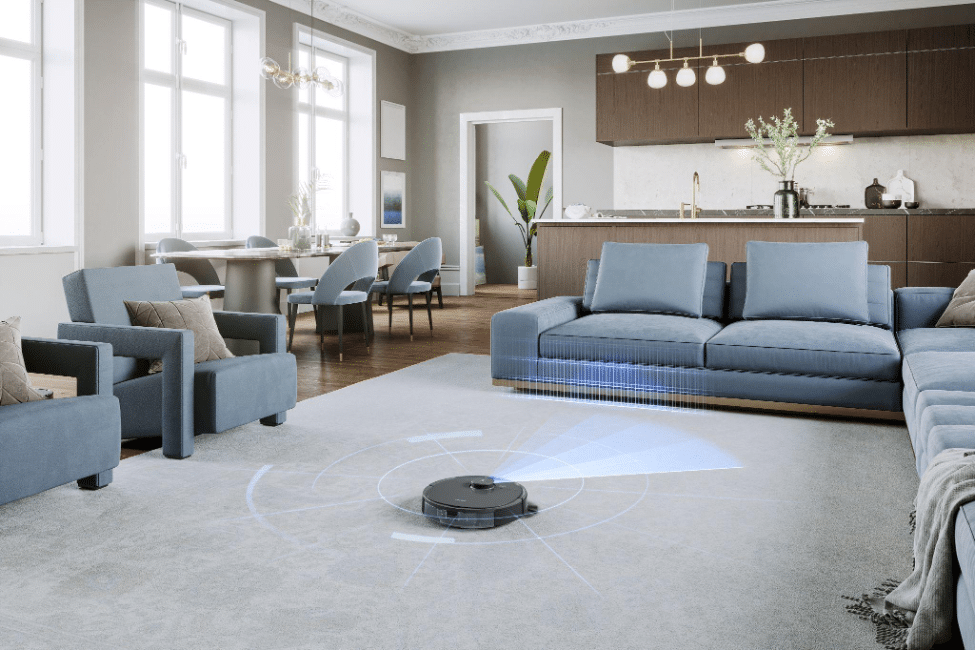
Robot vacuums work by using sensors to autonomously navigate your home and clean floors. They roll around on their own, detecting dirt and debris, vacuuming it up, and moving to the next area that needs cleaning. Pretty smart, right?
These little bots are extremely helpful for a few reasons:
- They save you time. No more pushing a vacuum around the house yourself. Your robot vacuum does the work for you so you can focus on more important things.
- They clean when you’re not home. If you have a busy schedule, a robot vacuum can clean for you while you’re at work or running errands.
- They get into tough spots. Robot vacuums are designed to get under and around furniture where dirt and dust tend to collect. Their low profile and sensors help them maneuver into spots regular vacuums struggle to reach.
- Robot vacuums use sensors to navigate and detect obstacles. Some advanced models are pet-friendly meaning that they don’t bump into your furry friends or interact with animal waste.
- They pick up allergens. DEEBOT from Ecovacs does great with allergens as they integrate high-efficiency air filters to reduce allergy symptoms and improve indoor air quality for people with allergies and asthma.
- They automatically dock and recharge when low on battery, so they’re always ready to clean.
How They Compare To Traditional Vacuum Cleaners
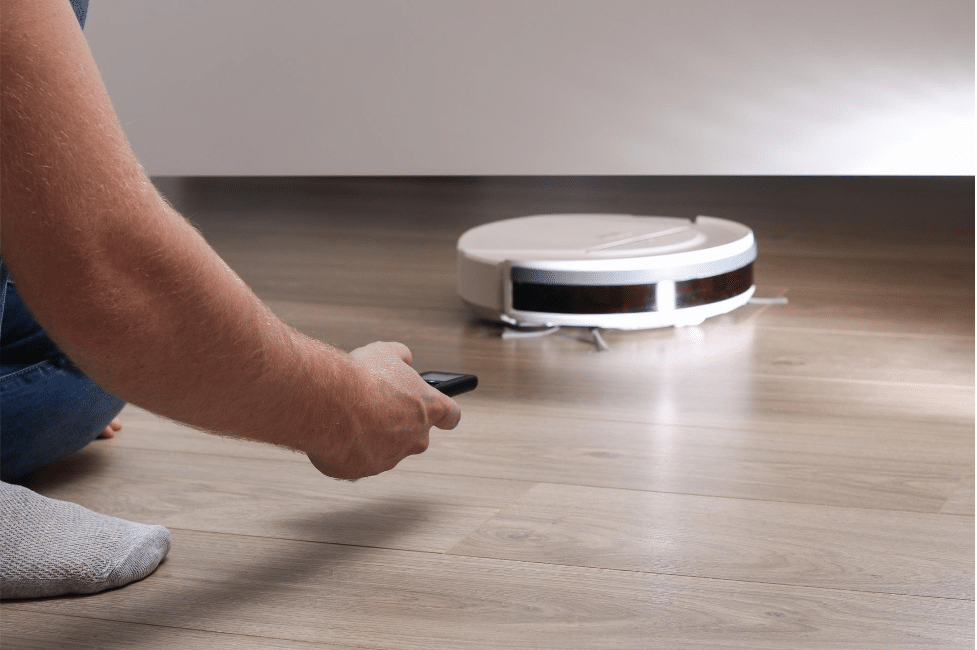
Robot vacuums offer several advantages over traditional vacuum cleaners. For starters, they do the vacuuming for you with the press of a button or a quick command via an app. You can schedule your robot to clean when you’re not home, so you come back to spotless floors without having to lift a finger.
These autonomous vacuums are very efficient. Equipped with sensors and mapping technology, robot vacuums methodically navigate your space to ensure the entire area is covered. They can get under and around furniture where upright vacuums struggle. The spinning side brushes and powerful suction get dirt and debris from the edges and corners.
Some robot vacuums with HEPA filters are a great option for pet owners or those with allergies. They capture even microscopic particles like pet dander, dust mites, and pollen that can irritate allergies. The vacuums seal in these particles, so they aren’t recirculated back into the air.
Using a Robot Vacuum With Your iPhone
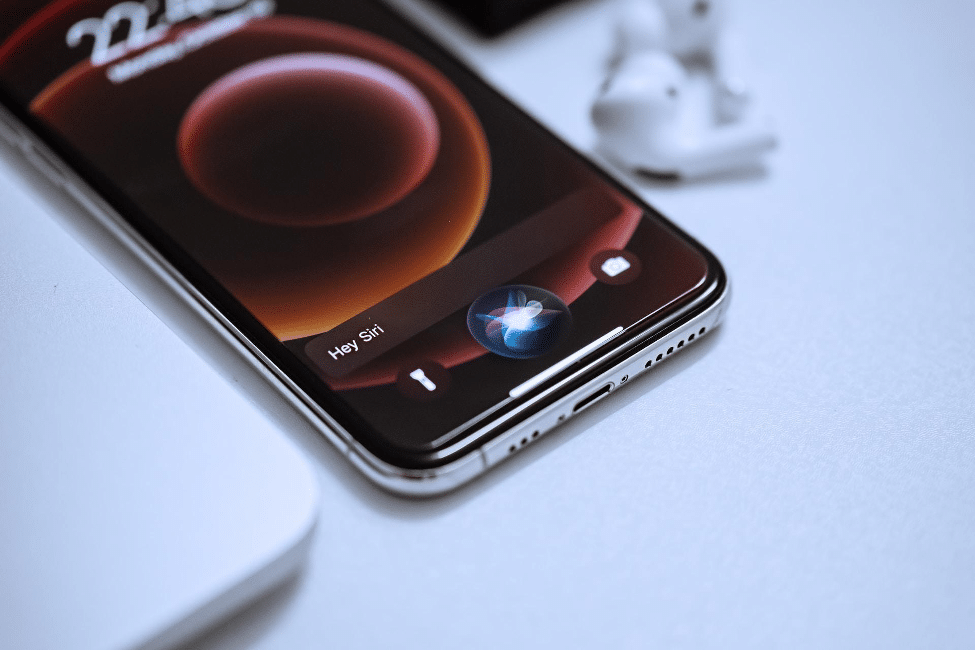
There are multiple ways to connect and control your smart robot vacuum to your iPhone. Here are some of the simplest methods:
Use The Companion App
Most robot vacuums come with a dedicated companion app that you can download on your iPhone. This is by far the simplest way of connecting your iPhone to the vacuum, as it directly gives you control over a Wi-Fi and Bluetooth connection. Most robot vacuums have a QR code somewhere in the box that you can use to scan and download the app.
If there’s no QR code, search for a companion app online or on the App Store. You’re bound to find something if you buy the vacuum from a reputable company. Once you download the app, it will take you through the setup process and show you all the available features.
Using Siri
If your robot vacuum features support for Apple HomeKit, you can control the robot vacuum with your voice by using Siri. There aren’t many options that work directly, as Apple is very strict with their closed-source HomeKit integrations. However, some robot vacuum companion apps have Siri Shortcuts support directly built into the app allowing you to control the vacuum with Siri.
Here’s how you can set up and use the Siri Shortcuts feature on certain models:
- Download and install the right companion app for your robot vacuum.
- Connect your robot vacuum to the app and ensure it is connected to your Wi-Fi network.
- Open the Shortcuts app on your iOS device.
- Tap the “+” icon to create a new shortcut.
- Tap “Add Action” and search for the name of the companion app in the search bar.
- You’ll find actions such as “Start Cleaning” or “Stop Cleaning”. Select any of the shortcuts and choose your robot vacuum on the next screen.
- Customize the shortcut name and icon as desired.
- Tap “Add to Siri” and record a custom phrase to activate the shortcut with Siri.











