
Backing up digital product data is an indispensable way to protect our important information. With the convenience and more powerful functions of the iPhone, more and more people integrate iPhone into their lives and work. There are vital files like pictures, files, music, notes, contacts, calendars, apps, messages, and more stored on our iPhone.
Your iPhone data could get lost while upgrading to the new iOS version, jail-breaking, switching to a new iPhone, system crashing, and more. It is quite necessary to backup the iPhone in case of the loss of important data. So how to back up iPhone data to computer to keep it safe? Here in this article, we’ll show you 3 ways to backup iPhone to computer easily. No matter you want to rely on iTunes, iCloud, or a third-party tool, we’ve got you covered.

Table of Contents:
- How to Backup iPhone to Computer with iTunes
- How to Backup iPhone to Computer with iCloud
- How to Backup iPhone to Computer without iTunes/iCloud
How to Backup iPhone to Computer with iTunes
When it comes to syncing iPhone data to computer, most users would turn to iTunes for help. As Apple’s official data managing tool, iTunes is capable of backing up iPhone to computer, syncing iPhone files between iPhone, iPad and PC, purchasing music, books, apps, and more. Let’s check the detailed steps to backup iPhone to computer with iTunes.
Step 1. Download and install iTunes on your Windows or Mac computer, and the the newest version is suggested.
Step 2. Connect your iPhone to your computer through a USB cable to launch iTunes. Unlock your iPhone and click “Trust” to trust this computer.
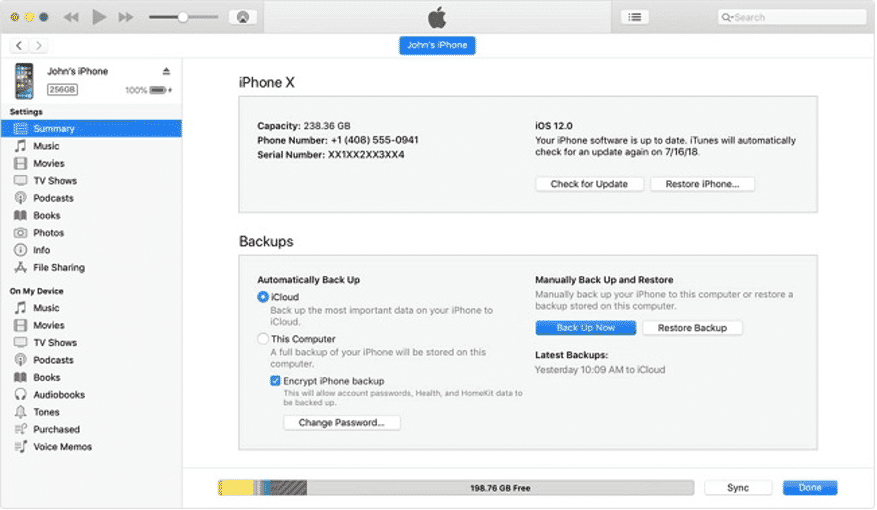
Step 3. Click the Device and select Summary under settings.
Step 4. Tap on Back Up Now to start backing up iPhone to computer via iTunes. You can find your backup in Edit – Preferences – Device.
How to Backup iPhone to Computer with iCloud
If you’re tired of the complicated iTunes, iCloud is also an option to go. Here we’ll show you the detailed steps to backup iPhone to computer with iCloud.
Step 1. Confirm that your iPhone has been connected to the Wi-Fi network.
Step 2. Tap on Settings > [Your name] > iCloud > iCloud Backup on your iPhone.
Step 3. Enable iCloud Backup and tap the Back Up Now button.

After turning on iCloud Backup, it will automatically backup your iPhone every 24 hours after the last successful backup. For this purpose, your iPhone need to be connected to a Wi-Fi network and connected to a power source, and your iPhone screen should be locked.
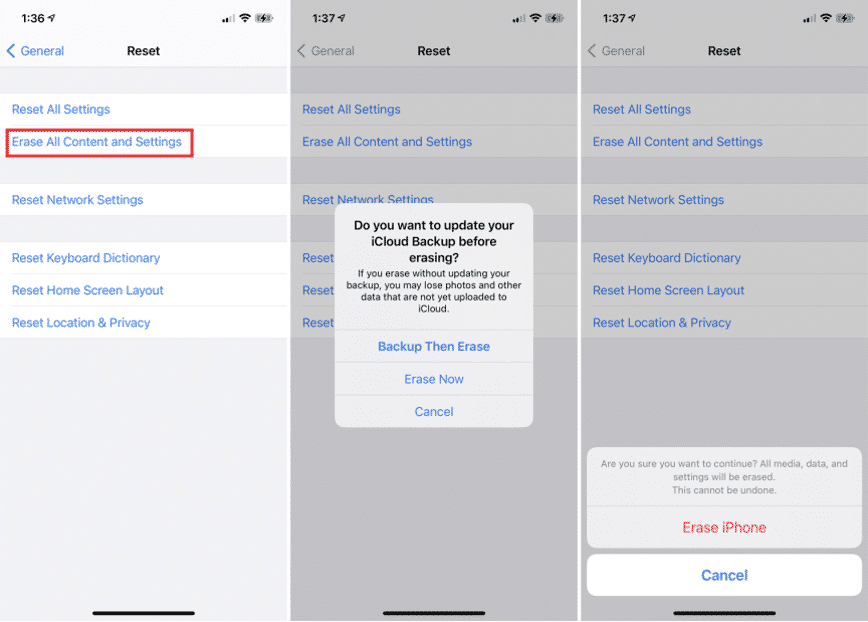
If you want to restore your iPhone from the iCloud backup, go to Settings > General > Reset on your device > Erase All Content and Settings.
How to Backup iPhone to Computer without iTunes/iCloud
What if you want to backup iPhone to computer without tedious iTunes or iCloud? If you are reading this page, you’re in the right place. We’d like to recommend an ultimate iOS backup tool called DearMob iPhone Manager to help you backup iPhone to computer without using iTunes or iCloud.
With no limit to file formats, DearMob iPhone Manager supports backing up iPhone data like music, photos, videos, calendar, notes, messages, SMS, apps, contact, and more. And it enables to encrypt your backup files. Now let’s free download this software and follow the steps below to backup iPhone to computer without barrier.
Step 1. Connect your iPhone to computer via a USB cable. Tap on “Trust this Computer” on your iPhone screen and enter your pass code.
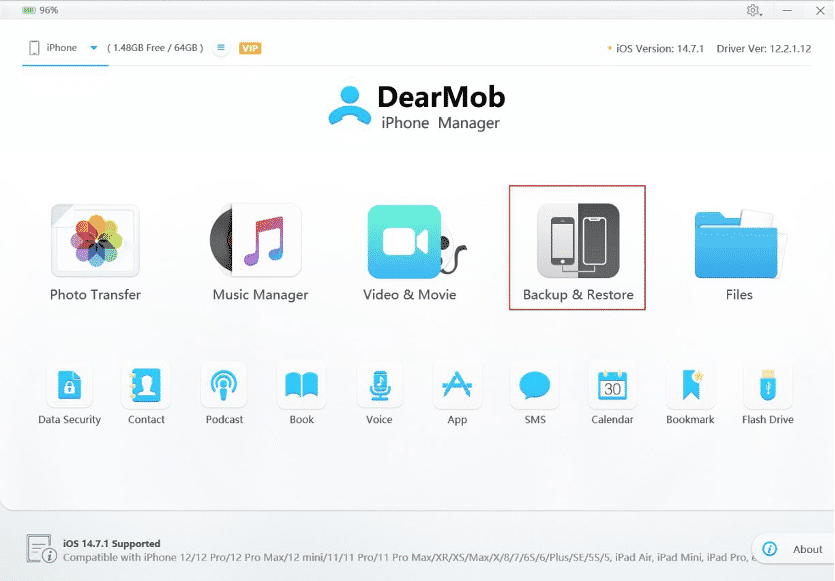
Step 2. Run DearMob iPhone Manager and it will detect your iPhone. Click on Backup & Restore.
Step 3. Click on Back Up Now and it will backup your iPhone to computer right now.
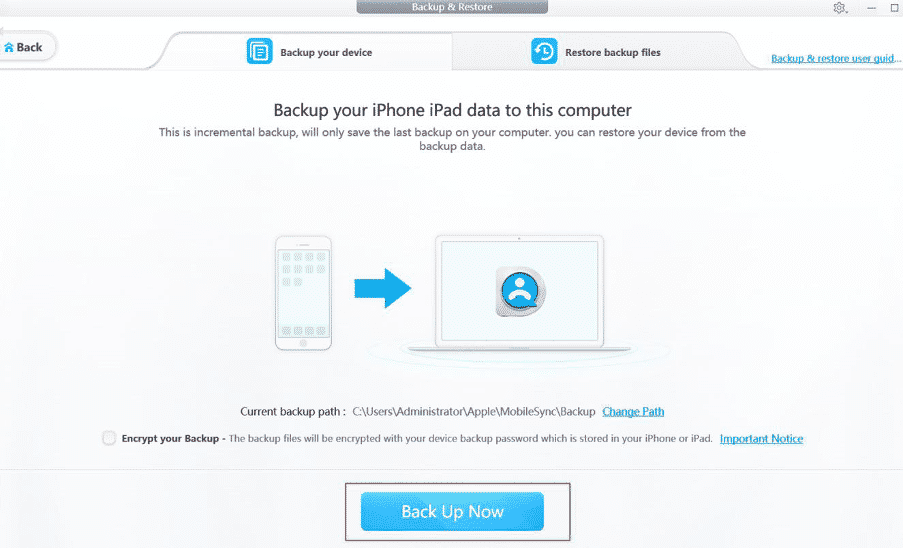
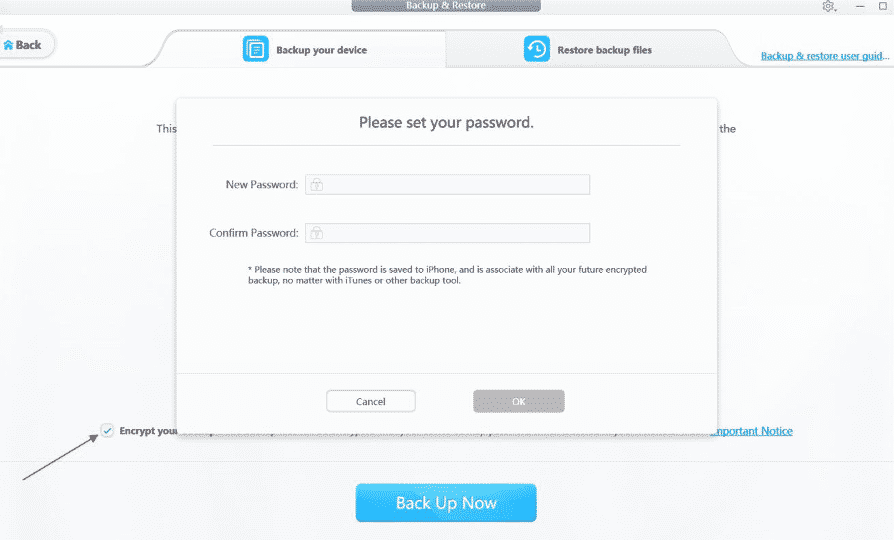
Step 4. Also, you can encrypt your backup files. (The backup files will be encrypted with your device backup password which is stored in your iPhone.)
Note:
You can also selectively backup iPhone to computer with DearMob iPhone Manager. Choose the iPhone files you want to back and export them to computer directly.
The Bottom Line
That’s all about how to backup iPhone to computer with iTunes, iCloud, and DearMob iPhone Manager. If you are looking for an easy but reliable way to backup iPhone to computer, DearMob will always be helpful! Just choose a method and try to backup iPhone to computer now!











