
When an iOS 13 user purchases a VPN service such as iOS VPN, they usually follow a simple set of instructions such as:
- Sign Up for an account: Go to the VPN website and fill out the information to start an account. Users will typically have multiple choices for VPN services. They range from free VPN services to premium services. Users can sign up for the services based on their needs and what their budget can handle.
- Download the app from the store: Once an account is created, the next step is to download the app to the device. Most VPNs have an app available in the Apple app store. If not, the user can typically download the app from the VPNs website.
- Sign in to the account: Once the app downloads, then the user will sign in to the account on the device. The user will use the same username and password that they created in the account. Once the user has logged into the account, they now have access to all of the VPN features.
Choosing the VPN Settings
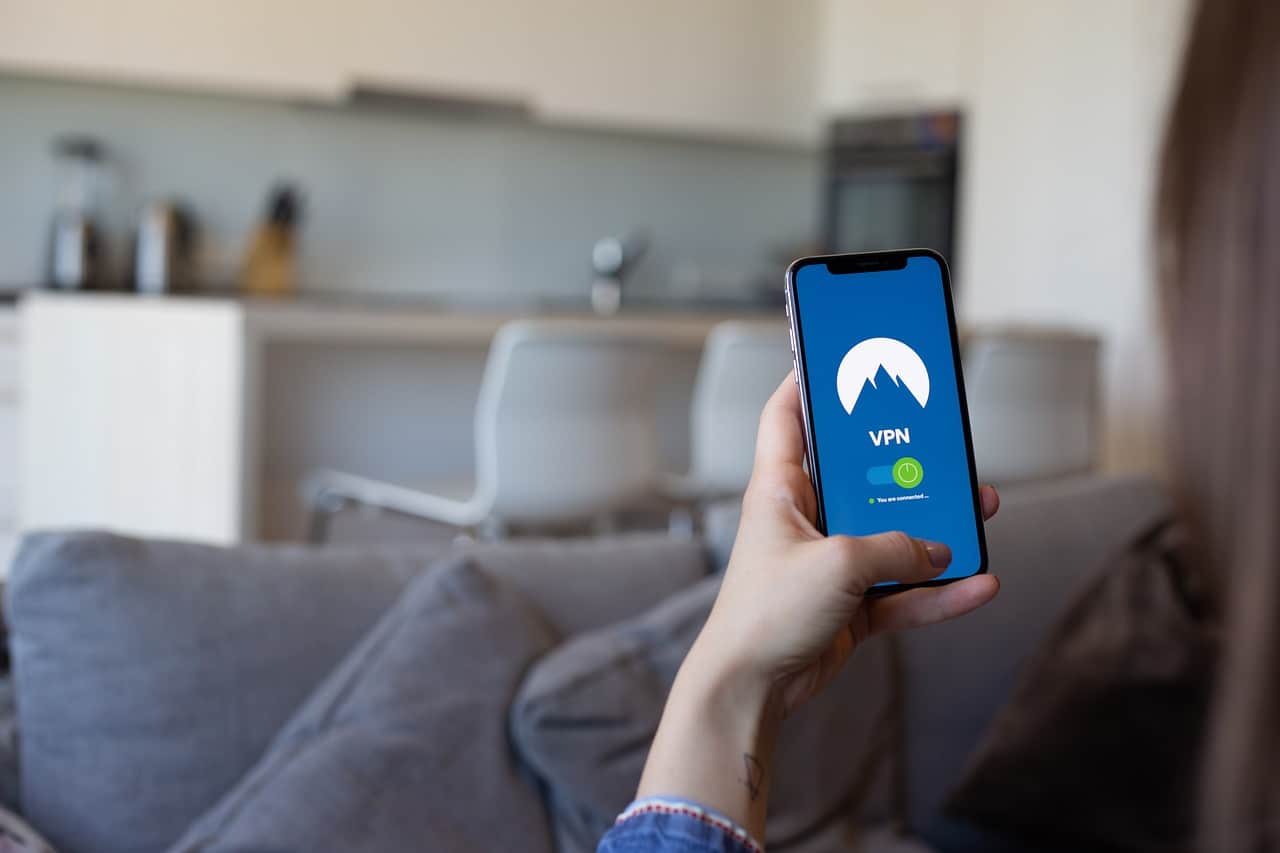
Each VPN has a wide range of features and settings that users can select from. These are settings that are built into the VPN and are separate from the iOS 13 settings. These settings may include:
Auto Kill Switch Mode
The kill switch makes sure that the user’s IP address is not vulnerable in case there is a lost connection with the VPN. Some VPNs allow users to switch between auto and manual kill switch modes.
Pop-Up Blockers
Some virtual private network providers offer a pop-up blocker. This keeps ads and other pop-ups from showing on a browser or an app. The user can decide if they want to allow pop-ups to display
Additional Devices
Services such as Surfshark allow users to add limited or unlimited devices to the account. All devices can use the VPN at the same time. The account holder is the admin who decides which devices are allowed on the account.
Whitelister
A.K.A., ‘split-tunneling’, a user can use the Whitelister feature to determine which apps connect to the VPN and which apps are excluded. The reason whitelisting is called split-tunneling is because the apps connected to the VPN go through a different digital tunnel than the apps that are excluded.
Camouflage and NoBorders Mode
Sometimes users either need additional protection or additional access while online. Camouflage mode gives users the ability to mask their activity from the Internet service provider (ISP). NoBorders Mode offers users access to otherwise restricted areas in specific regions or countries.
Setting Up a VPN in iOS Manually
Most VPN subscriptions like Surfshark allow subscribers to use the app to set up the service. While this is the fastest way to set up a VPN, there are other options. For instance, users can also set up the app manually within the iOS platform.
Keep in mind that manual installation should only be performed if a user has the knowledge and expertise to perform this operation. Otherwise, a subscriber can hurt either the app or their phone. Beginners should consult a VPN expert or the app service before attempting to set up a VPN manually.
With that in mind, the custom configuration does provide more options. For instance, a user can set up a VPN in a specific protocol such as:
- IKEvs
- IPSec
- L2TP
If a VPN already exists at work, a user can configure their iOS 13 to work with the virtual private network. The only downside to custom setup is that the subscriber will need to edit the configuration if they want to switch to another server. However, this operation may be quick and straightforward.
How to Setup the VPN
Here is a step-by-step guide to setting up the VPN for iOS 13 manually:
- Open the Settings app on the phone
- Go the “General” section
- Scroll down to the “VPN” section
- Tap on “Add VPN Configuration”
- Select VPN type: IKEvs2, IPSec, or L2TP
- Enter the requested details
There will be a different set of instructions for each Internet Protocol. For instance, some of the information requested may include:
- Description
- Server
- Remote ID
- Local ID
- User authentication
- Username
- Password
- Proxy setting
Once the user submits the information, they should have full personalized access to the app. Both the app and the iOS 13 platform allow users to switch from one option to the next quickly.
Manual Configuration Within the VPN App
Once the setup is done through the phone settings, it is important to visit the VPN service support portal. This is where. Users get all of the configuration information. Most VPNs refer to the configuration information as native protocols within the app. This information helps the subscriber to set up the dashboard or screen.
The iOS 13 platform should work in conjunction with IPSec and IKEvs with no problems. The only challenges that a user may encounter are learning the authentication process for any particular VPN services. None of the services have the same type of authentication. Therefore, using the dashboard may require some specific configurations.
All in all, the setup and authentication process should be relatively easy and only take a few minutes. Any users that run into problems should immediately consult either the VPN user manual or contact customer service. A customer service professional can guide the subscriber through the process.
App or Custom Setup: Which is Best?
The only way to answer that question is to determine what the user’s needs and abilities are. If a subscriber plans to use a virtual private network as originally intended on a standard iOS 13 phone, then there may be no real need to change any of the settings. The best thing to do is to use the default setup.
However, if there are certain situations in which a custom setup is best, then a user may want to explore different options for getting the best use of the VPN. Either way, subscribers can now enjoy a fully protected phone.











