
To those who are not satisfied with iTunes syncing without a preview and more, knowing how to transfer files from iPhone to PC without iTunes becomes quite necessary. If you are facing the same case, Coolmuster iOS Assistant would love to help you out, which is an integrated program for iOS devices with no iTunes required. With the multiple practical features of easy viewing and fast transferring and more, it is recommended by more and more people and assists users to manage the iOS files on the PC without limitations.
Further Knowing: Coolmuster iOS Assistant Major Features
Quickly Transfer Files from iPhone to Computer without iTunes
Its backup feature is one of the most brilliant highlights deserving displaying. For one thing, you can selectively back up different types of iPhone data to the Windows/Mac computer in various formats, saving contacts, messages, notes, calendars, bookmarks, books, music, videos, and photos as CSV, XML, VCF, JEGP, HTML and etc. formats. With the auto-transferring process, it is time-saving to finish the data backup.
![[Great Tips] How to Transfer Files from iPhone to PC without iTunes](https://ilounge.pro/wp-content/uploads/2020/08/Great-Tips-How-to-Transfer-Files-from-iPhone-to-PC-without-iTunes.png)
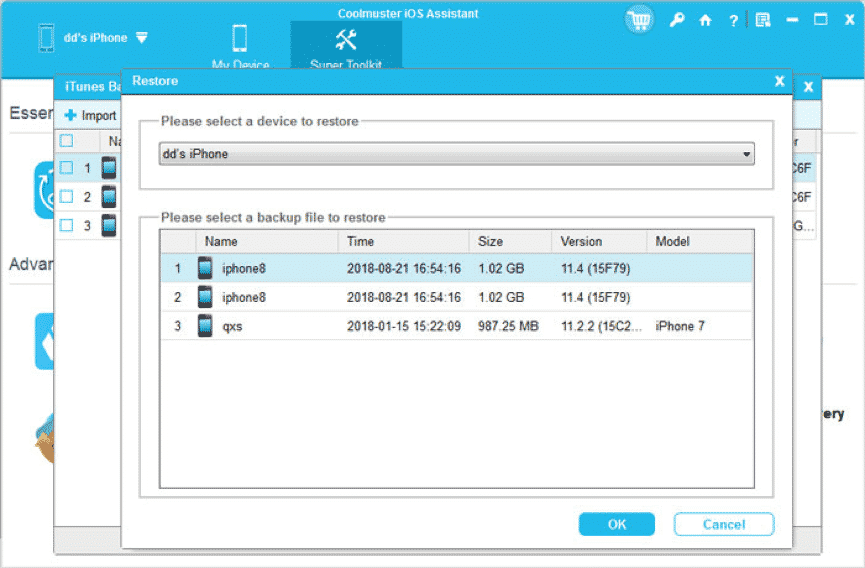
Another highlight is that you can 1-click to back up your iPhone data to default iTunes backup location on the computer. Tapping on the “Super Toolkit” icon, you will see this feature. As a fantastic iPhone manager, Coolmuster iOS Assistant can not only transfer files, its other powerful features are introduced below.
More importantly, no iTunes is required while you are dealing with your iOS data, which makes file transfer from iPhone to PC much easier.
Import Data from PC to iPhone
Not only can it does data backup to the PC, but also imports contacts, calendars, bookmarks, and books from the PC to your iPhone. And before importing, it supports to have a selection of the data, so you can easily import the files you want.
Manage Contacts and Text Messages on PC
To go further, Coolmuster iOS Assistant provides the managing functions for iPhone on the computer. For contacts, you can create, edit and delete them directly. More conveniently, you can set up new contact groups and remove the unwanted ones, which can make your contacts in order.
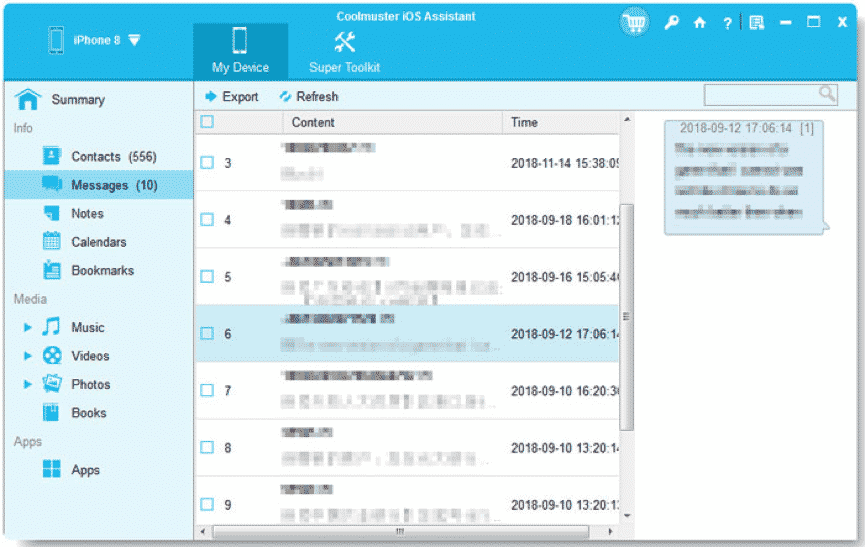
For text messages, it allows you to clearly preview them on the computer, including the contents, receivers and date.
Organize Photos, Videos, and Music
This iOS assistant is also a multimedia helper to organize your photos, videos, and music, with every detailed file shown on the interface.
In the “Photos” category, by a short scan, you can see your photos as well as albums, and delete the unnecessary ones freely. Their size, format, and created date can be straight viewed on the page.

Your movies, TV shows and music videos are supported to organize with this iOS manager. It is fast that you can transfer the large size of videos.
Besides songs, this program can scan out your playlists, ringtones and voice memos with respective information, including name, time, artist, album, genre, and more.

Control Books, Notes, Calendars, Bookmarks and Apps
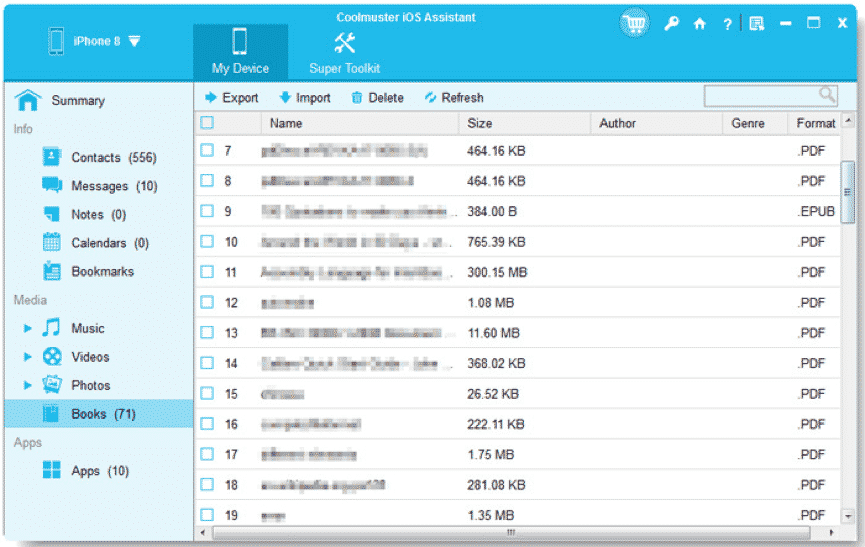
If you are an e-book fan and want to control your books on the PC, this iPhone assistant is useful, since you can delete, import and export your books whenever you like.
Furthermore, writing down your notes on the computer is achievable with this software, and the notes are also readable on your iPhone. (Tips: Notes are supported on iOS 10 and lower.)
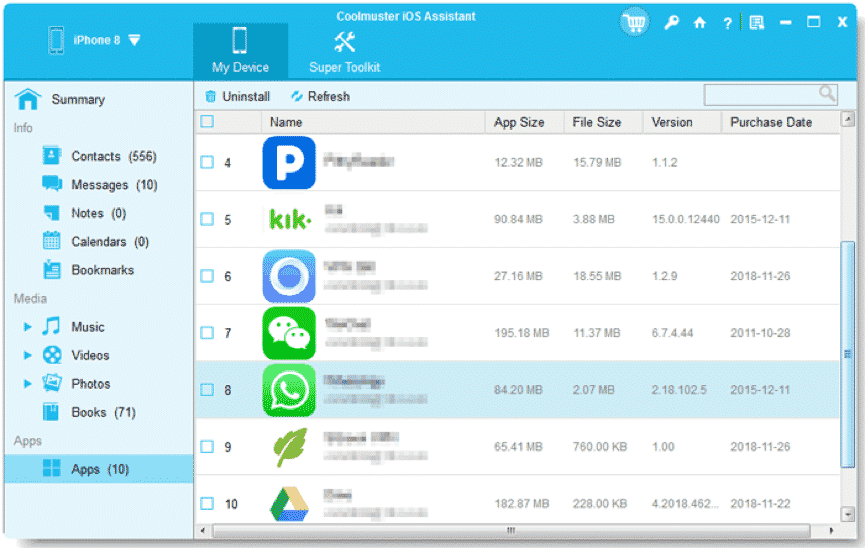
For calendars, it is effortless to delete them on the computer. In addition, bookmarks will be easy to control that you can make, modify and eliminate them without trouble. The apps that you can’t control with iTunes can be uninstalled with this program as well.
Search All Sorts of Files
The searching feature is to help you fast find the desired files on the interface. You can see it on the upper right when tapping on one category. As long as you input the words in it, the related files will show up on the interface.
Work with Almost All iOS Devices
Because of the powerful compatibility, this iOS assistant works with a variety of iOS devices, such as iPhone 11 Pro/11/XS/X/XR/8/7, iPad Pro, iPad Air 2, iPad Air, iPad Mini, iPad 4, iPad 3, iPad 2, iPod Touch 5/4, iPod Shuffle 4G/3G/2G/1G, iPod Classic2/1, and so on. Therefore, it is doubtless that you can use it to transfer files on most iPhones.
Easy Guide: How to Transfer Files from iPhone to PC without iTunes
Although Coolmuster iOS Assistant is a cross-platform program to transfer and control your iPhone files, it is easy to operate due to its user-friendly interface. Let’s see the guide on how to transfer files from iPhone to PC without iTunes.
Step 1: Download and Install
For starter, please download and install the software on your PC. Importantly, you need to install the correct version according to your computer.
Step 2: Launch and Connect
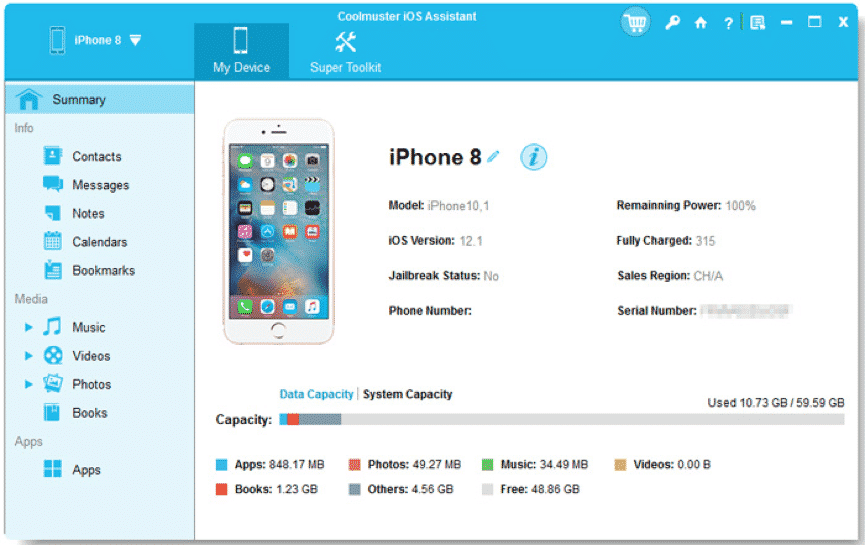
Then double-click to launch it on the desktop and connect your iPhone to the computer with a USB cable. Choose the “Trust” option on the iPhone and tap on the “Continue” icon on the PC to go on. After the driver for connection is installed successfully, it will recognize your iPhone.
Step 3: Transfer Files from iPhone to PC
Once done, you will see the main page on the computer. Your iPhone data is contained on the left panel with various categories. Clicking one of them, you can see the files appear on the right side.
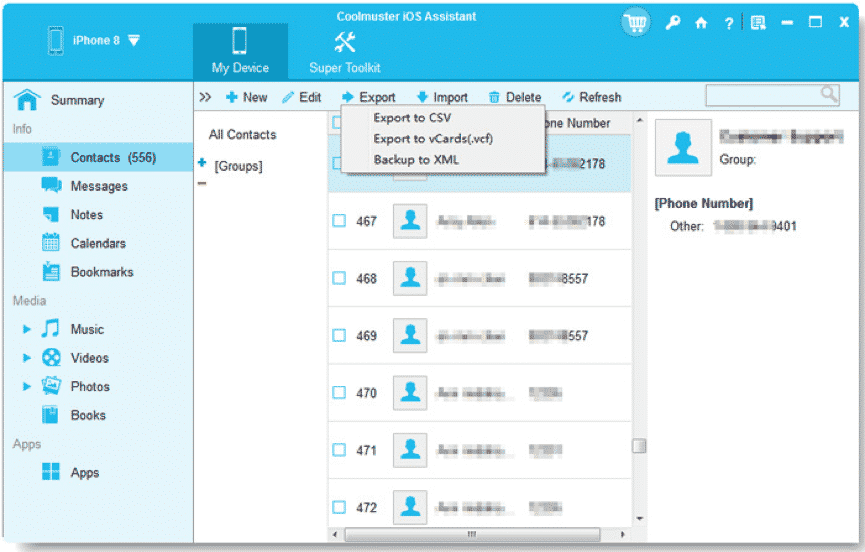
For example, to export contacts from iPhone to PC without iTunes, simply enter the “Contacts” category and select the contacts you want, hit on the “Export” button and choose an exporting format. Done.
Wrapping Up
Be tired of searching for iTunes alternatives? You can stop your steps now, for Coolmuster iOS Assistant will bring you the relaxing file transfer from iPhone to PC and vice versa without iTunes. Perhaps you have noticed that this post described it in details, but downloading it to have a try is the perfect way for checking. Thus, why not use it in practice?











