
If you are a graphic designer, getting a MacBook is a good idea, given how reliable and flexible these computers are for work.
It is also worth noting that Macs are light, meaning that traveling with the laptop should not be an issue either. For instance, you might want to change your work environment and spend a few hours working at a local cafe or library. Putting the MacBook in a case and taking it with you is not a burden.
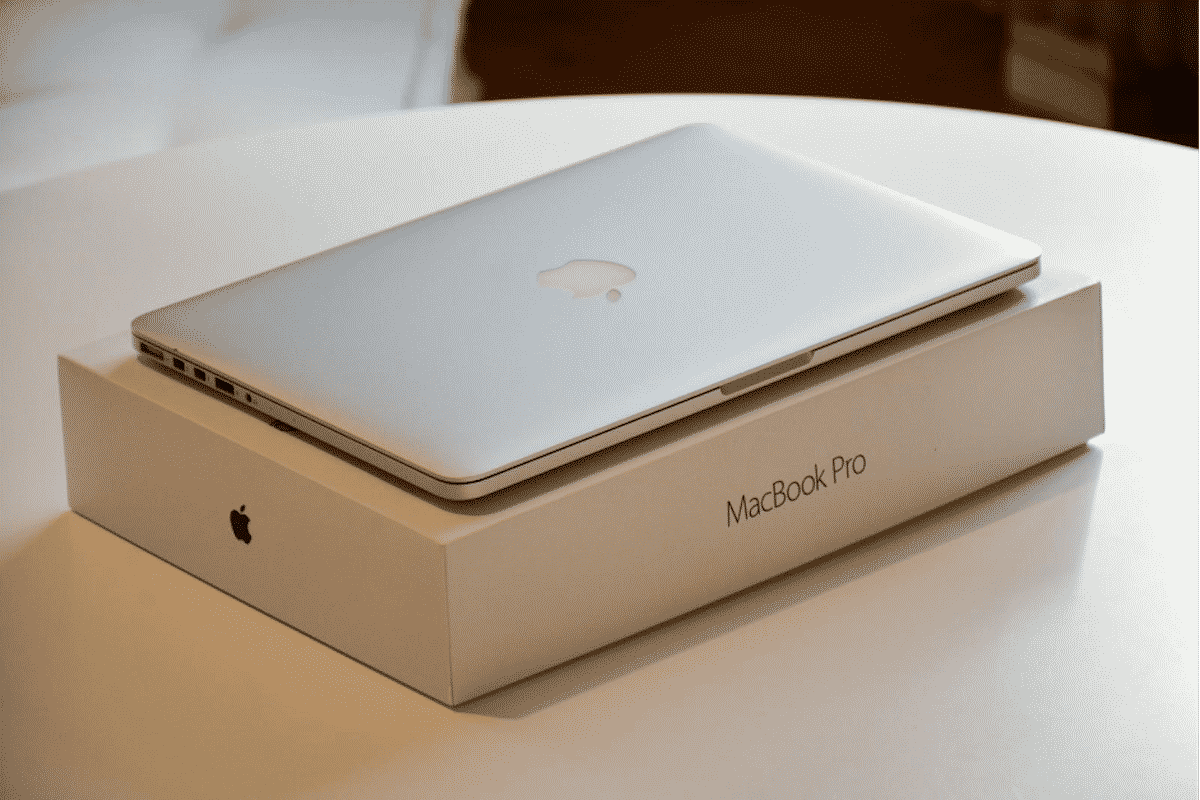
At the same time, some new MacBook owners might find it a bit difficult to use their computer efficiently right off the bat.
As a graphic designer, you want to work without distractions and finish projects on time. Learning to use a Mac might take longer than expected. Use the tips below to get down some basics and move from there.
Maintain Mac in Good Condition
If you buy a new model, there should not be any problems with the MacBook’s performance. However, Macs are similar to other devices in the sense that they will slow down eventually. It is important to create a proper maintenance routine for the laptop early and stick to it.
What you want to emphasize to keep the MacBook in good condition are the following:
- Make sure there is enough free space on the drive
- Scan the system for potential malware and get rid of corrupted files detected by the best antivirus for Mac
- Clean the dust that accumulates inside the laptop
- Get a cooling pad to deal with the overheating problem
- Keep tabs on background applications via Activity Monitor and quit redundant processes
- Restart the computer regularly
- Upgrade hardware if possible
Customize the UI
One of the biggest advantages of a MacBook is how nice it is to work in a responsive environment. The sheer simplicity of macOS UI is a significant reason why Apple computers are popular.
For example, updating and deleting applications is easier on macOS than on Windows. There is a centralized app hub in the Launchpad.
The Dock is another element that you can change on your Mac. If you wish, you can move the Dock to the right or the left side of the screen rather than the bottom. Adding or deleting app shortcuts from the Dock is also simple.
Learn Relevant Keyboard Shortcuts

There might not be as many instances when you need to use keyboard shortcuts working as a graphic designer, but it is still recommended to learn some of the basic sequences to speed up your work.
If you need to remove redundant files to free up the drive’s storage, Option + Command + Delete should be one of the first keyboard shortcuts to learn. Shift + Command + 3 and Shift + Command + 4 should come in handy as well since the sequence lets you take screenshots of the entire laptop screen and a portion of it.
Check Available Applications
Every graphic designer probably has the software they prefer to use for work. Nevertheless, switching from Windows to macOS (if you are making the switch) comes with new opportunities.
Tools that were unavailable for Windows will become available for macOS. Of course, it is not just software for the graphic design itself.
You might be interested in time-tracking applications because you struggle to meet deadlines or find a balance between work and leisure. Check what is available on the official Mac App Store. You are bound to find some great applications that will further enrich your experience working on a Mac as a graphic designer.
Use the Sidecar Feature
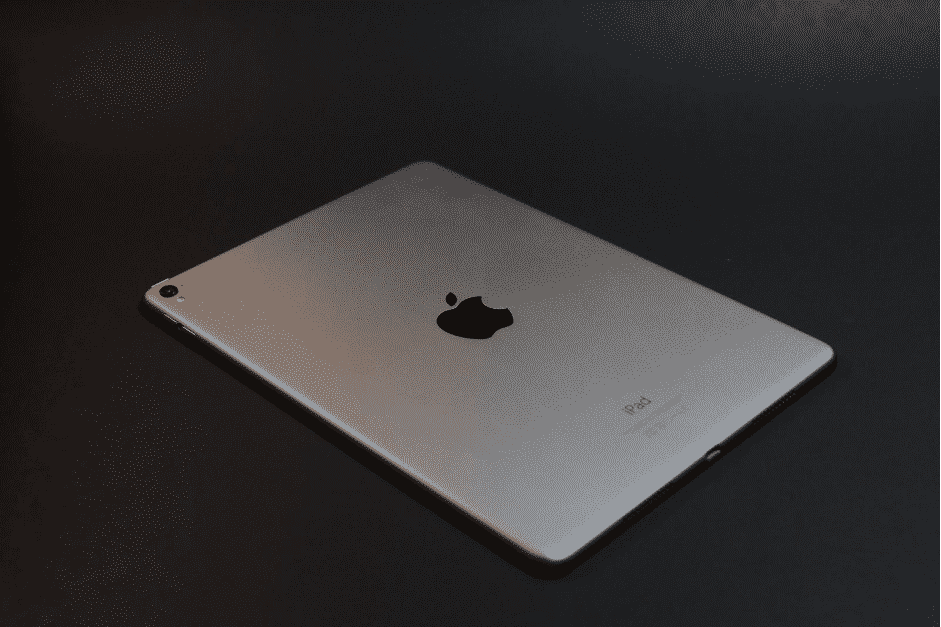
The sidecar feature was introduced in the Catalina macOS version. If you have an iPad, you can connect it to the MacBook and use the tablet as a second display. It makes sense to do so as a graphic designer for two reasons.
First of all, Macs have relatively small screens, and making out the contents can be difficult. For some, the only way to see the screen properly is to hunch, which is not great for one’s health.
The second reason is that you can use an iPad as a graphics tablet. There are applications that let you draw directly on an iPad. Thus, if you have an iPad, keep the sidecar feature in mind.
Invest in Accessories
Macs are pretty great by themselves, but you can improve your experience using the computer even more by investing in accessories.
As a graphic designer, you might struggle to keep enough free storage on the MacBook’s drive. If so, invest in an external hard drive, which should cost about 50 dollars.
In case you enjoy listening to music while working, AirPods are worth a shout as well. These wireless earphones provide great sound quality.











