
Short form storytelling is all about emotion and relatability. Behind-the-quote images do that. They are artistic video interpretations of inspirational quotes that add new meaning to old words. You might have come across these going viral on social media: a quote, yet accompanied by a cinematic video that evokes deep feelings.
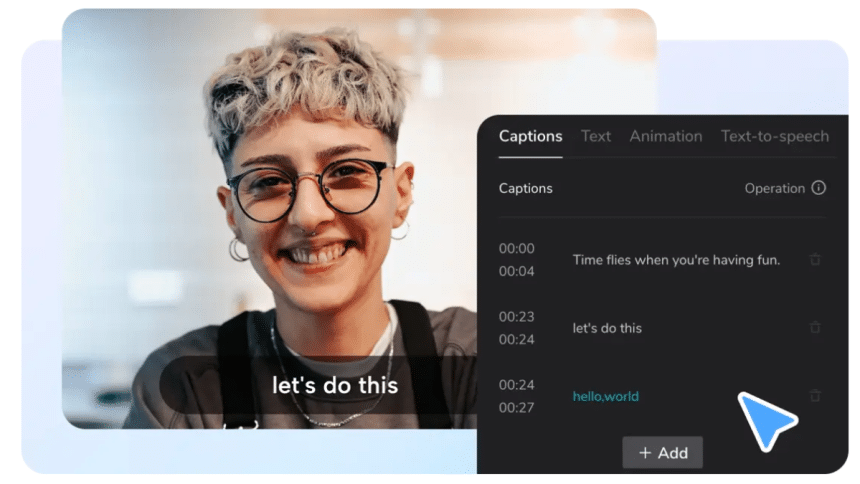
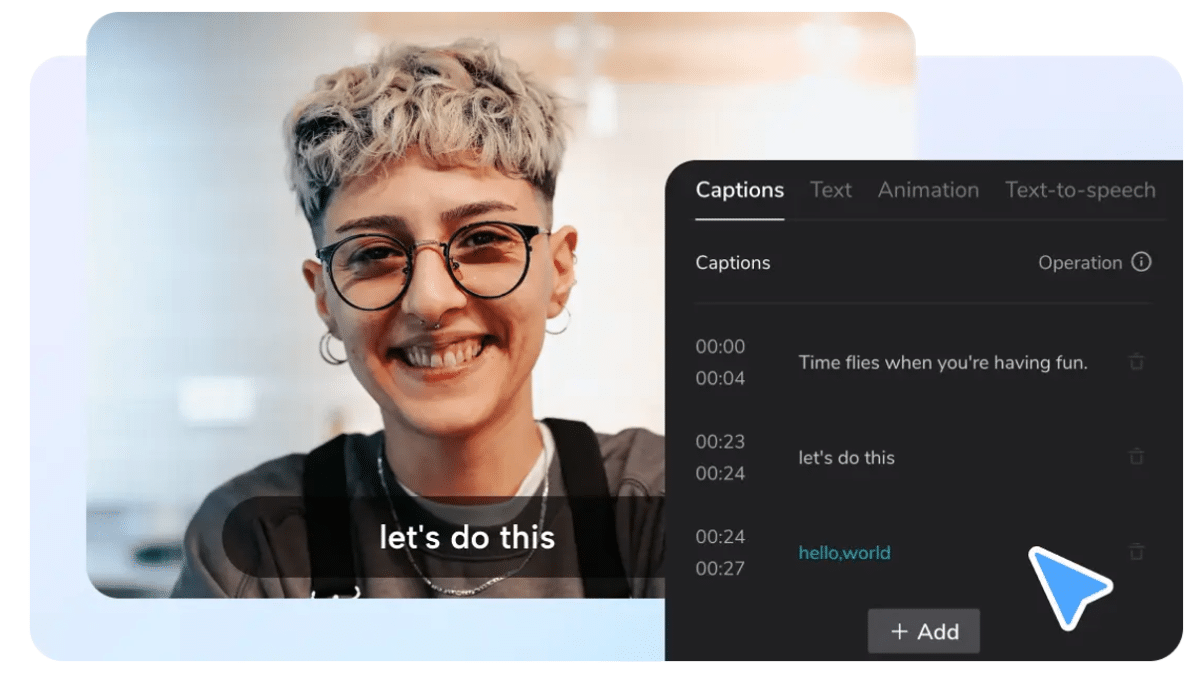
Good quotations are not sufficient. They are even more effective when visual storytelling is used. This is where the AI caption generator comes in handy. It allows you to emphasize certain words, manage your time, and develop a rhythm. The images leave the quote more lasting.
Memorable Quotes Require Powerful Narration
There are several levels of meaning in quotes. You must visualize them to unleash their potential. You can do this with the CapCut App. You can convert any quotation to a visual story using its all-in-one platform. It fits like a charm, regardless of whether the quote is motivational, emotional, or philosophical.
The app allows you to reimagine mere text as complete cinematic books. It is not a quote you are reading anymore, but you are living it. The emotional overtones of a quotation are revealed through the use of visual, audio, and pacing elements, making it an emotionally moving experience.
Converting Quotes into Visual Stories with AI Templates
First, go to the AI lab in the CapCut App and select a template that is quote-centered and capable of making words come alive. These templates are organized by mood, including epic, sad, romantic, and inspirational. Choose one that is as energetic as the quote.
Then, deepen the meaning of the quote by using digital avatars or AI-generated sceneries. These characters or images help describe what lies behind the words. Heartbreak can be seen on a lonely road. A sunrise can symbolize hope. With a couple of clicks, you can create visual meaning.
The approach enables you to develop powerful tales, even when you lack sophisticated editing skills. You are leading the quote through the motionless text to a feeling film.

Textual Transformation to Cinema Sequences
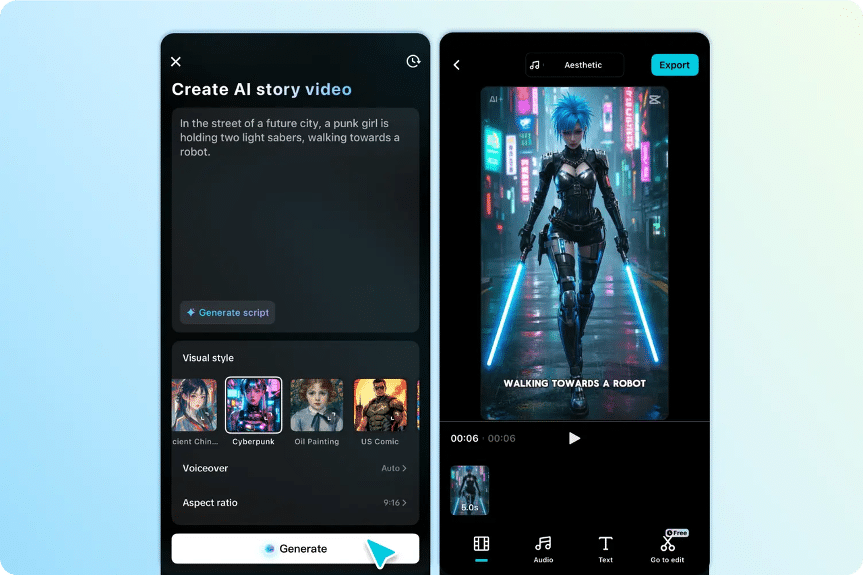
Quotes, using the AI video maker, are turned into movie moments. First, submit your quote in the AI story generator. Select one of almost 30 different visual styles that fit your tone. You may apply Realistic Film when you want raw truth or 3D Anime when you want to be more imaginative.
Every visual style contributes a new emotion to the quote. What you say is living color, movement, and sound. Whether it is a quotation to motivate or a line to get romantic, the visuals echo what it is all about.
This strategy enables you to reach a wider audience. Human beings scroll quickly, but images will halt them. They inspire people to think, feel, and share through quotes.
B-Roll and Sound to Add to Context
Then, let the AutoCut tool take your quote video to the next level. It adds automatically corresponding b-roll shots that relate to your theme. An example is a quote about courage that may depict cliffs, storms, or fire.
Add a matching sound to establish the atmosphere. Emotional quotations should be read in a low background tone, and inspirational ones in a high tone. To add more depth to the emotional impact, consider using slow-motion, elegant transitions, or moody filters.
These additions help your video provide the full impact of the quote. Each lane drags the viewer into the message.
Caption Animation and Pacing to the Maximum
The CapCut App also provides you with the option to animate the text of the quote. Keywords can be highlighted to draw the viewer’s attention. Display powerful words on the screen, such as ‘fearless’ or ‘forever’, and fade in the softer ones.
Apply pace through the use of kinetic typography in the AI caption tools. Synchronize it with the music or changes in the graphics. This creates balance between the seen, the heard, and the read.
Your quote turns into an act. It flows in a rhythm and catches the eye and the heart.
Publishing to Platforms That Reward Meaningful Content
Quote videos perform well on Instagram, TikTok, and YouTube Shorts. These platforms favor short, engaging, and emotional content. When you post your video, include the right hashtags and a strong call to action.
Use the CapCut App’s saved workflows to build a quote-based content channel. This helps maintain a visual style and speeds up future edits. Over time, you can grow a community that connects with your content.
Add Visual Stories to Famous Quotes
Step 1: Start and pick a format
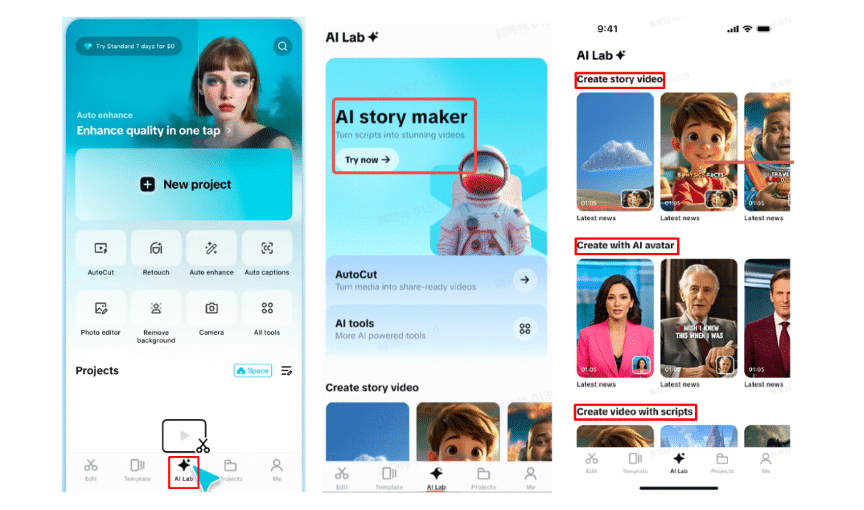
Open the CapCut app and head to the “AI Lab” from the bottom menu. You’ll enter the “AI story maker” area, built to simplify creative video making. Scroll through options like “Create story video”, “Create with AI avatar”, or “Create video with scripts”. Select the template that aligns with the quote you want to bring to life.
Step 2: Visualize and edit story
After selecting your preferred layout, tap “Try AI workflow”. Write your quote concept in the “creating a video story about” field. Choose a matching art style—go with “Realistic film”, “Cartoon 3D”, or “Anime”. Then tap “Generate” to start the visual creation process.
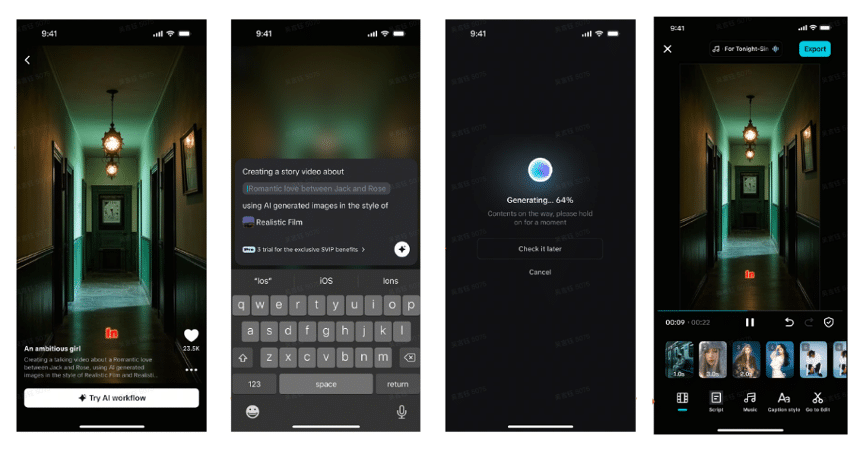
Once the quote video is rendered, fine-tune it. Use “Music” to add an emotional track. Style your captions via “Caption style”—play with fonts, animations, or effects. For more tweaks like transitions, stickers, or color filters, press “Go to Edit” and use CapCut’s full editor.
Step 3: Download and post
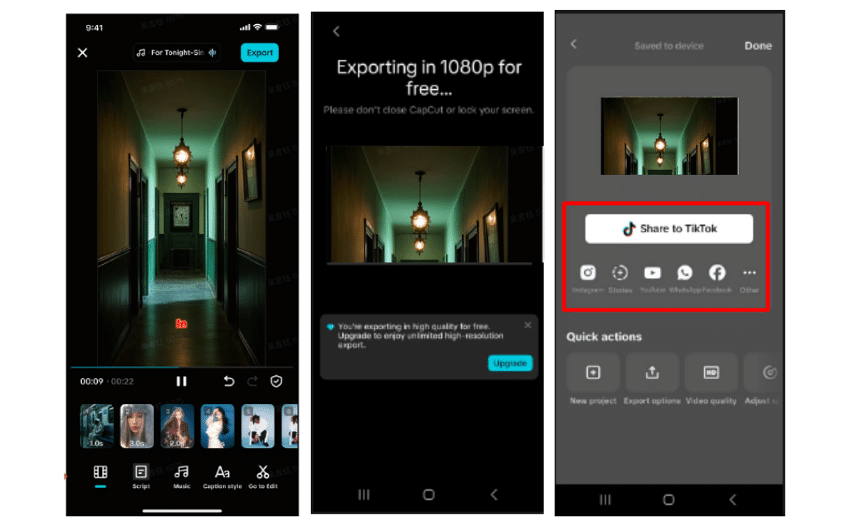
Tap “Export” when you’re ready. Your video gets saved to your device. Now, you can share these visualized quotes across Instagram, TikTok, or YouTube.
Conclusion
The CapCut App allows you to bring quotes to life in ways that text alone never could. It helps you turn single lines into artistic expressions. With visuals, sound, and rhythm, quote-driven storytelling becomes powerful, emotional, and easy to share.











