
Background removal is one of the most helpful editing tactics for any editor. By removing the picture background from an image, you can make it more appealing and shift the entire focus to the main subjects. Not to mention, if you’re planning to create a design using multiple pictures, removing the background from each image will help you maintain one color scheme and enhance the overall quality.
Now, you can use different tools to remove picture background from your photos, but it’s crucial to choose a tool that doesn’t affect the main subjects while deleting the background. We recommend using FocoClipping. It’s an online background remover that uses advanced AI (Artificial Intelligence) to remove the background. Since you won’t have to manually mark the edges, you can stay assured that FocoClipping will not damage the foreground at all.

Here are some of the key features of FocoClipping that make it the best tool to remove background from your pictures.
1. Easy-to-Use Interface
FocoClipping offers an easy-to-use interface that any user can use to remove background. Even if you’re an absolute beginner, you won’t find it challenging to remove picture background from your photos. All you have to do is upload the image and with a single click, FocoClipping will instantly remove its background.
2. HD Output
Unlike many background removers, FocoClipping doesn’t compress the image quality. It only removes the background, which means you can download the final transparent image in HD quality. FocoClipping even supports the highest output resolution, i.e., 3000×3000 pixels, allowing editors to protect the image quality all the time.
3. Smart AI
As we mentioned earlier, FocoClipping utilizes Smart-AI to remove the background. This means that you won’t have to manually mark the background. FocoClipping will automatically detect and remove it without affecting the foreground whatsoever.
4. Cost-Effective
As compared to other white background removers, FocoClipping won’t impact your wallet while removing the background. The tool offers a free-of-cost background removal, which means even if you want to remove background from an image, you won’t have to pay anything at all.
5. Editing Panel
One of the major advantages of using FocoClipping is that it comes with a built-in editing panel that’ll allow you to work on complex images more easily. Let’s say the Smart-AI doesn’t completely remove the background. In this situation, you can simply switch to the “Manual” mode and mark the edges manually to achieve better results.
Part 1. Who Needs to Remove Picture Background
It’s worth noting that background removal is not only limited to editors and artists. There are several other situations where you may want to remove white background or picture background and make your pictures more appealing. Some of these situations include:
1. Advanced photographing editors
People working on graphics, brand logos, and product images always want to enhance the overall appearance of their design. While there are different ways to achieve this goal, the first step is to remove picture background and then apply other editing layers to improve the image quality.
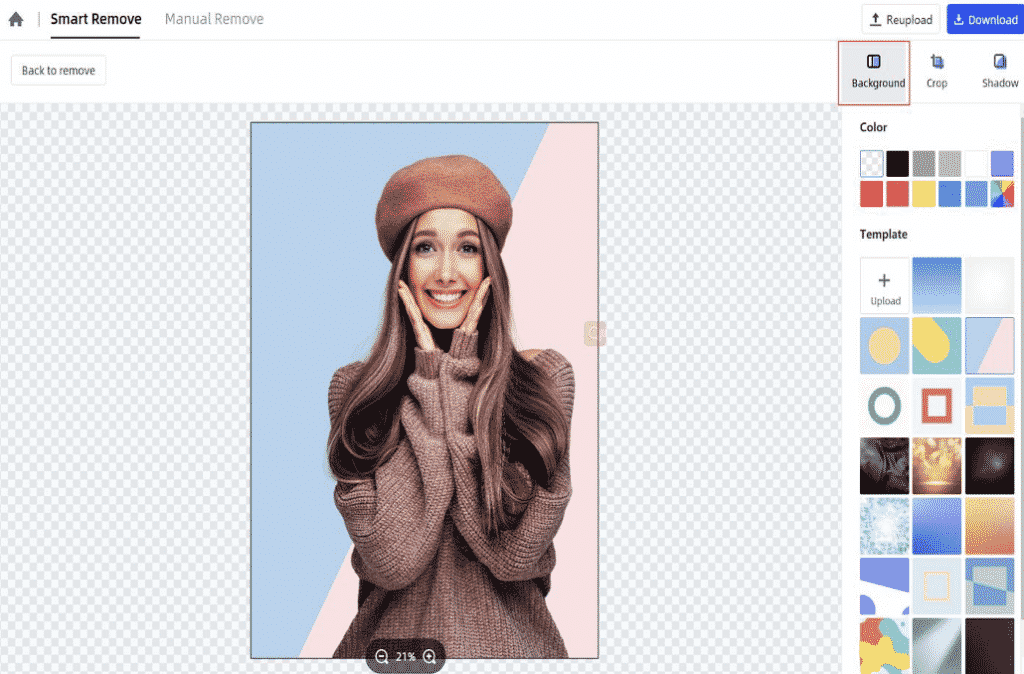
With FocoClipping, you’ll get an advanced editing panel that’ll allow you to perform different editing operations after removing the background.
2. Image considerations
While executing “Image consideration” (deciding how many pictures need to be added) for your website, background removal will prove to be extremely beneficial. By removing the white background and making your pictures transparent, you can add more images and make the website visually captivating.
3. Photographic edge
While working on complex images, editors often have to adjust the edges to ensure that important details of the pictures don’t get affected. Since FocoClipping comes with a dedicated “Manual Removal” mode, it becomes quite easier to manage all the edges and keep the picture as appealing as possible.
4. Magnificent pictures
If you’re not a designer or professional editor, you can still remove the background to create magnificent images. By removing the existing background, you have the power to replace it with something more attractive. This way you can also step up your social media game and engage more followers.
5. Photograph eliminating
Another reason why you would want to remove picture background from an image is to eliminate the unnecessary elements. For instance, if the background has unwanted noise or an object that’s affecting the foreground, you’ll be able to fix it by simply removing the entire background.
Now, let’s quickly walk you through the step-by-step process of using FocoClipping to remove picture background from any image.
Step 1 – First of all, go to https://www.fococlipping.com/ and click “Upload Image” to add the picture whose background you want to remove. Alternatively, you can directly drag the image to upload it.
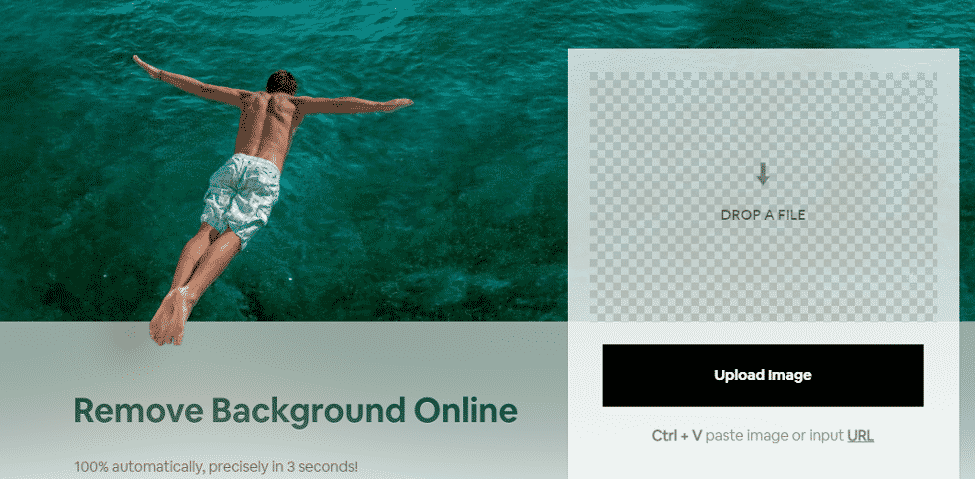
Step 2 – The tool will automatically start importing the image in its editing panel. Once the process completes, choose the image type from the top-left corner and wait for FocoClipping to automatically remove the background.
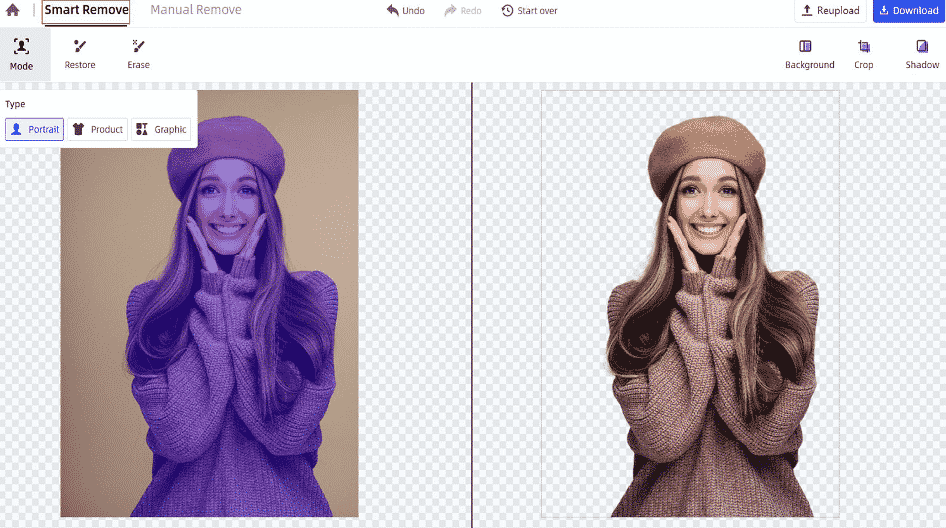
Step 3 – You’ll see the transparent picture on the right side of the screen. At this point, simply click the “Download” button at the top-right corner to download the final image on your computer for free.
Part 2. Tips to Remove Picture Background
Finally, before taking an adieu, we would like to share a few helpful tips that’ll help you achieve the best results while removing background from an image.
- If you’re working on technical images with too many elements, it would be better to use the “Manual Mode” to manually mark the edges and protect the foreground
- If you’re using a desktop tool to remove the background, make sure to save the final image in “.PNG” format.
- After you’ve successfully removed the background from an image, always try to save the final image in the highest available resolution. This will help you keep the picture quality intact.











