

Video editing has become a vital niche for many people. Quality videos can be seen in everything from social media to PowerPoint presentations. Only the best tools will do editing much more effectively and efficiently.
Video editors can have a significant impact on the final product that you want to provide. There are lots of software options available, but not all of them have the same functionality. Vegas Pro is one of the most straightforward video editing software online. Also, the Filmora video editor is described as flexible and configurable.
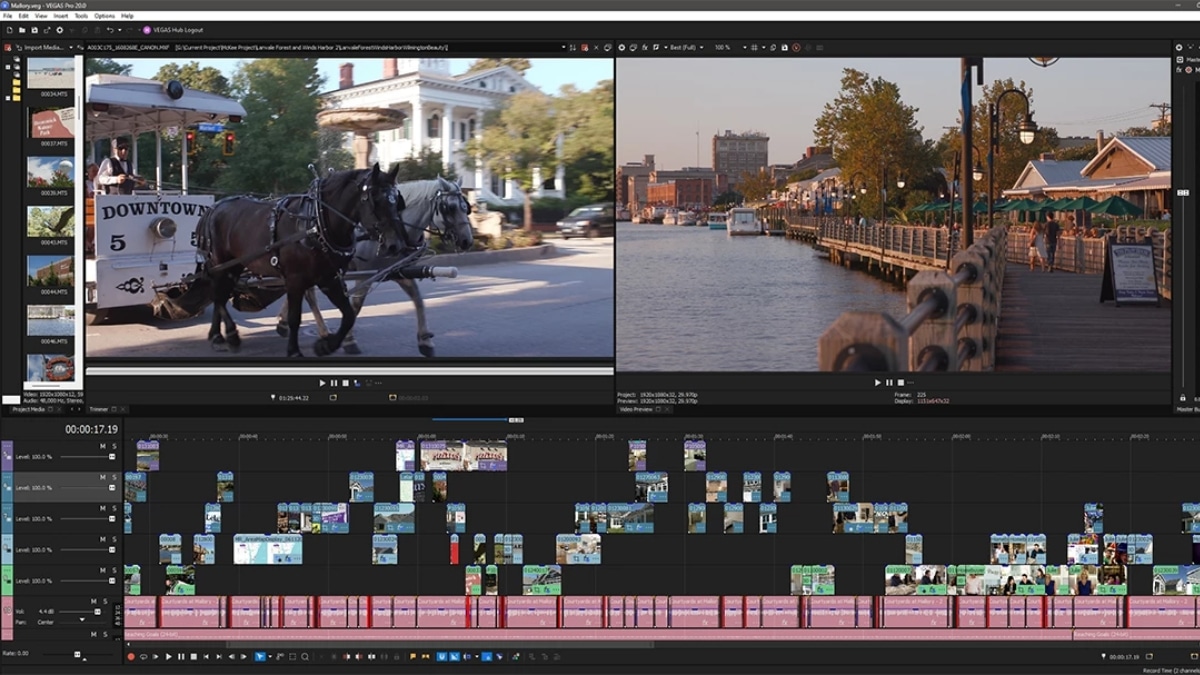
This article will provide a detailed comparison of the two editors, Filmora and Vegas Pro. Here, you can get general information on each tool.
Part 1: Filmora vs Vegas Pro – An Overview
Filmora and Vegas Pro are two well-known video editing programs. Both are designed for different users with various needs and levels of skills.
Vegas Pro is for professional editors because of its complex user interface and many advanced tools. On the other hand, Filmora is designed for both beginners and experienced users. It is well-known for its powers and versatility. Let’s start by introducing the tools we’ll be comparing in detail.
Tool 1: Filmora Video Editor
Wondershare Filmora is one of the most excellent video editing programs. It provides a professional approach to edit your videos, making the process enjoyable. As a result, Filmora’s video editing soft ware is considered a top tool in the industry.
It has many effects, transitions, templates, and filters. This allows you to make high-quality videos right away. It has many AI features that can be used for professional movie making, such as green screen, AI motion tracking, AI enhancer, etc.
Why You Should Pick It
Using Filmora, video creators can create elegant and professional-looking videos. It produces videos without creating any issues. Also, the drag-and-drop interface makes adding effects and transitions easy with a few clicks.
Filmora’s ease of editing shows that you don’t need to be a skilled editor. You can use pro features, including AI-Quick Improve tools, scene identification, and a green screen. It is helpful for users looking to add originality to the content.
Who It’s For
Filmora video editor is designed for everyday creators, social media creators, and YouTubers. The tool is suitable for newbies and experts due to its very well-crafted interface. No other video editing software can compete with Filmora in terms of simplicity and reliability.
Tool 2: Vegas Pro
Vegas Pro is a video editor with many options for adjusting video tracks. It supports various formats, like Apple ProRes, Panasonic AVCHD, and more. You can use its hundreds of filters and effects to make your video track more visually appealing.
Its AI-powered algorithms allow you to edit videos quickly and professionally. However, its interface may be complicated for users without video editing experience.

Why You Should Pick It
It’s a good option for those requiring a tool for color editing tasks. The AI-powered features in Vegas Pro can automatically colorize black-and-white videos. You can use this software’s VFX feature to create video action scenes.
Who It’s For
It is best for the production of music videos and TV shows. Its color grading and multicam editing features are helpful for event videographers. YouTubers and social media producers value its advanced abilities and pro-level interface.
Part 2: Filmora vs Vegas Pro – How to Use It?
Now that you understand what each tool offers, let’s begin editing. Both Filmora and Vegas Pro offer a different editing experience. In this part, we’ll walk you through the basic editing steps in Filmora and Vegas Pro.
How to Edit Videos in Filmora Video Editor
Here is a complete guide to editing videos using Filmora.
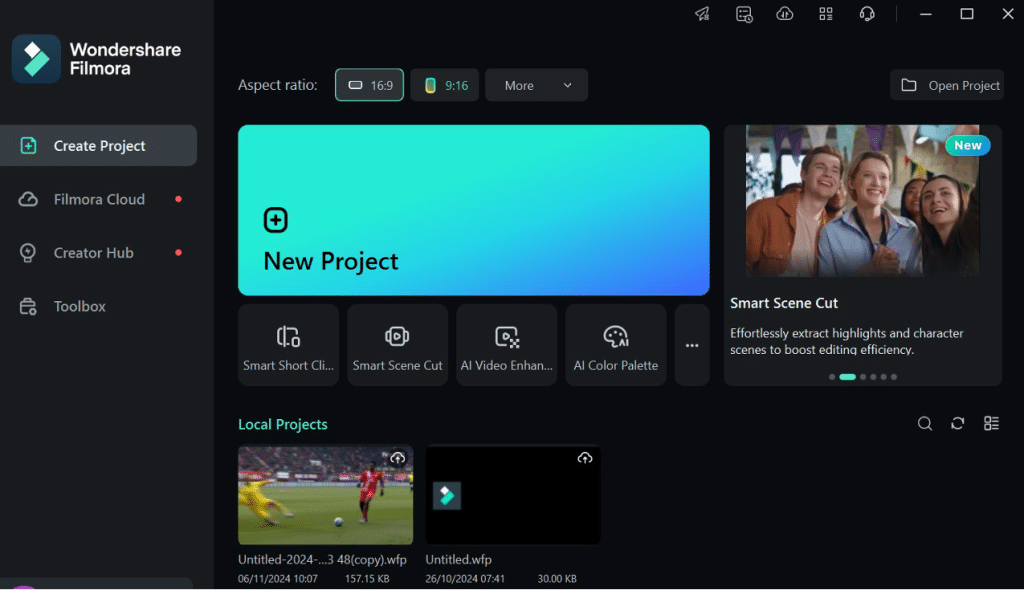
- Step 1: Open Filmora
To begin, double-click the Filmora icon and open it. Select the desired aspect ratio (16:9, 4:3, 9:16, or custom). - Step 2: Start a New Project and Import Media
To include audio, video, or images, select import media files. Click Import after selecting files.
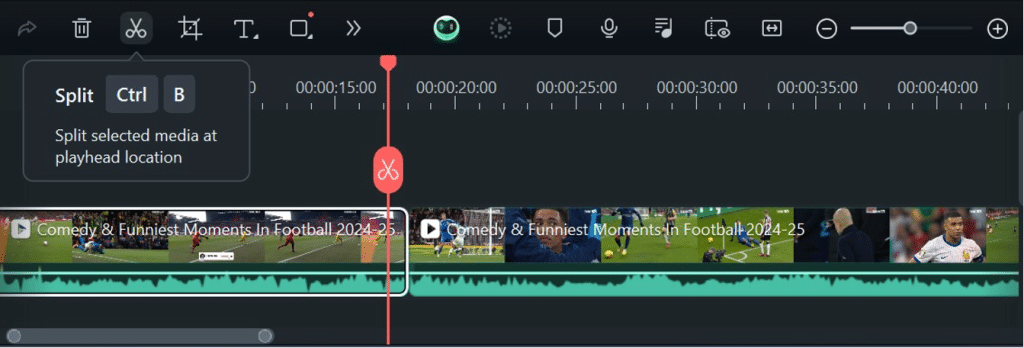
- Step 4: Cut and Position Clips
Drag files onto the timeline. Then, position them as necessary and remove any unwanted portions.
- Step 5: Use Visual effects
Separate the audio and video files and add music, effects, or transitions. For titles and subtitles, use the Text/Credit symbol.
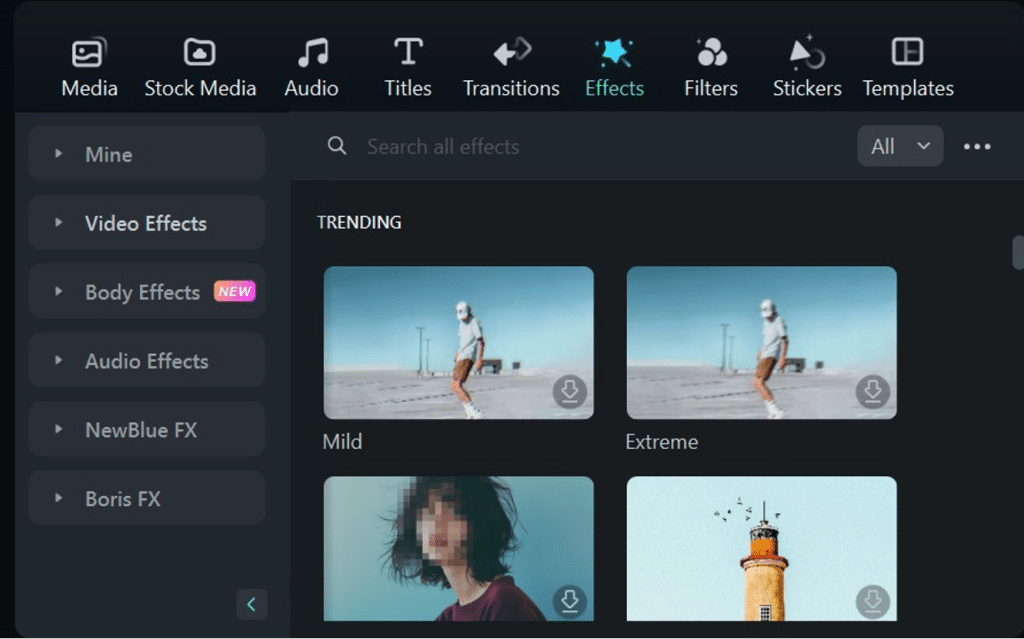
- Step 6: Adjusting Colors
Use the Effects icon and change the duration of the filters and overlays. To adjust color values, use Advanced Color Tuning. - Step 7: Share and Export
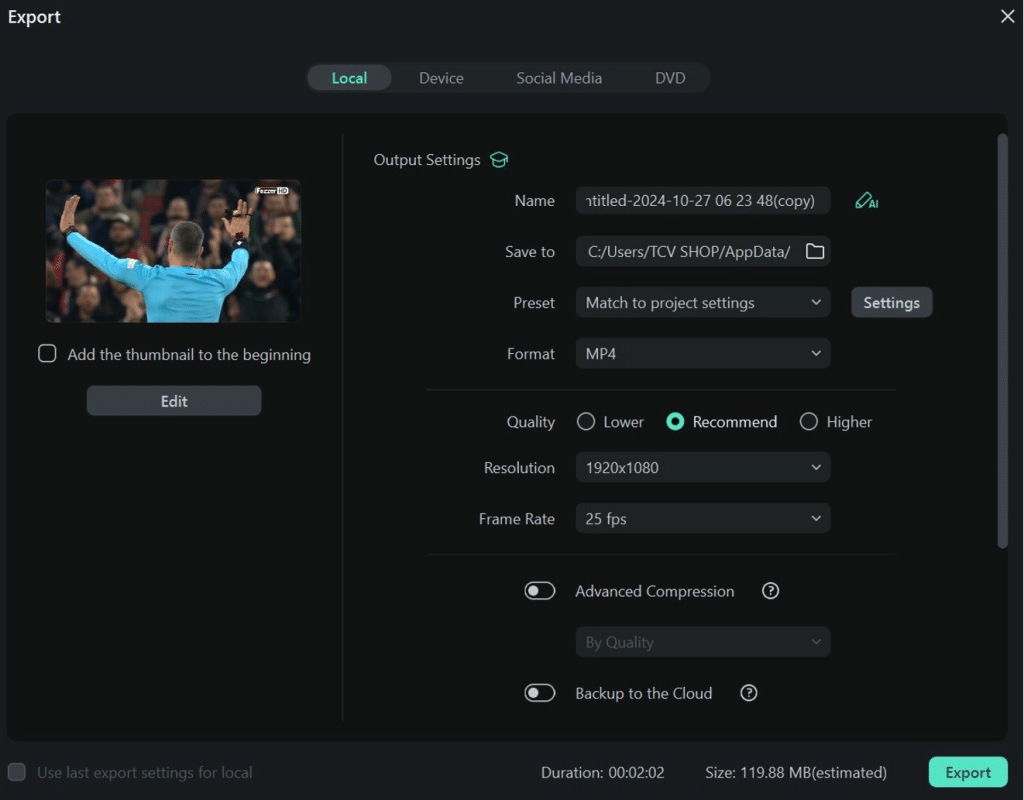
Choose the location to save the video using your desired file format and click Export.
How to Edit Videos in Vegas Pro
Here are some steps for editing videos in Vegas Pro.
- Step 1: Import Media
Import the media files and arrange them for quick editing. - Step 2: Basic Edit
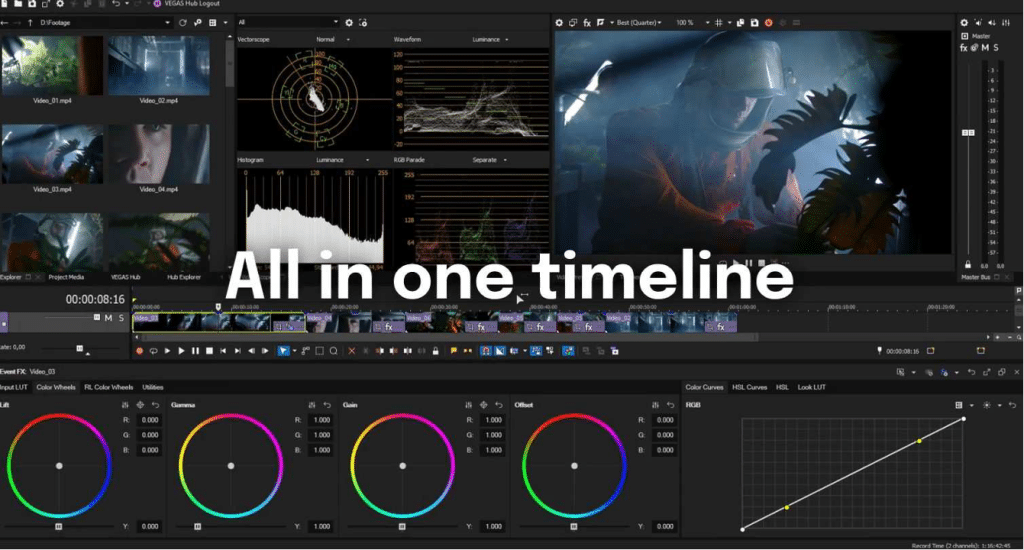
Reduce the length of your clips and select smooth, seamless transitions between them. Most transitions between scenes or parts should be straight cuts followed by fades or dissolves. You can include music, titles, effects, and other information from the bar. - Step 3: Adjusting Colors
You can fix issues with Vegas Pro, including color difficulties and unsteady footage. You can use video scopes, color curves, and correction tools.
- Step 5: Export
You can do other edits to your video like any other video editor can do. After editing, export the video to save it on your device.
Part 3: Filmora vs Vegas Pro – A Comparison Table
Here, we will discuss a complete comparison between Filmora and Vegas Pro.
| Feature | Filmora Video Editor | Vegas Pro |
| Effects & Templates | Filmora provides over 1M+ Including filters, titles, stickers, transitions, and effects. 10K+ Utilizable Video Templates | Effects are changes in speed, artistic filters, stylistic color grading, 3D elements like CGI, and more. |
| AI Tools | Filmora includes AI tools like Smart Cutout, Scene Detection, AI Portrait, etc. | AI tools in Vegas Pro include Text-to-Speech, Smart Mask, and Z-Depth compositing. |
| Audio Editing | Noise reduction, Equalizer, Stabilizer, Voice Enhancer, etc. | Noise gate, equalizer, and compressor. |
| Target Audience | Beginners and Professionals, Social media creators, YouTubers, etc. | It is best for TV series producers and color editors. |
| Pricing | Filmora has a free plan and Monthly: US 9.99/. Advanced 34.99/. Perpetual US 49.99/. | Pricing of Vega Pro starts from US 11.99/month with a free trial. |
| Output Quality | Supports 4K and HDR outputs. It also focuses on versatile format exports and excellent cinematic output options. | Vegas Pro is perfect for ads and professional videos because it supports 4K and 8K resolution. |
Conclusion
Now you know about the two popular video editing software solutions, Vegas Pro and Filmora. Vegas Pro is ideal if you want a tool for generating movies to post on social media.
Wondershare Filmora is a professional video editing and post-production program. It suits complex tasks that demand the most advanced tools and functionality. For those who seek even the slightest control, Filmora appears to be the best alternative. So, if a professional requires a powerful tool, you should consider it.











