
Many iPhone and iPad users experience difficulties when is comes to available options for converting and downloading content from YouTube and files in MP4 format. So, if you need to save a video on your gadget the only familiar way for most of uses is to purchase a Premium subscription on YouTube which will provide access to special button for saving video content on your iPhone or iPad.
It should be mentioned that Premium subscription also allows watching videos without ads. Good news concerning the option of loading videos is that the mobile YouTube application for devices on iOS and Android now allows downloading files at 1080p (before it was only 720p).
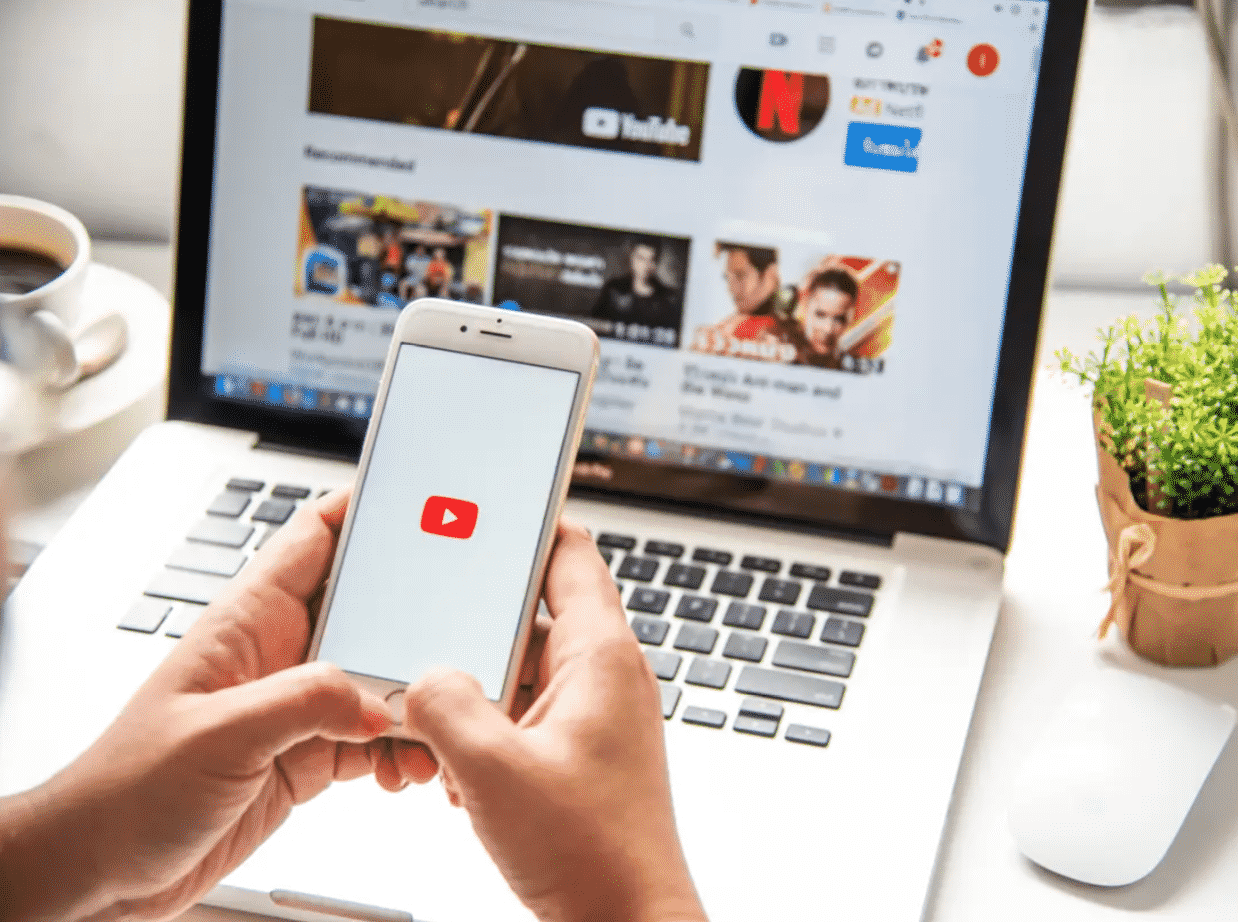
Of course before subscribing to $11,99 monthly fee for Premium status (or $9,99 for those who make a purchase on one of the Customers Red Days) you’d like to check your other options. And here we are to help you!
First of all, let’s split this task in 2 parts:
– download video or music from YouTube
– upload files to the iOS device
There are plenty of online downloaders along with software solutions to help you with saving YouTube video in multiple formats and resolutions. This part is really simple, just keep in mind that you want MP4 format to make sure video will be played on iOS without any problems.
So once you’ve download an MP4 file you have to transfer it to your device. How can you send videos from PC to iPhone? Apple fans know that iTunes is not available anymore, but still there are several ways for transferring data from any device to iPhone or iPad. The detailed description of the steps follows.
iCloud for Transferring Videos from PC to iPhone
Both iTunes and iCloud are the products of Apple. The benefit of iCloud is that it’s cloud based and allows sharing pictures, videos and all the other data between devices wirelessly. Moreover, iCloud is adopted to PCs on Windows OS. Turn iCloud on and take an advantage of exchanging data between your Apple gadgets and other platforms.
Before using iCloud make sure that the Apple ID on your PC and iOS device are similar and that there is enough free space in iCloud for saving the loaded content.
If you have the installed control panel of iCloud, you can use one of the available methods in order to send videos from your PC to iPhone. Such online services will optimize the using of your iPhone or iPad and provide access to all the videos and other files you like so that you’ll be able to open it even without internet connection.
Transferring Videos from PC to Apple device with iCloud app for Windows
- on your device go to Settings and follow the menu: [Your Name] – iCloud – Photos, choose iCloud Photos;
- save the video on your PC that you want to send on Apple device using iCloud;
- click on the icon of iCloud on the task panel on your computer and select Open iCloud settings;
- in Photos select iCloud Library which will appear in the popup window;
- from the list of options select Upload new photos and videos from my computer and click on Change for setting the folder with the necessary files;
- copy the content that needs to be transferred to your Apple device;
- after the syncing is complete, proceed to Photos app on your smartphone and find the transferred item.
Transferring Videos from PC to Apple device through iCloud.com
- turn on iCloud Photos on your Apple through Settings menu;
- log in with your Apple ID at iCloud.com;
- select Photos from the available options;
- pick the icon for uploading and choose the items to transfer;
- once the upload is complete find the files in Photos app on your device.
Transfer Videos from PC to iPhone using Dropbox
iCloud is not the only way for achieving same results. There are alternative services such as Google Drive, Dropbox and others that may be used for data transferring. Let’s take Dropbox and learn it’s specifically.
For transferring videos through Dropbox to your Apple you need to do the following:
- save videos from your computer to Dropbox;
if you have Dropbox app on your PC, select Upload Files option from Files – My Files sub menu and upload the files to Dropbox;
also you can register/log in to Dropbox.com and work with the Web version;
- find and install Dropbox app from Apple AppStore on your device and sign in with the same ID as on the PC. It will find and start loading files from Dropbox to your device;
- once the syncing is complete you’ll be able to find videos and other files on your Apple device.
We believe the above methods will help in the most of cases when one needs to transfer music or video from YouTube to their iPhone and iPad devices. Pick one that fits you best and enjoy the content no matter if you’re online or offline.











