
Introduction:
Are you looking to repair photo in the photo library of your PC that got corrupted? Read on as we lead you to the best answer.
In our daily lives, photos and digital media make a notable impact, and losing them can be devastating, particularly for professionals, if their entire photo library becomes corrupted. The reasons can be several, like
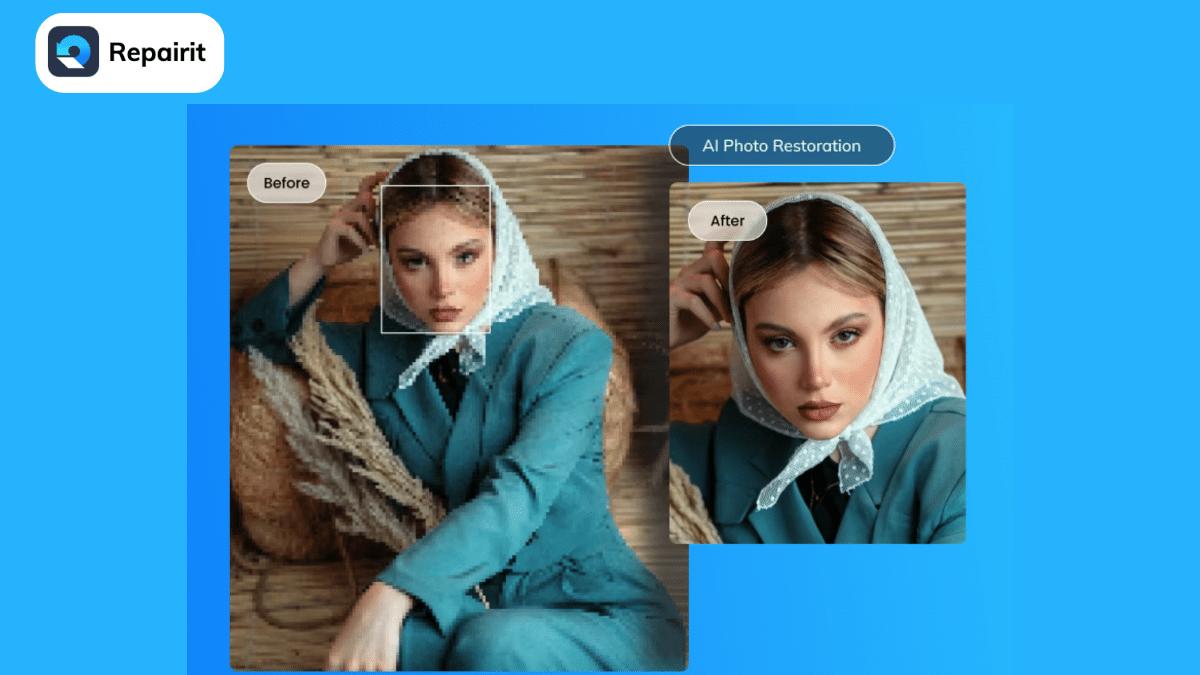
outdated operating system (OS), virus and malware attacks, corrupt files within your photo library, hardware issues, and bad sectors on storage media that can cause inaccessibility issues. Understanding these potential causes can better prepare you to image repair and safeguard your valuable memories from corruption and loss.
Thus, today, we will explore the best photo restoration software for all your needs. Let’s get started!

Part 1: What is the Concept of Photo Restoration?
Photo or picture restoration repairs and enhances old, damaged, or faded photographs to bring them back to their original condition or improve their overall appearance. This practice involves using various techniques and tools that repair physical damage, correct color fading, remove stains or scratches, and restore the overall quality of the image.
Restoring photos using AI brings new life to old and damaged photographs and is vital in preserving our visual history and cherished memories. It allows us to revisit the past and celebrate our heritage while safeguarding the legacy of important moments captured in these precious images.
Part 2: How to Select the Best AI Tool for Photo Restoration Process?
The best picture repair AI tool for photo restoration should possess several vital qualities, including:
- High-quality restoration: The AI tool should repair damaged areas, correct color fading, and eliminate imperfections while maintaining the authenticity of the original image.
- Versatility: It should restore photos from minor scratches to more complex damages and be adaptable to photographs, whether black and white, sepia-toned, or colored.
- User-friendly interface: An intuitive interface ensures a smoother and more efficient restoration process.
- Speed and efficiency: Faster and more efficient processing times enable users to restore multiple images within a reasonable timeframe.
- Customization options: While automation is valuable, the AI tool should provide users with customization options to retain creative control over the final output.
- Preservation of details: The old photo restoration process must preserve and enhance the fine details in the photograph, such as facial features or intricate textures.
- Noise reduction: Advanced noise reduction capabilities are crucial for clarity and sharpness, especially when restoring old photos.
- Non-destructive restoration: The AI tool should work on a digital copy of the original photograph, leaving the original file untouched.
- Batch processing: It must process multiple photographs simultaneously (batch processing) for users with many images.
- Regular updates and improvements: The best AI tool should receive periodic updates to stay current with the latest technology.
Part 3: The Most Powerful and Innovative AI Photo Repair Tool for Photo Restoration
Introducing Repairit – Your All-In-One AI-Enhanced Data Repair Solution for Multi-Platforms!
There is no need to worry about corrupted videos, photos, or files that won’t open anymore – Repairit has your back! With its cutting-edge AI technology, you can now effortlessly restore all your precious data, whether stored online or on your PC. No more data limitations or format worries – our desktop solution repairs videos, photos, files, and audio for all formats and corruption scenarios, all with the help of powerful AI.
Experience the convenience of repairing your data within seconds, anytime, anywhere, and by anyone.
Features:
- The AI-driven technology ensures that no file size or number is too much for Repairit to handle.
- Whether unreadable, damaged, or deleted, you can easily trust this image repair tool to retrieve every important email, repair Outlook PST/OST emails, and even restore long-deleted emails.
- Repairit has been perfecting its proprietary data repair technologies for over 20 years, serving over 2,000,000 satisfied global users.
- Its secret lies in incorporating advanced AI algorithms, such as Adversarial Generative Networks and Intelligent Sample Polling, to enhance the quality and efficiency of data repairs.
- From AI photo enhancement and intelligent video repair to AI image upscaling, it offers many benefits to help you restore, relieve, and rejoice as your precious data comes back to life.
Embrace the power of AI with Repairit and witness how AI-powered picture repair experts can bring back your cherished memories and critical files in no time. Trust Repairit to safeguard and restore what matters most to you!
How to Restore Photos Using Wondershare Repairit
Now let us go through the step-by-step method of photo repair on Windows via the best tool in the industry.
1. Launch Wondershare Repairit
Launch Wondershare Repairit on Windows or Mac.
- On Windows
Double-click the “Wondershare Repairit” icon on the Desktop or type “Wondershare Repairit” in the search box on your Windows PC and then click the App.
- On Mac
For Mac, double-click the “Wondershare Repairit” icon on the Mac Desktop or use the Finder.
Repair Photos on Windows
Windows users can repair photos by following three simple steps.
Step 1: Upload photos
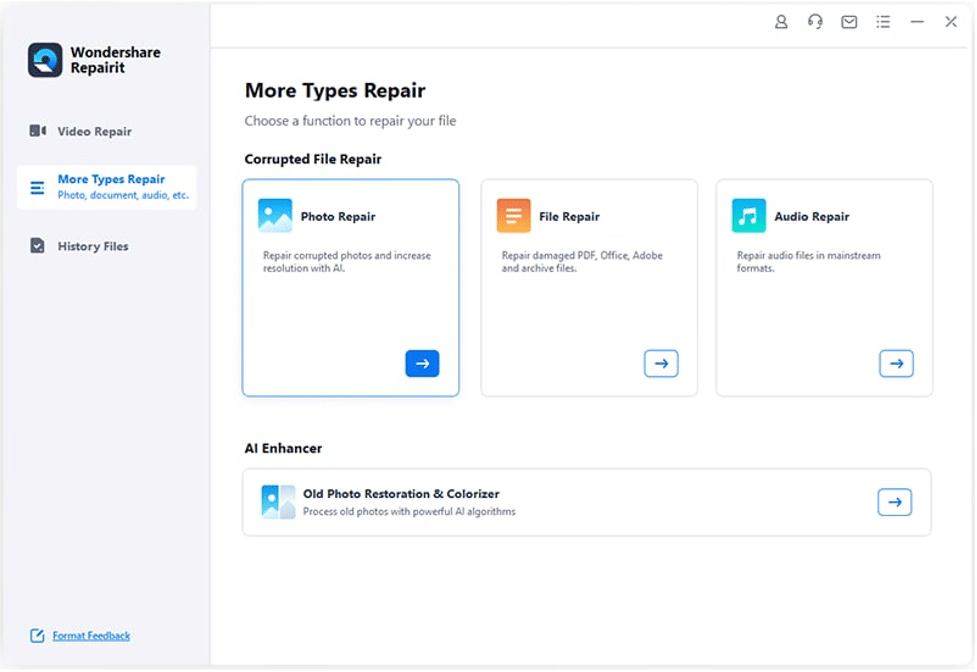
Go to “More Types Repair” from the sidebar, choose “Photo Repair,” and click on the “Add” button that would load a browser window.
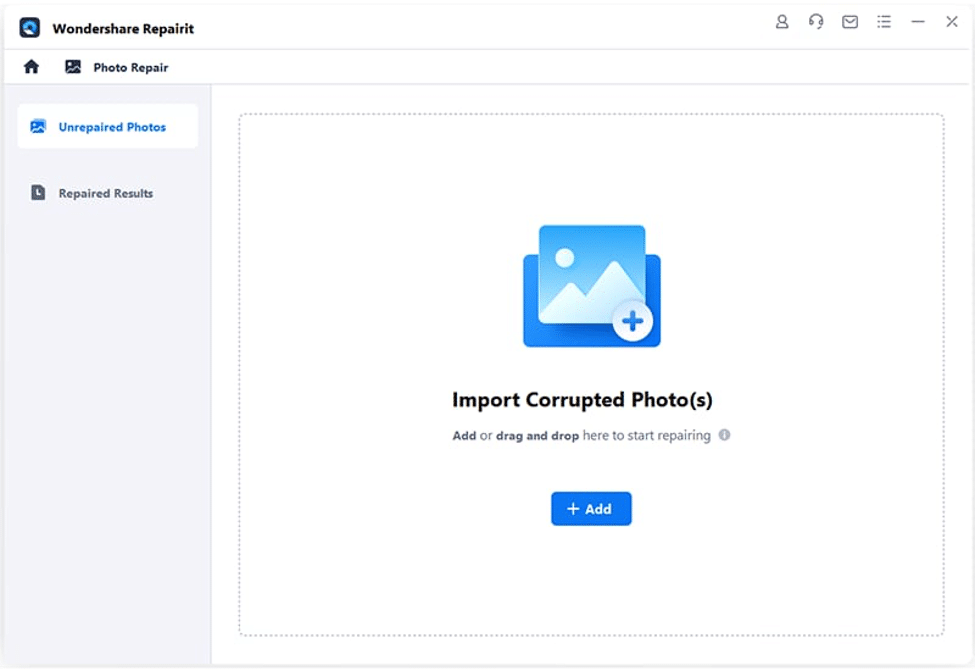
Now visit the location where your corrupted photos are and start uploading.
Step 2: Repair and preview
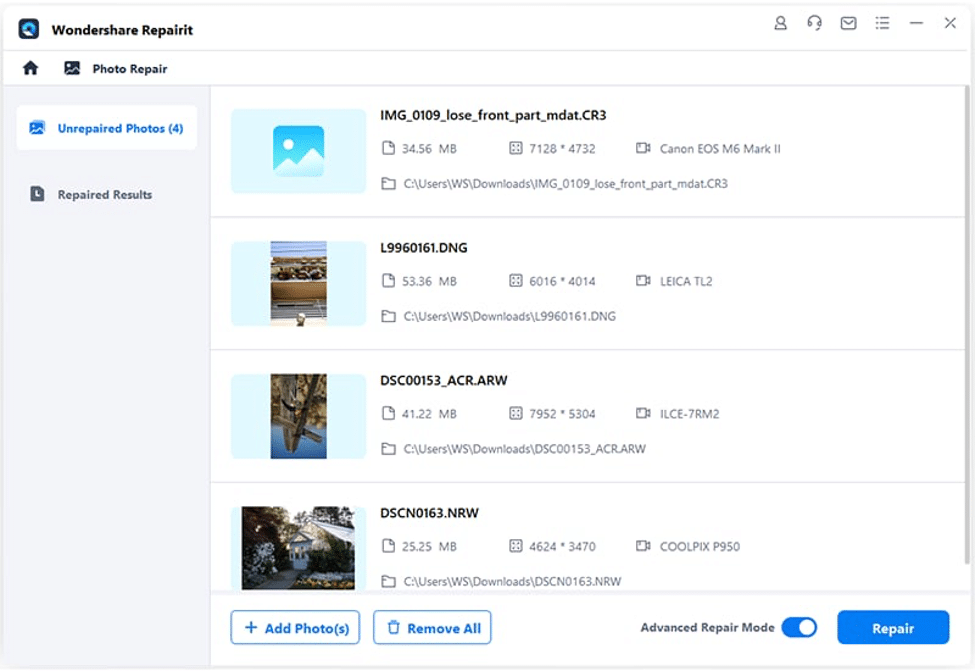
Once your images are uploaded, their thumbnails, file size, photo resolution, etc., will also show.
Click on “Repair” to begin the process.
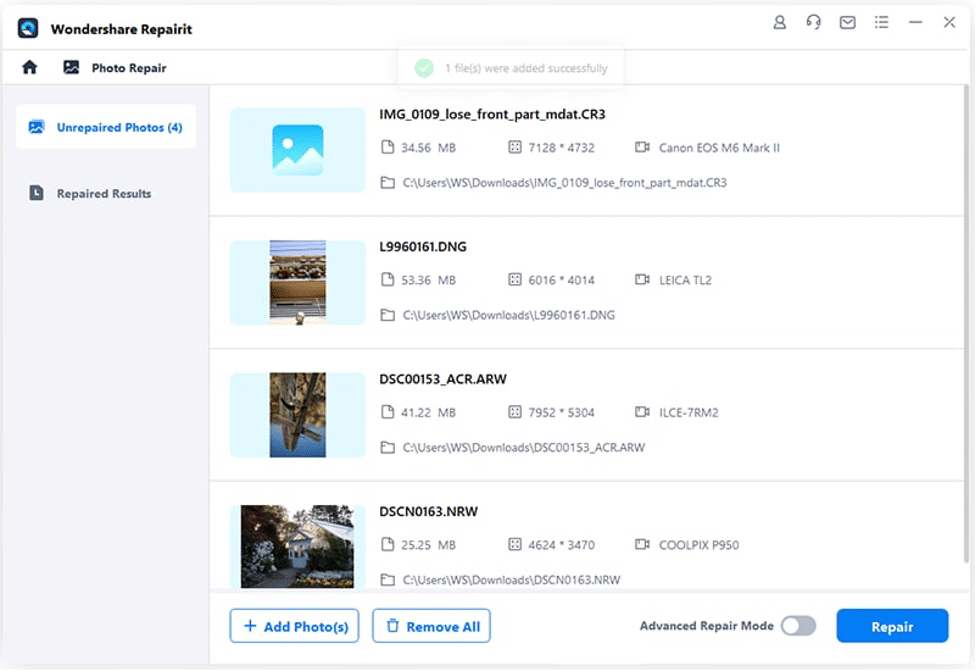
Wait as the application implements a unique algorithm to repair photos. The application will let you know about the result when the repair process is over.
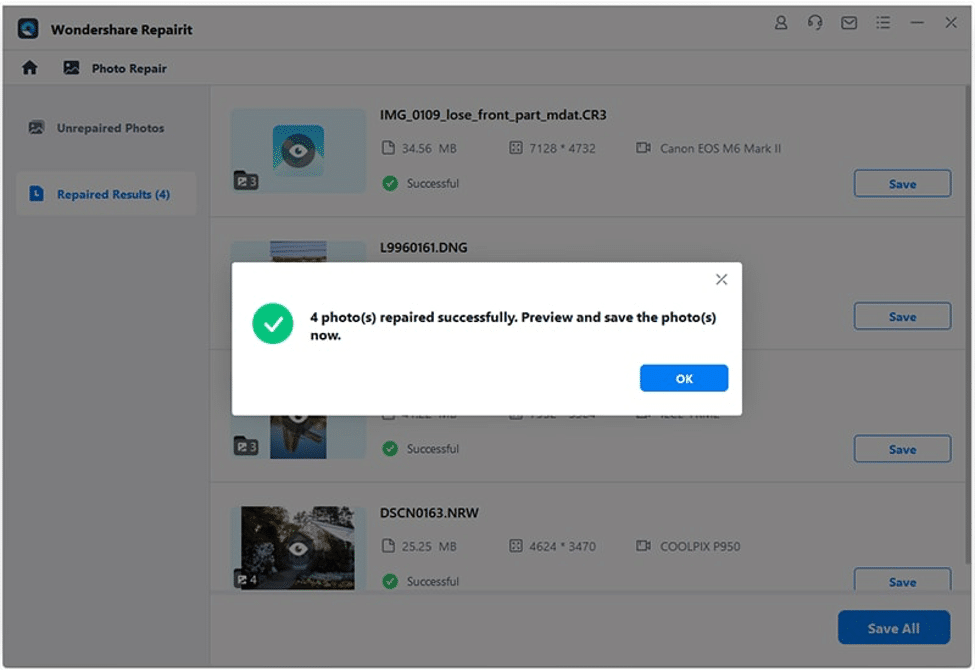
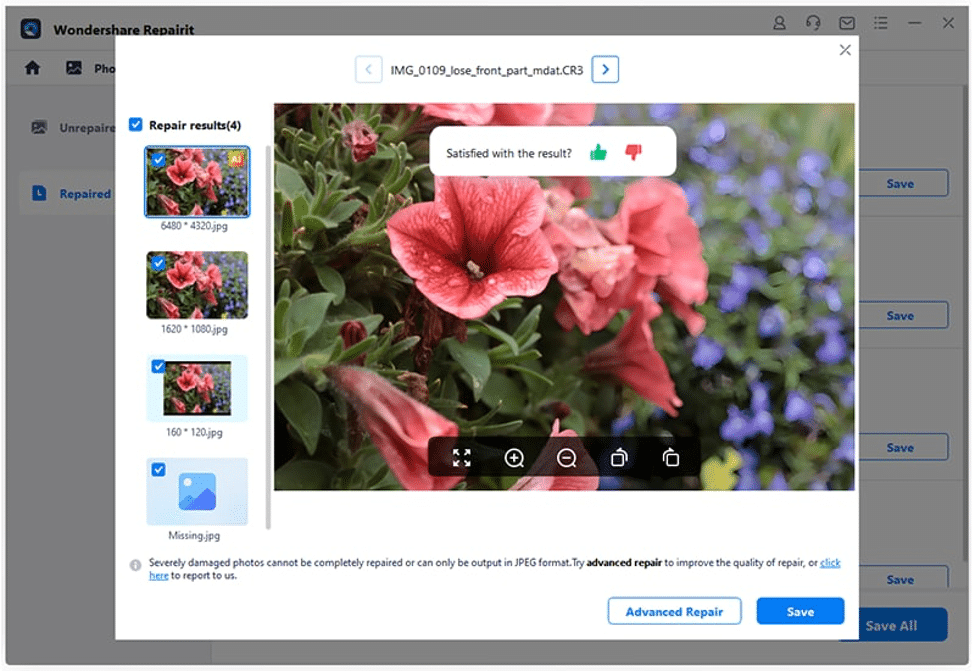
2.1 Preview and save the repaired photos
Click on “Preview” to check the repaired images, or click on the image’s thumbnail to open its preview window.
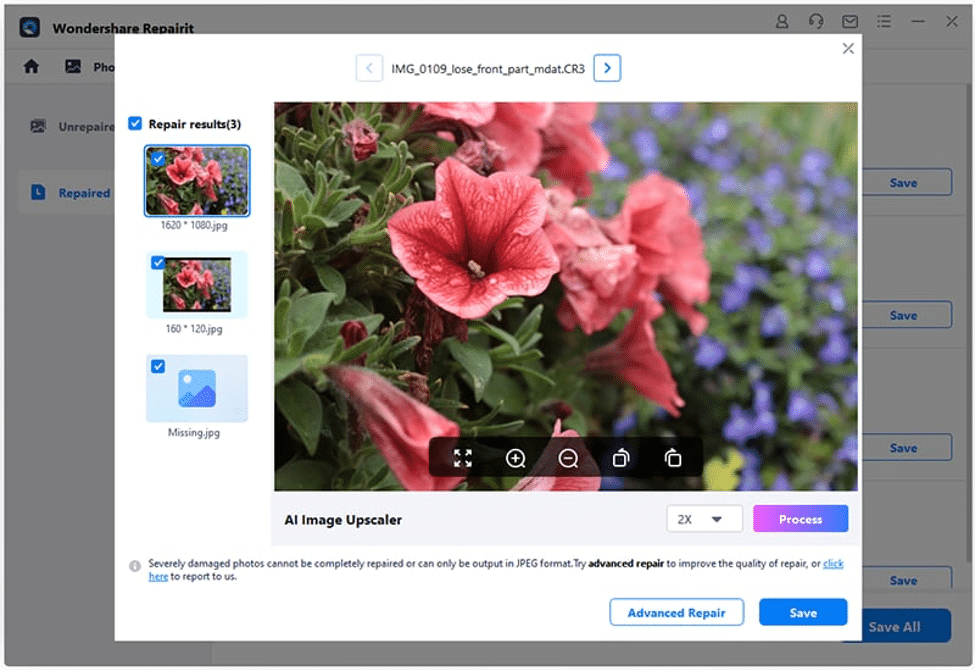
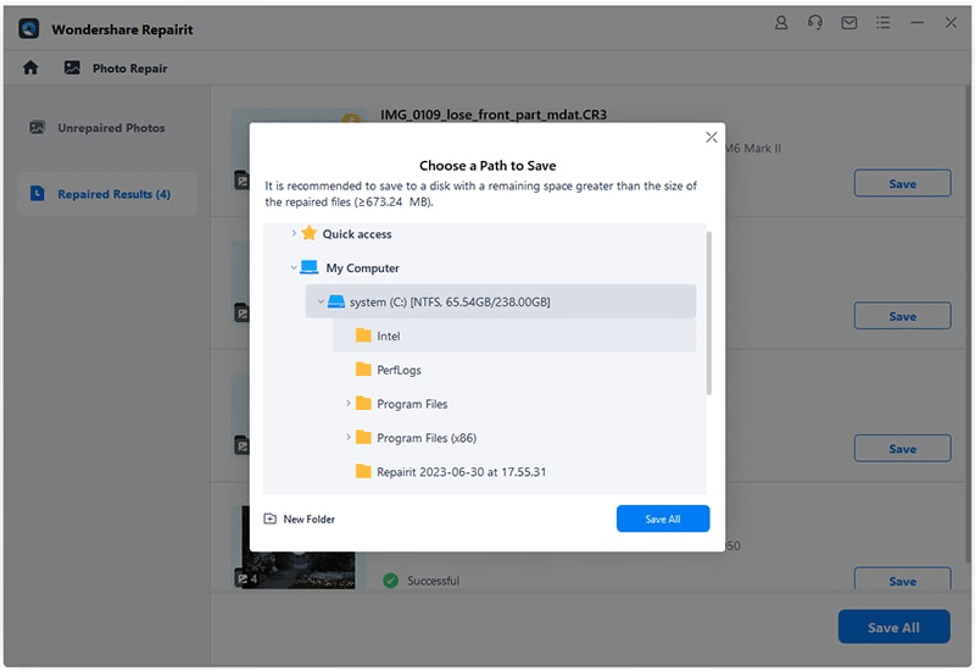
If satisfied, use the “Save” button and choose a target path to save the repaired photos.
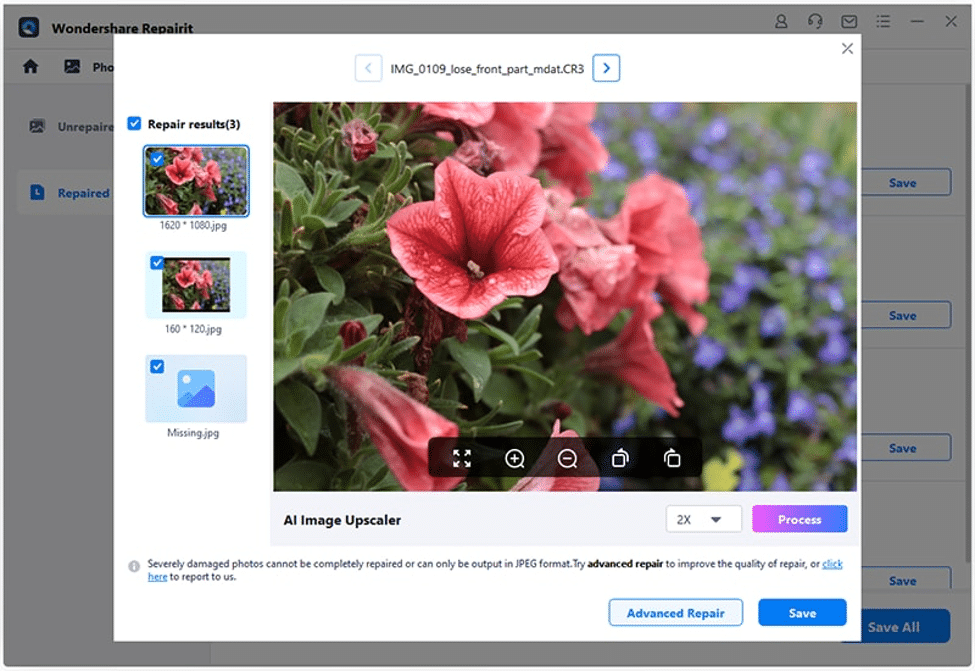
Before saving the repaired photos, you can use the “AI Image Upscaler” option to enlarge the pictures to 2X, 4X, or 8X.
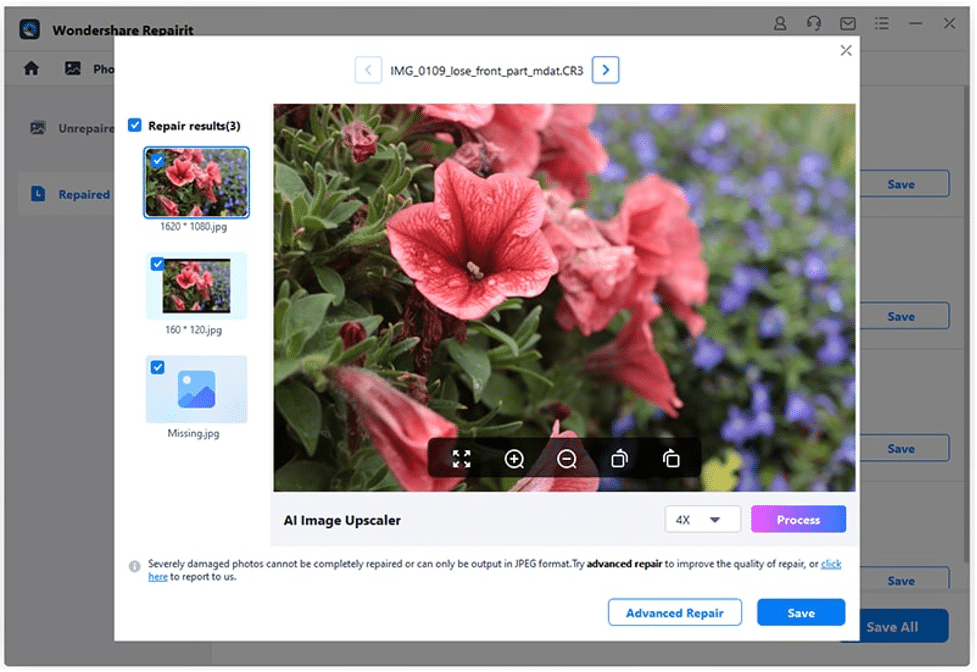
After the photos are upscaled successfully, click “Save” to save them on your Windows.
2.2 Advanced Repair (Add a sample photo)
If the standard Repairit option did not work as expected or the photo repair process failed, you can perform “Advanced Photo Repair.”
Also, you can click on the “Advanced Repair” option after uploading the corrupted photos in the first place. The “Advanced Repair Mode” is at the bottom panel of the Repairit interface when you start to repair the images.
To run the Advanced Photo Repair function, add a sample photo shot on the same device as the corrupted photo and of the same format.
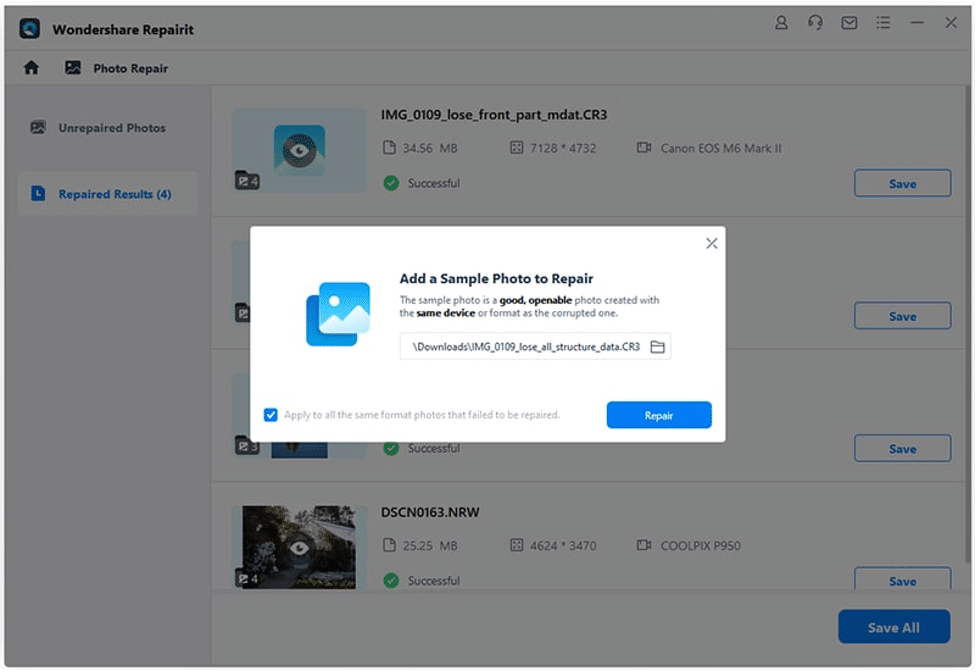
After uploading the sample image, click “Repair” and pause, as Repairit fixes your photos. You can check how the advanced photo repair is working and change the sample photo (if need be).
Step 3: Save the photos
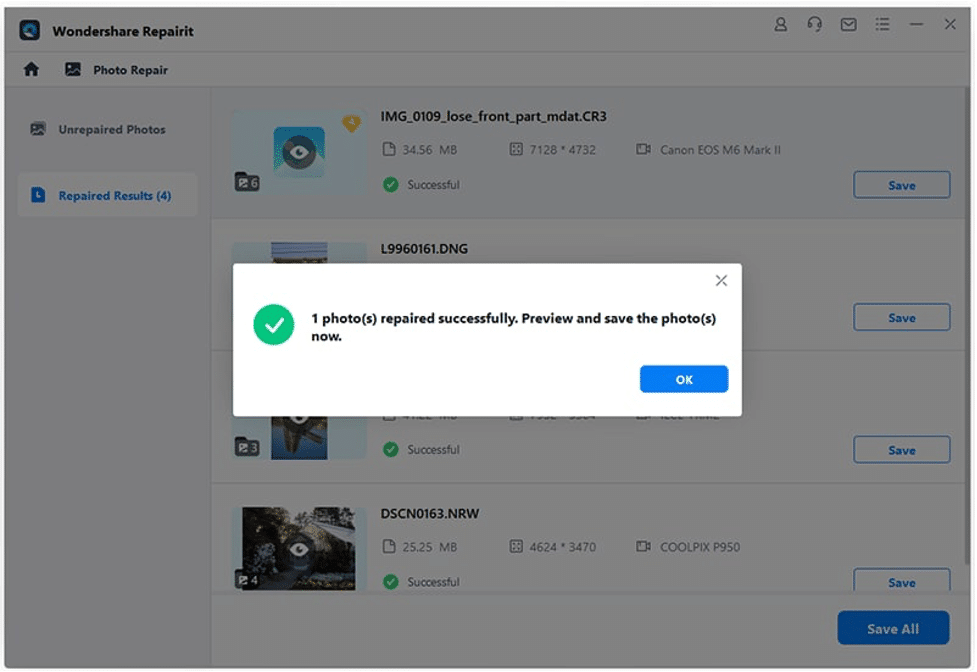
Lastly, click the “Save” button on the preview panel to export your photo. You can also select multiple pictures and click on the “Save All” button.
The application will now let you browse the place you want to save the repaired photos from Repairit.
Part 5: Closing Words
Thus, in this post, we covered detailed information on Wondershare Repairit to fix damaged and corrupted images on your Windows PC. Besides the step-by-step method of restoring old photos, we also shared how to pick the best AI tool for picture repair.
So, guys, when are you downloading the trial version of Repairit for repairing pictures?











