

Creating professional videos no longer requires cameras or actors with today’s AI avatar creator. These digital presenters help produce quality content quickly, speaking naturally in multiple languages with realistic expressions. They work perfectly for marketing, training, or social media content.
In this guide, you’ll learn how to create AI avatars using professional tools. The technology has advanced enough that anyone can now produce high-quality videos easily. Whether you need a brand representative, an educator, or a video presenter, AI avatars are a practical solution worth trying.
Tool Requirement: Best AI Avatar Creator
After testing many AI avatar makers, Virbo AI Avatar Creator delivers the best mix of easy use and professional quality. This feature works perfectly across all devices – Windows computers, iPhones, Android phones, and web browsers. For users switching between different devices, this cross-platform support makes work much easier.
The best AI Avatar Generator solves two key problems well. It provides over 350 pre-made avatars for quick video projects when time matters most. Even better, its custom avatar feature can transform a simple photo into a realistic digital version that copies real facial movements accurately. These tools are part of Wondershare Virbo’s complete AI video solution.
Key features of Virbo AI Avatar Generator:
- Preset & Custom Avatars: Select from 350+ ready-to-use digital presenters or create your unique avatar from photos, perfect for maintaining brand consistency across videos.
- Realistic Lip-Sync: AI-powered synchronization ensures every mouth movement matches spoken words perfectly, making your talking AI avatar look and sound authentically human. This technology eliminates robotic speech, delivering fluid, natural video presentations.
- Diverse Voices & Styles: Access 460+ natural-sounding voices across 180+ languages, with avatar options representing various ages, ethnicities and professional backgrounds.
- AI Script Assistant: Enhance your content with intelligent script suggestions that adapt tone and style, turning basic text into engaging narratives for your avatar to deliver.
- Copyright-Safe Content: All generated avatars are royalty-free, providing worry-free usage for commercial projects and public content distribution.
Virbo changes how we make videos. It uses AI avatars instead of normal filming. You don’t need cameras, actors or special equipment. It makes videos faster but still keeps them looking professional. These videos can be short ads or long training sessions. Users can think about their message, not the equipment. Virbo works well for all types of videos. It makes professional videos easy for everyone.
How to Create an AI Avatar for Video with Virbo
Creating production-quality videos is now effortless with Virbo AI avatar generator. This powerful yet simple tool helps anyone make studio-level videos quickly without filming equipment or actors. Just follow these simple steps to get started.
Step 1. Access Virbo
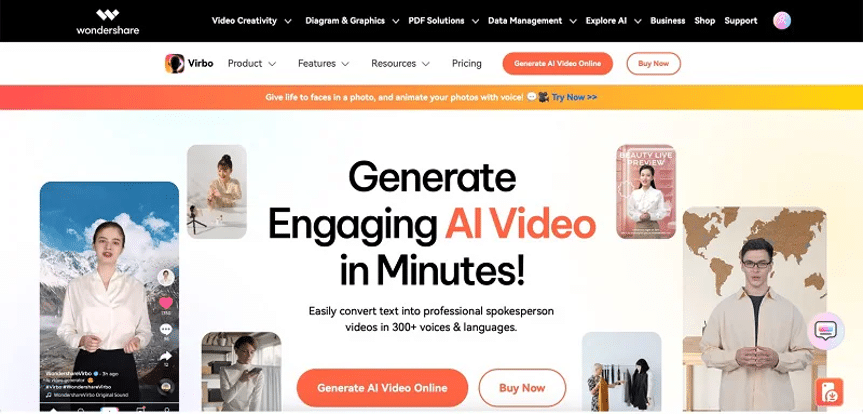
Go to Virbo’s official website and click the “Generate AI Video” button. Sign in using your Google, Facebook, email account, or other available options.
Step 2. Choose Your AI Avatar
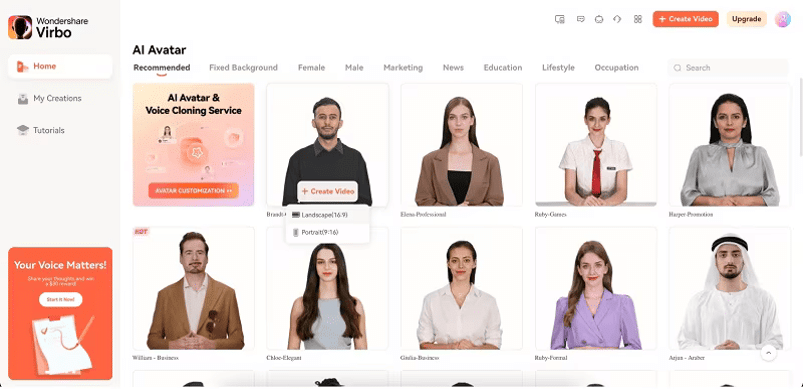
Browse through 350+ diverse virtual presenters organized by profession, age, and style. Select your preferred avatar and click “Create Video” to begin.
Step 3. Customize Your Video
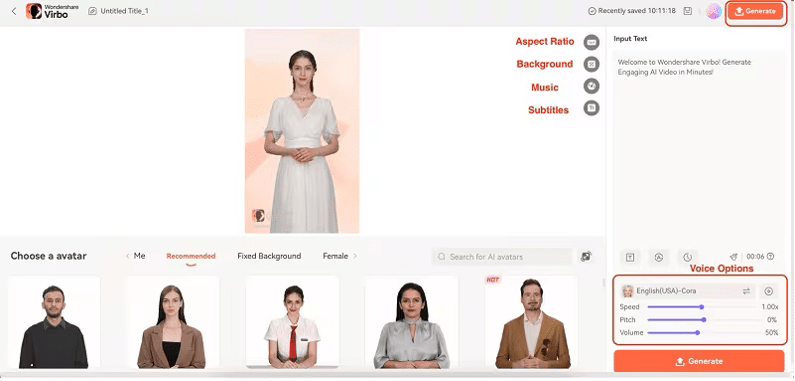
Type your script in the text box – the avatar will automatically sync realistic mouth movements to your words. Adjust speech speed, tone, or add pauses using the simple editing tools.
For those needing a truly custom solution, Virbo goes beyond preset avatars. The next section will show how to transform your own photo into a personalized digital presenter – ideal for maintaining brand consistency across all your video content.
How to Make Your Own AI Avatar from Photos
While Virbo offers hundreds of ready-to-use AI avatars, its custom avatar service takes personalization to the next level. This advanced feature lets you create an AI avatar of yourself by transforming your photos into a lifelike digital spokesperson that captures your exact appearance and expressions. Perfect for building brand identity or maintaining a consistent on-screen presence, your personalized avatar works across all video content.
Step 1. Capture the Right Shots
You’ll need to provide 2-5 high-quality photos following Virbo’s specific guidelines. These should be well-lit, front-facing portraits with neutral expressions. The better your source photos, the more accurate your digital twin will be. Professional headshots work best, but clear smartphone photos in good lighting can also produce excellent results.
Step 2. Submit for Review
Upload your photos through Virbo’s secure submission portal. Their team will verify the images meet all technical requirements within 1-2 business days. If any photos need improvement (like better lighting or sharper focus), they’ll provide clear instructions for retakes.
Step 3. AI Training Period
Once approved, Virbo’s specialists use advanced AI modeling to create your avatar. This careful process takes 7-10 business days to ensure natural facial movements and expressions. The result isn’t just a static image – it’s a fully animated digital persona that can speak any script you provide.
Step 4. Start Creating
When your custom avatar is ready, you’ll receive notification and find it available in your Virbo dashboard. It works seamlessly with all platform features, including the 460+ voice options and multilingual support.
Pro Tip:
- While the 7-10 day creation period requires patience, the long-term value is worth it. Many users create multiple custom avatars – perhaps a formal business look and a more casual version for different content types.
- For those needing their avatar sooner, Virbo does offer an expedited processing option (additional fees apply). Either way, you’re investing in a versatile digital asset that can serve all your video needs for years to come.
Conclusion
Now anyone can make AI avatars for videos using tools like Wondershare Virbo. This guide showed two easy ways to do it. You can pick ready-made avatars or make your own from photos. Virbo makes everything simple. You get good quality videos without hard editing work.
Virbo works well because it puts smart AI tools in one easy place. It saves lots of time but keeps videos looking professional. This helps people who make videos for work, school or online. The free trial lets you explore its features firsthand, proving how easily you can enhance your video projects with AI avatars. Begin now to see how fast AI can help with video making.











