
If you are a dedicated Mac user, you likely prefer Keynote over any other presentation software. It is elegant, fast, and the design tools are intuitive. But with the rise of artificial intelligence, you might feel a bit left out. You see PC users generating decks in seconds using tools like Autoppt, and you have to ask yourself a crucial question: Can I use these powerful new AI tools if I am committed to the Apple ecosystem?
The good news is that you absolutely can. You do not need to switch to a Windows computer or force yourself to use PowerPoint just to benefit from AI. Keynote is surprisingly versatile, but there is a specific workflow you need to follow to make it happen smoothly.
The Search for Compatibility
We are currently in a boom period for productivity software. Everyone is currently searching for the best ai ppt generators to help them speed up their work. The problem is that most of these “best” tools are built with a “PowerPoint-first” mentality. They export files in the .pptx format, which is the standard for the corporate world.
Apple knows this. That is why they have spent years making Keynote highly compatible with PowerPoint files. While there isn’t usually a direct “Export to Keynote” button inside most AI tools, the bridge between the two is already built into your Mac.
Why the File Format Matters
When you use an AI generator, the software writes code to build your slides. If that code is messy, Keynote will struggle to open it. Elements will look broken, text will overlap, and images will be in the wrong place.
This is why the tool you choose matters. You need an AI generator that creates “clean” files.
In my experience, this is where Autoppt stands out. While it is a web-based tool, the files it exports are structured very simply. It doesn’t use over-complicated text boxes or weird custom shapes that confuse Keynote. It creates a solid foundation that Keynote can easily translate.
Step-by-Step: From AI to Keynote
If you want to try this out, here is the exact workflow to get a presentation from an AI generator onto your Mac screen.
1. Create the Content Online
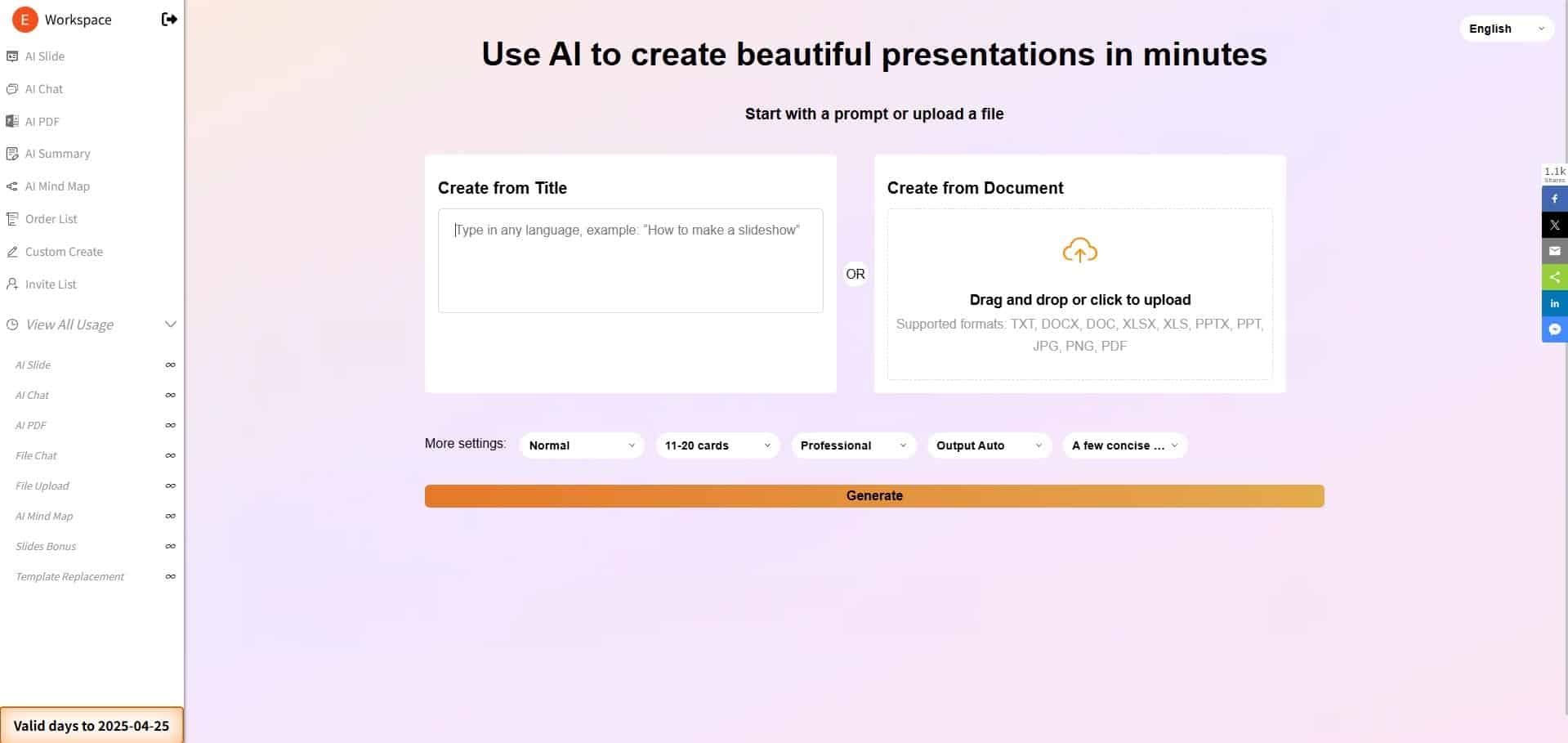
First, open your browser and head to an AI presentation tool, such as Autoppt. Simply enter your topic. For example, if you are presenting a marketing strategy, just type that in. Let the AI generate the outline, the text, and the slide layouts. It is much better to let the software do this heavy lifting than to type out every bullet point yourself.
2. The Critical Step: Exporting
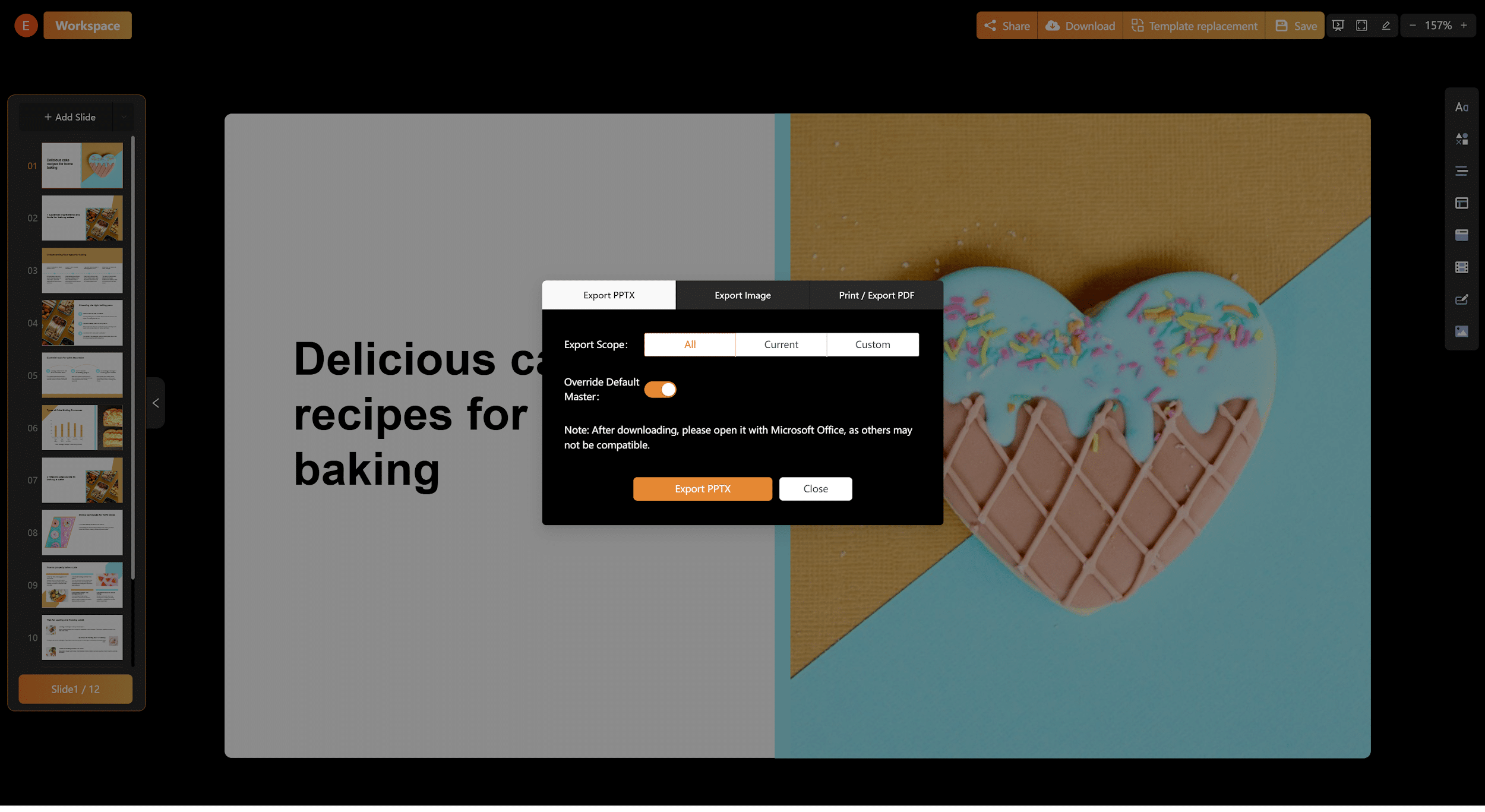
Once your deck is ready, you will see a “Download” or “Export” button.
Important: You must choose PowerPoint (.pptx).
Do not choose PDF. If you download it as a PDF, Keynote will treat each slide as a flat picture. You won’t be able to edit the text or move the photos. By choosing .pptx, you keep all the layers active.
3. Opening the File on Mac
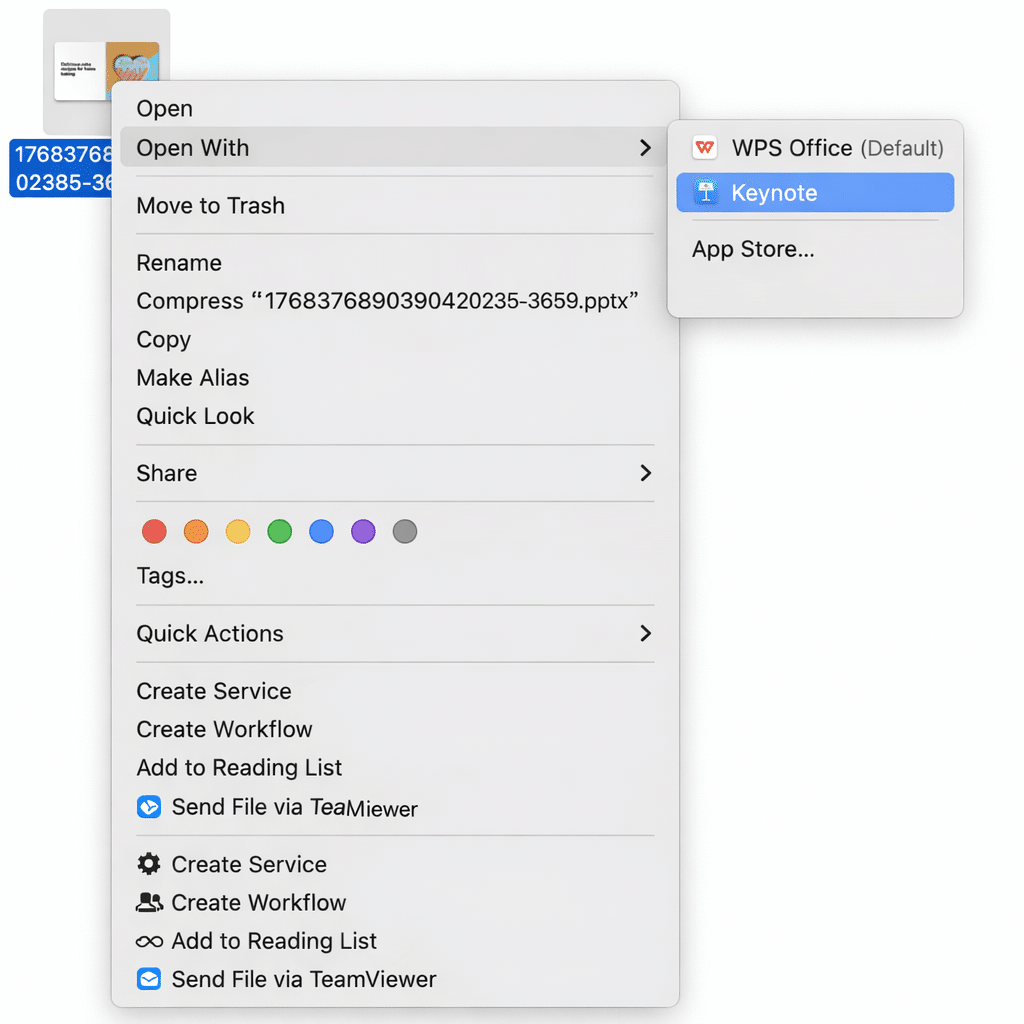
Go to your Downloads folder. Do not double-click the file yet. If you have PowerPoint installed on your Mac, double-clicking will open it there. We want Keynote.
Instead, right-click (or Control-click) the file. Hover over Open With and select Keynote.
4. The Cleanup Phase
Keynote will now convert the file. You might get a small notification window listing a few changes. Usually, this is just about fonts.
Because AI tools often use web fonts (like Google Fonts) that aren’t installed on your Mac, Keynote will replace them. For instance, it might swap “Roboto” for “Helvetica.” This is actually a good thing. It gives you the chance to highlight the text and change it to a beautiful Apple font like San Francisco or Avenir to give it that premium look.

Making It Look Like a Native Keynote File
Once the file is open, you can treat it exactly like a presentation you started from scratch. Here are a few quick tips to make the AI slides feel right at home on your Mac:
- Fix the Images: Sometimes, the conversion process might slightly shift an image. Click the image, go to the “Format” sidebar on the right, and check the alignment. It usually takes two seconds to fix.
- Add Magic Move: Most AI tools use basic fade transitions. To make your presentation shine, delete those transitions. Select two slides that share similar content and apply Apple’s famous “Magic Move” effect. This is the secret sauce that makes Keynote presentations look so fluid.
- Adjust Colors: If the AI picked a color scheme that looks too corporate, use the Keynote color wheel to adjust the background or shapes to match your personal style.
Conclusion
You do not have to choose between the speed of AI and the beauty of Keynote. You can have both.
The reality is that AI is an incredible assistant for drafting. It gets you past the “blank page” syndrome. By using a reliable tool like Autoppt to handle the rough draft and then moving that work into Keynote for the final polish, you are getting the best of both worlds.
So, go ahead and let the AI do the boring work. Your Mac is ready to handle the rest.











