

You finally captured that once-in-a-lifetime moment — a birthday surprise, a concert, your kid’s first performance — only to open the clip and see grain, noise, and muddy details everywhere. You can’t ask everyone to come back and do it again, so the real question is:
“Can I fix this video without reshooting it?”

The answer is often yes. Modern AI tools can’t turn a pitch-black, shaky clip into a Hollywood movie, but they can make low-light iPhone footage look much cleaner, sharper, and more watchable on a 4K screen.
Why Low-Light iPhone Videos Look So Bad
Even on recent iPhones, video in dim rooms or at night is tough. To “see” anything, the camera has to:
- Raise ISO, which amplifies noise along with real detail
- Use slower shutter speeds, which introduces blur
- Compress more aggressively, which adds blocky artifacts
On a small phone screen this may look okay, but once you watch on a Mac, iPad, or TV, every bit of grain, smear, and softness becomes obvious.
The good news: if you can clearly see your subject now, an AI video enhancer can usually improve it a lot  .
.
What an AI Video Enhancer Actually Does
An AI video enhancer analyses each frame and tries to rebuild a cleaner, higher-quality version of what the camera captured. In practice, that means:
- Denoising – smoothing out coarse grain in shadows and flat areas
- Sharpening – restoring edges so faces, text, and objects pop more
- Upscaling – increasing resolution to 1080p or even 4K for modern screens
- Subtle color and contrast fixes – making low-light clips look less muddy
You don’t tweak dozens of sliders; you just upload the clip and let the model do the heavy lifting.
Cloud AI vs. Desktop Software: Which is Better?
Before diving into the “how-to,” it is important to choose the right tool. Generally, there are two ways to fix video: installing heavy desktop software or using a cloud-based platform.
For professional colorists working in Hollywood studios, desktop software (like Topaz Video AI or DaVinci Resolve) is the industry standard. However, for the average Apple user, these programs come with significant downsides: they are expensive (often $200+), require massive storage space, and are incredibly demanding on your hardware.
If you try to render a 4K video on a MacBook Air or an older iMac using desktop software, expect your device to overheat, the battery to drain rapidly, and your fans to spin at maximum speed for hours.
Why Cloud AI Wins for Most Users:
Cloud-based solutions, such as Picsman, offload this heavy lifting to remote servers equipped with industrial-grade GPUs.
- No Overheating: Your MacBook stays cool.
- Cross-Device: You can start an enhancement on your iPhone or iPad and download the result on your Mac.
- Instant Updates: You always use the latest AI models without downloading gigabytes of updates.
Here is a quick comparison:
| Feature | Desktop Software | Cloud AI (e.g., Picsman) |
| Hardware Required | High-end GPU (M2/M3 Pro chips) | Any device (including older Macs) |
| Setup Time | Lengthy installation | Instant (Browser-based) |
| Cost | High upfront license | Flexible subscription/Pay-as-you-go |
| Speed | Dependent on your local hardware | Fast server-side processing |
For most content creators and casual users, the cloud route offers the perfect balance of quality and convenience.
Step-by-Step: Fixing Grainy iPhone Clips in the Browser
Step 1: Get the video onto your computer
AirDrop the clip to your Mac, download it via iCloud Photos, or transfer it with a cable. Keep the original file; don’t export a heavily compressed version from another app first.
Step 2: Upload to an AI video enhancer
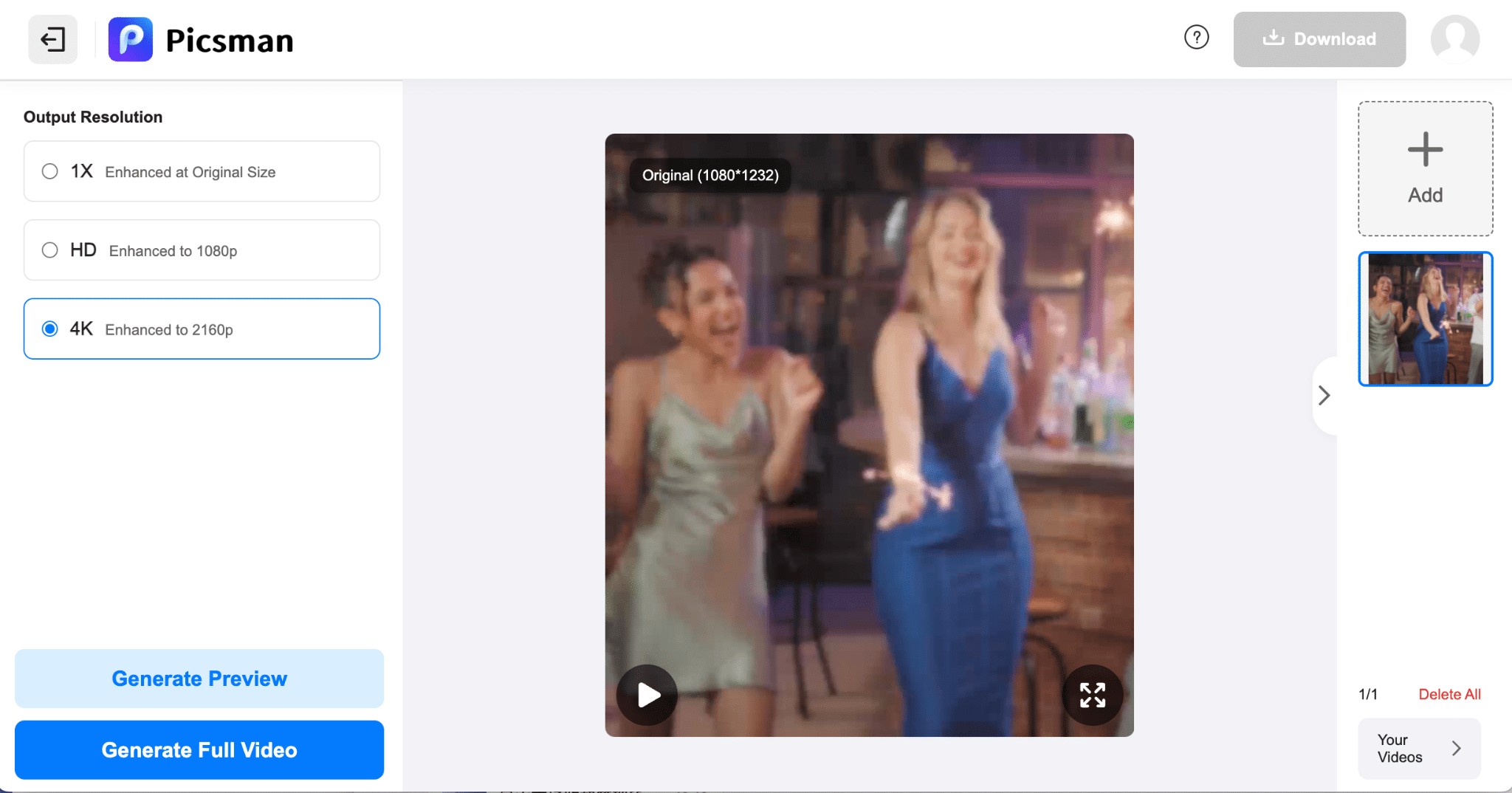
Open your browser and head to Picsman’s AI Video Enhancer:
Upload your low-light iPhone video. The tool will analyse it and prepare it for enhancement — you don’t need to adjust complex settings.
Step 3: Choose your output quality
Decide whether you want to keep the original resolution or upscale to 1080p or 4K. For important clips you plan to watch on a TV or upload to YouTube, 4K can make a noticeable difference.
Step 4: Let AI process the video
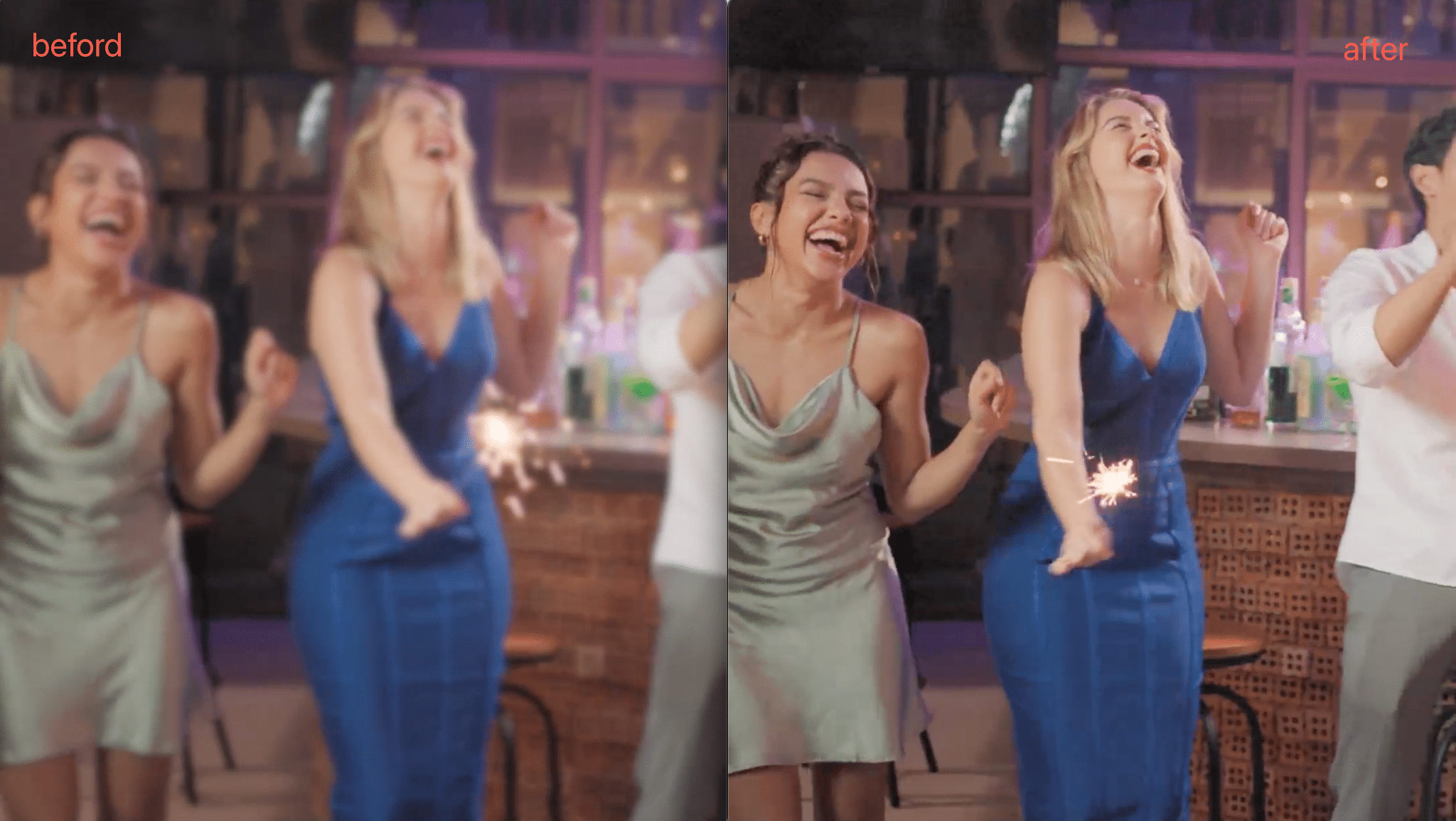
Click to enhance. Behind the scenes, the model reduces noise, sharpens details, and boosts clarity frame by frame. When it’s done, download the result and play it next to the original.
Look closely at:
- Faces and eyes
- Text on signs or screens
- Dark corners and backgrounds
In most cases, you’ll see less grain, clearer edges, and a more pleasant overall image — all without touching a traditional video editor.
Bonus: Don’t Forget Thumbnails
Even after you clean up the video itself, people often decide whether to watch based on the thumbnail. A sharp thumbnail can dramatically increase clicks on YouTube, Instagram Reels, or TikTok.
A simple workflow:
- Pause the enhanced video on your favorite frame and save it as an image.
- Upload that still to Picsman’s Photo Enhancer to sharpen and upscale it.
- Use the enhanced image as your cover frame or thumbnail.
You can’t always reshoot a special moment, but you don’t have to live with noisy, muddy footage either. With an online AI video enhancer for the clip and a quick photo enhancer pass for the thumbnail, your low-light iPhone videos can look surprisingly good — and finally be something you’re proud to share.











