
Want to know the way to solve the Apple TV remote not working? You’re in the right place. This
article covers a wide range of fixes to restore your unresponsive Apple TV remote control. Let’s
read on to check out the ways to achieve it!
Why is My Apple TV Remote Not Working
There are many causes behind your Apple remote not working, including
battery and connection issues, as well as hardware failure. Nevertheless, before contacting
Apple support or purchasing a new remote, you can also try to address them yourself by
following the solutions below. Remember to try your remote after each solution is adopted.
Solution 1. Remove Blocks
To begin with, you can do a straightforward way. Apple TV remotes use Bluetooth and IR to
control the Apple TV or receiver. Hence, it is vital to move closer to your Apple TV and remove
anything between your remote and the Apple TV. After that, try to use your Apple TV remote to
control the television, if the situation is not getting better please keep reading with patience.
Solution 2. Charge Your Apple TV Remote
Don’t forget that the drained Apple TV remote will also stop working. So you should charge your
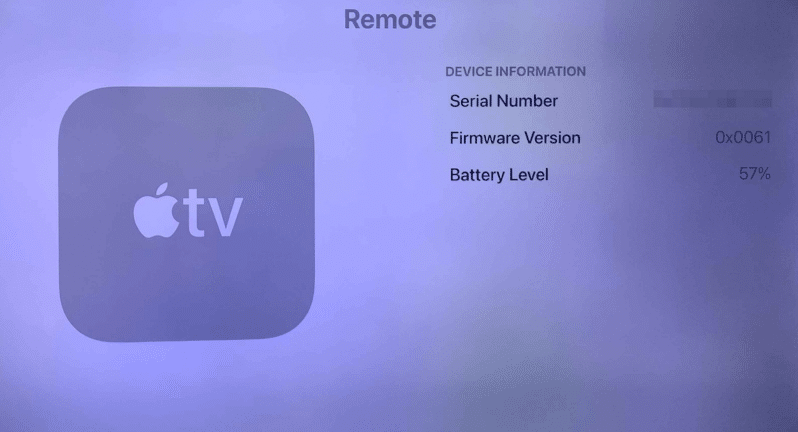
Apple TV remote for 30 minutes or change the new batteries. To check the battery level of your
remote, you can navigate to Settings > Remote and Devices > Remote on Apple TV. You can
skip solution five and try a virtual remote to navigate to Settings.
Solution 3. Restart Your TV and Remote
Suppose you still find that “my Apple TV Remote is not working”, then restarting both your Apple
TV and Apple TV remote is the correct decision. Because the restarting process will help solve
some software issues, clear up temporary glitches, and improve system performance.
To restart your Apple TV, you just need to unplug your Apple TV from the power source and wait
a few seconds before plugging it back. To restart the Apple TV remote, there are different steps
for the different remote models below.
If you have a silver or black Siri Remote, press and hold both the TV button and the Volume Down button simultaneously until the status light on your remote blinks. Then, release the buttons and wait for a “Connection Lost” notification to appear on your TV screen. After that, please wait while your remote restarts. Once you see the “Connected” notification, you can try using your Apple TV remote again.
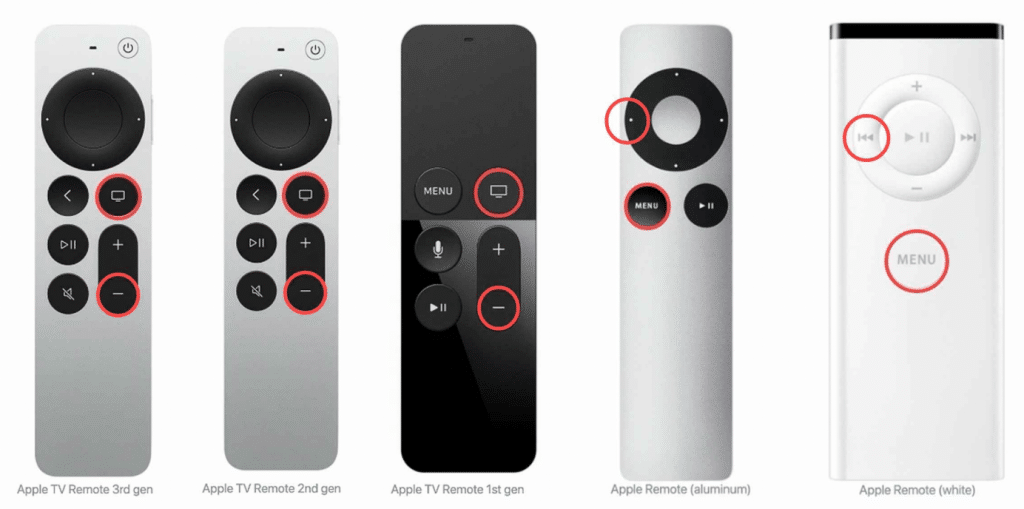
If you have an aluminum or white Apple Remote, press the MENU and the Left buttons until you
see an Unlink message on your television. Then press the MENU and Right buttons until you
see a Link message. (The restarting process is the same as the re-pairing process)
Solution 4. Re-pair the Apple TV Remote
If the Apple TV remote not working issue persists, please try to re-pair your remote in case of a
pairing mistake.
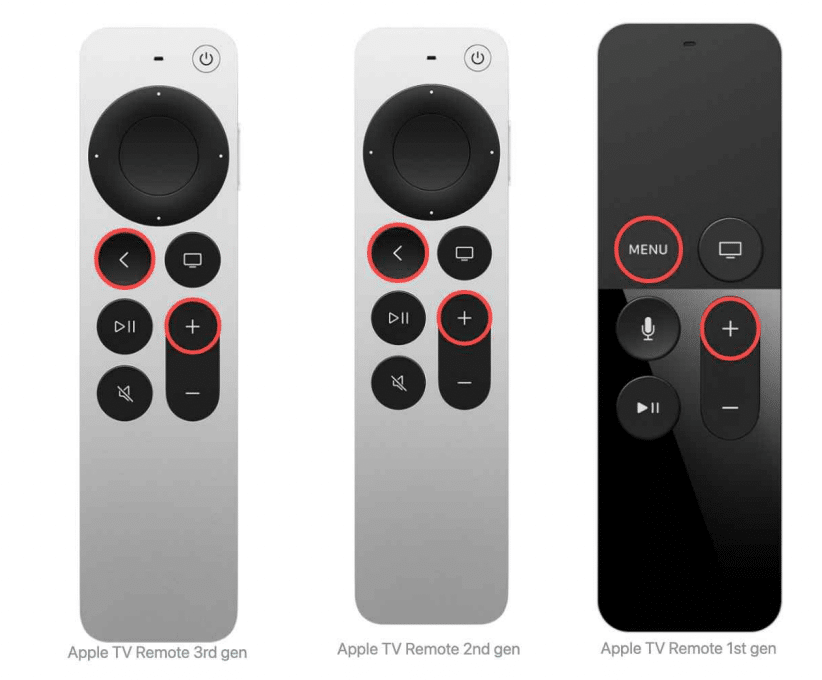
To re-pair your Apple TV Remotes, you need to point your remote at your TV and ensure the
distance is close enough. Then press the < or MENU button and the Volume Up button for five
seconds.
Solution 5. Use the Virtual Apple TV Remote
Once all the above solutions cannot fix your problem, then you’d better change your idea and
adopt a virtual Apple TV remote to control your Apple TV. If you have an iPhone or iPad, you can
leverage the built-in Apple TV remote feature. Otherwise, you are allowed to handle a third-party
Apple TV remote application on your Android device.
Apple TV Remote on iPhone, iPad
You can find the built-in Apple TV Remote function in Control Center, which you need to swipe
up from the bottom line of the screen with an iPhone 8 or earlier or swipe down from the upper
right corner of the screen on an iPhone X or later, or iPad.
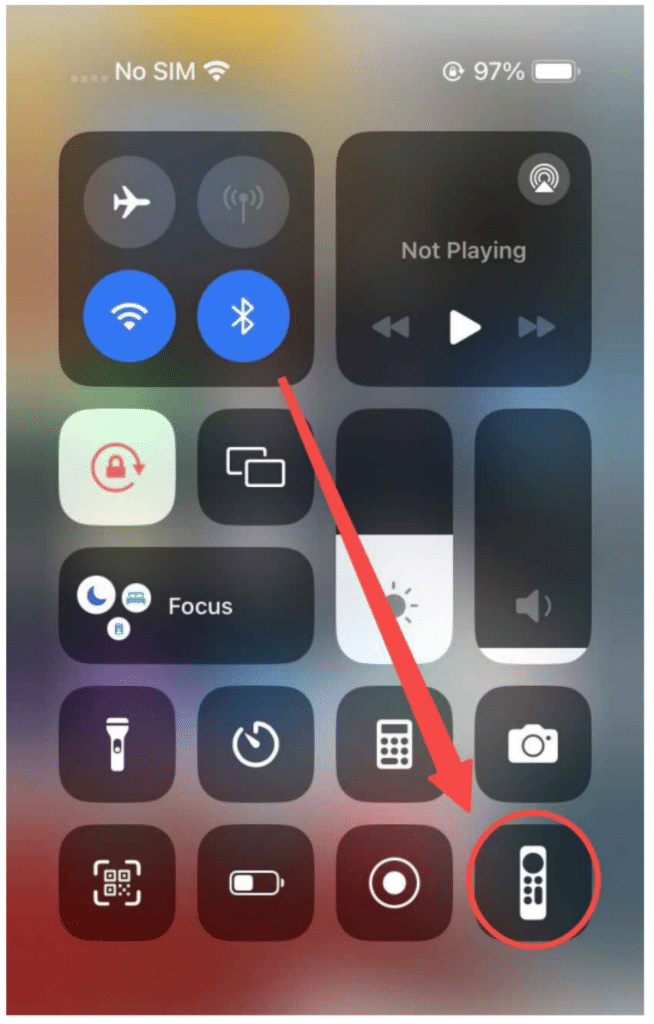
If you can’t find this remote icon on your Control Center, then please go to Settings > Control
Center > tap the green + button next to Apple TV Remote to add this feature to your Control
Center. Then you can follow the simple pairing process to pair the virtual remote on your
iPhone or iPad with your Apple TV:
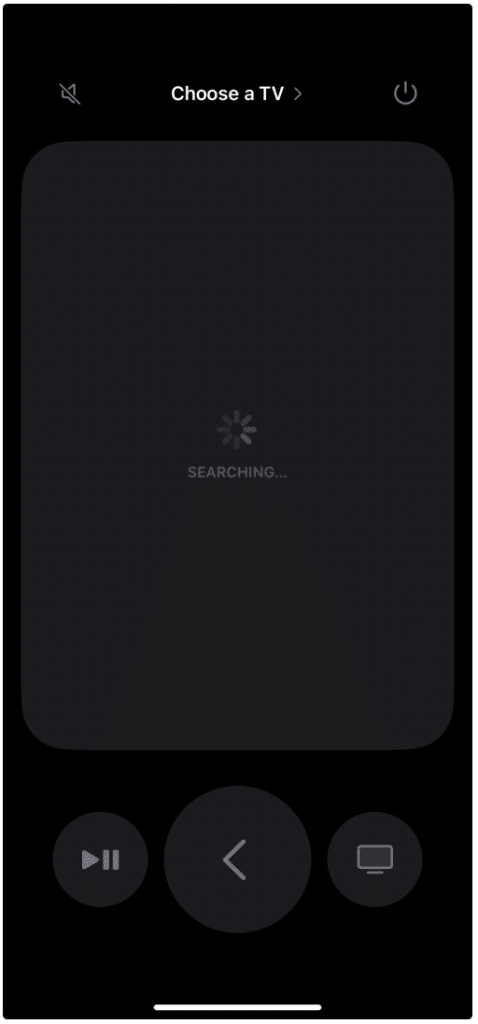
Step 1. Ensure your devices are connected to the same wireless network. Tap the Apple TV
Remote icon in the Control Center, and click “Choose a TV” to choose your Apple TV from the
device list.
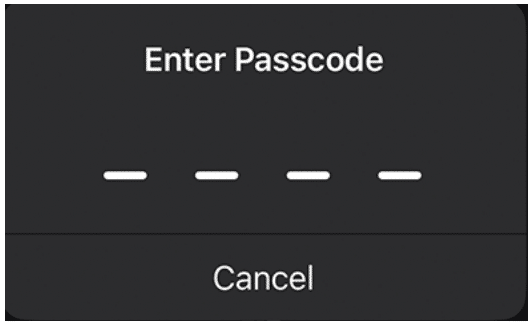
Step 2. If asked, enter a passcode shown on your television screen into your iPhone or iPad to
finish the connection process.
Step 3. Once you pair successfully, you can use this built-in virtual Apple TV remote to control
your Apple TV as a physical remote.
Apple TV Remote on Android Devices
Thanks to BoostVision, you can also handle an Apple TV remote app on your Android mobile
devices. Let’s follow the perspicuous steps to control your Apple TV through your Android
devices.
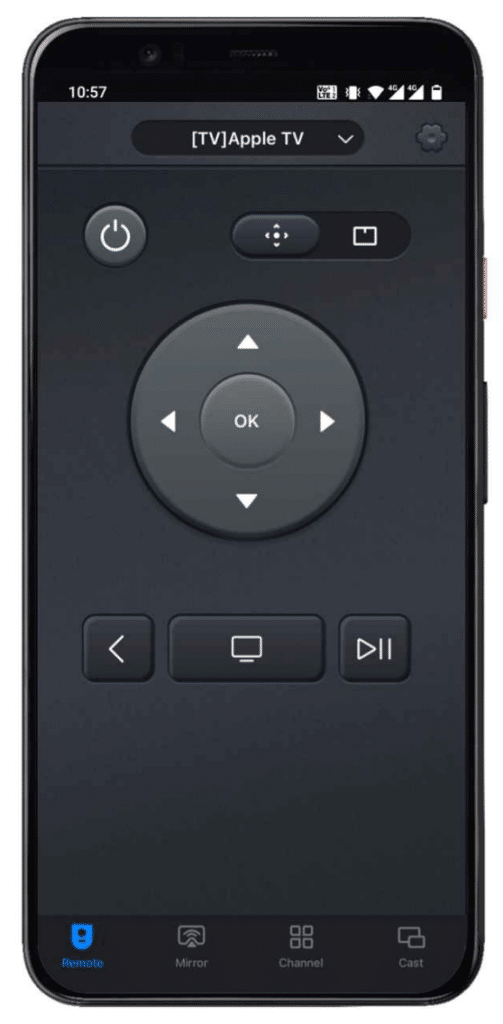
Step 1. Download the universal Apple TV remote app on your Android device, and ensure both
your TV and Android are under the same Wi-Fi network.
Step 2. Open the application and allow its permissions. Click the “Tap to connect” of the app
and choose your Apple TV from the device list.
Step 3. When connected successfully, you can use this Apple TV remote referring to the button’s
icon.
Final Thought
In general, experiencing issues with your Apple TV remote stopped working can be frustrating,
but there are straightforward steps that you can adopt to find the bug and continue to control
the Apple TV. Hoping you can restore your remote as soon as possible and continue a wonderful
viewing experience with Apple TV.











