
Introduction
Facing issues with opening your Outlook mail messages, contacts, calendars, and other data? There can be several reasons for the same and if you have troubleshot most of them and are still clueless, PST file corruption might be the culprit. Worry not as in this writeup we will help you learn what PST file is and how these corrupted files can be repaired using the best tool. Stay with us till the end to know the best guide on how to repair PST file.
Part 1. What Is A PST File? And Where Are Outlook PST Files Located?
Let’s first start with “What is a PST file” ?
Standing for Personal Storage Table, a PST file is an open format file that is used by products of Microsoft software like Exchange Client, Outlook, and Messaging for storing multiple data like messages, calendar events, contacts, and more locally on your system. Majorly, a PST file is used by Microsoft Outlook and they are also known as Outlook Data File.
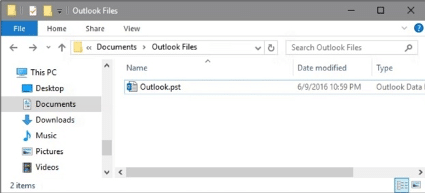
The next question is where are Outlook PST files located?
The location where Outlook PST files are saved depends on the Outlook version that is used. If you are using Outlook 2007 and 2010, the files are saved in the Updata folder by default and its location is C:\users\username\AppData\Local\Microsoft\Outlook.
Outlook 2013 and 2016 store these files in the Documents folder and the location of the same is C:\users\username\Documents\Outlook Files.
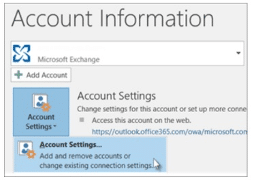
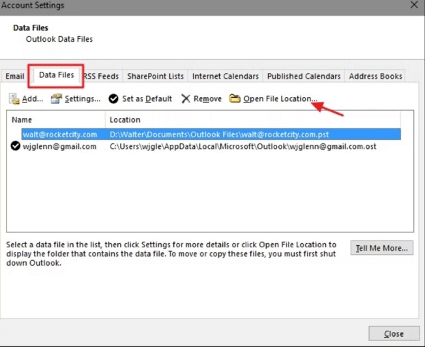
To check where your PST files are saved, go to the File menu in your Outlook and select Account Settings> Account Settings. Next at the Data Files tab, select the account and click on Open File Location and the File Explorer Window will open showing PST files.
Part 2.Reasons for PST File Corruption
Corrupting of PST files will result in disruption of Outlook operations and also data loss. Some of the common reasons for PST file corruption are listed below.
- Outlook not closed properly due to power failure, hardware failure, or any other reasons
- Issues with hard drives like corrupted drives, the presence of bad sectors, and others
- Exceeding the file size limit
- Infection caused by viruses and malware
- The backup process is inadequate
- Outlook plugin incompatibility
- Auto recovery turned off
- The Exchange Server profile is corrupted
Part 3. How to Repair PST File Without ScanPST?
ScanPST is a built-in Inbox Repair tool by Microsoft that assists in repairing corrupt Outlook PST files. Though ScanPST is a free default tool by Microsoft it can deal well with small-sized files having mirror corruption issues. So, if you are looking for a method to repair PST files without ScanPST, we recommend 4DDiG Email Repair as the best tool. This is a Windows-supported software that can repair all types of issues with PST as well as OST files in just a single click.
Key features
- Powerful and versatile file repair tool that can work seamlessly on all Windows systems.
- Allows fixing all types of PST and OST file issues, damages, and corruption.
- File repair can be done for any file size without any limit or restriction
- Batch repairing supported
- Allows to preview and check repaired PST and OST files in the mailbox before saving
- Email repair can be saved to a new Outlook PST file.
- Allows restoring Outlook emails, calendar events, attachments, and other data.
- Support to almost all PST issues like Outlook not opening, Outlook stopping responding, Outlook not connecting to the server, access issues with data files, and others.
Steps to repair corrupted Outlook PST file using 4DDiG Email Repair
Before proceeding with the use of the tool for repairing, make sure that Microsoft Outlook and all other applications that are mail-enabled are closed.
Step 1. Download, install, and run 4DDiG Email Repair on your system. On the main page, click on the Select File button to browse and add the corrupted PST file. Add files from a drive or a specific location.
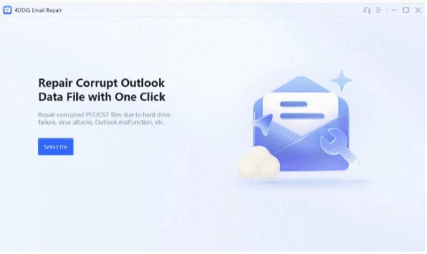
Step 2. The tool will start loading the files and when done, click on the Start button to scan them for the errors.
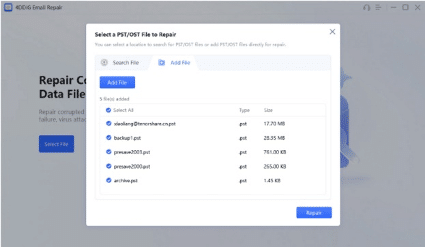
Step 3. The software will start repairing the files and when done, a tree view of the PST data can be seen. You can check and preview the desired data and also the attachments in the PST file.
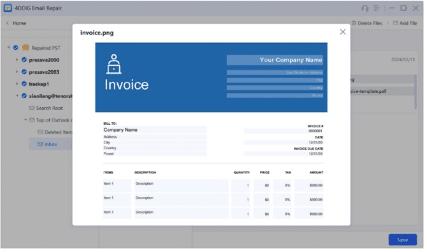
Step 4. After file previewing and verification are done, tap on the Save button and choose the file location to save the repaired PST files.
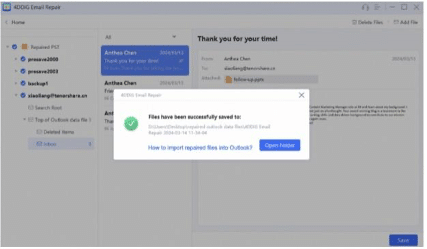
These repaired files can be now imported into Outlook.
Part 4. Additional Tips: How to Prevent PST Files Corruption?
4DDiG Email Repair is there to help you repair Outlook PST files, but as it is said that prevention is always better than cure, the same holds for these files. So, we have searched for some tips that can prevent the corruption of PST files so that you can save from the hassles of repairing them.
- Do not let your PST files exceed the size limit. If an older version of Outlook is used, keep the PST file size below 1.5GB as the maximum size limit is 2GB while Outlook 2007 and 2010 support sizes up to 10GB.
- Save your Outlook PST file on the local system and not on a server or a network drive
- Make sure to always close your Outlook properly
- Processing a large number of emails at a time can cause issues and thus prevent the same
- Anti-virus programs should be used to prevent attacks from any virus or malware
- If not needed, avoid using Outlook add-ins
- Regular backups of PST files should be taken
Conclusion
So, Outlook PST file corruption can happen to anyone, anytime despite taking precautions and here tools like 4DDiG Email Repair come to the rescue. This excellent file-repairing tool can used to fix all PST file issues and that too quickly and in a hassle-free manner. Also, you need not be a tech expert to use the software as it is simple and comes with an intuitive user-friendly interface. So, treat and fix all your severely damaged and corrupted PST files easily and quickly using 4DDiG Email Repair. Hope all your queries on how to repair PST file , where can I find PST repair tool and others are now answered.











