

Teachers shouldn’t greet sunrise hunched over PowerPoint. We put nine AI slide makers through lessons from photosynthesis to quadratic equations and picked the ones that produce classroom-ready decks in minutes. The winners offer grade-level tuning, one-click exports to Google Classroom, and prices a department budget can handle. Some, like PlusAI, even run inside PowerPoint or Google Slides, so you never leave familiar territory. Browse the list, choose a match, and reclaim precious prep time.
How we picked the nine
A good AI slide maker must do more than swap in fresh backgrounds. It should save teachers valuable minutes, match the reading level, and connect with software the district already approves. Usage data on PlusAI’s teacher portal shows that kind of in-editor integration can give educators back multiple hours each week, so we made it a must-have across the board.
We judged every candidate against six must-haves:
- Education alignment. Adjusts tone or depth for specific grades or standards.
- Speed. Generates a usable deck between class periods, ideally in under five minutes.
- Integration. Exports or embeds natively in Google Slides, PowerPoint, or a classroom LMS.
- Cost for schools. Provides a free educator tier or pricing a department can justify.
- Customization and media. Enables quick rewrites, image searches, charts, or quizzes without leaving the app.
- Output quality. Delivers accurate facts, clear language, and layouts that keep students’ attention.
Any tool that missed a single benchmark was cut. The nine survivors met all six and, in some cases, offered bonus perks we welcomed.
PlusAI: best for PowerPoint and Google Slides veterans
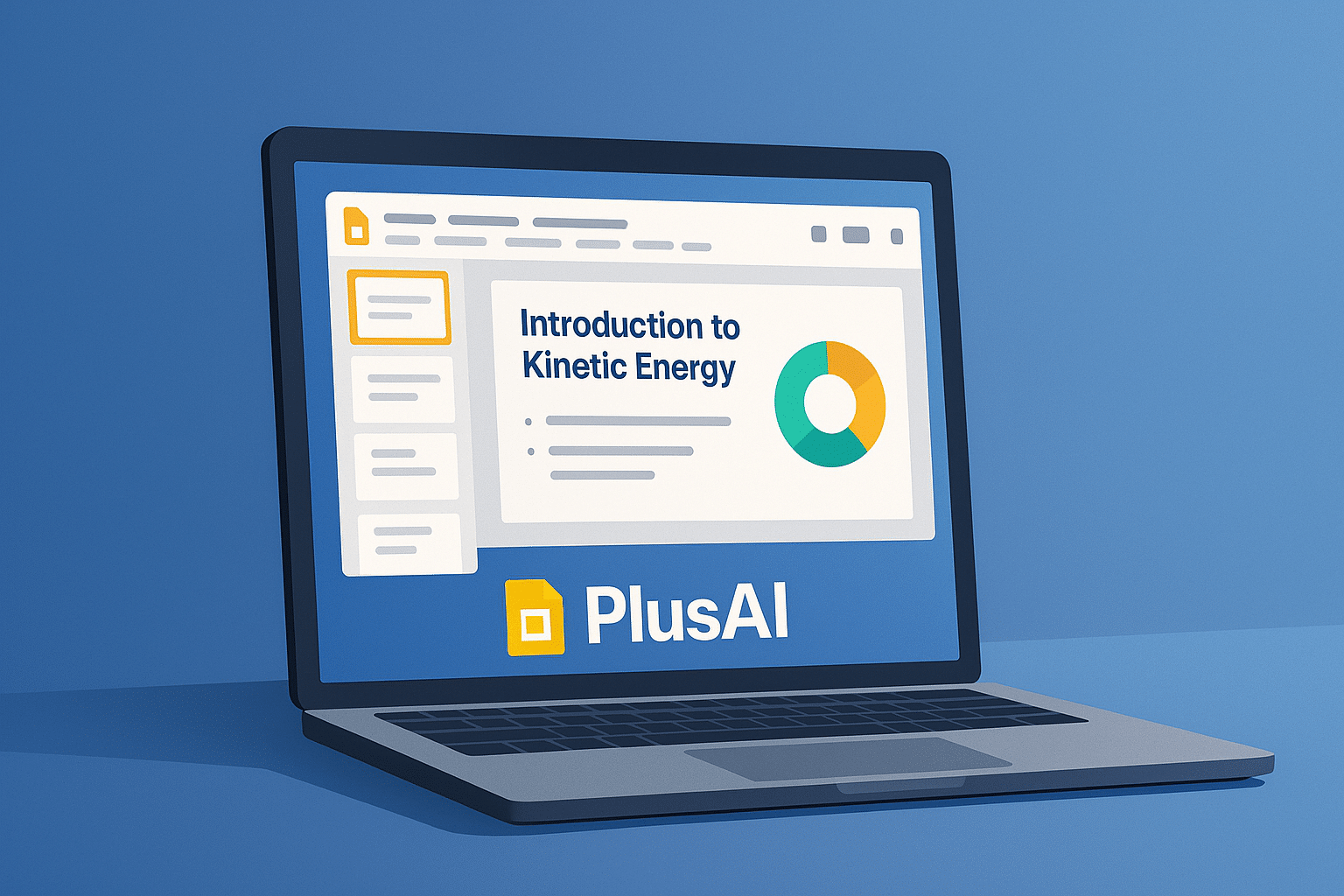
Teachers who plan inside PowerPoint or Google Slides no longer need to open another website. PlusAI appears as a sidebar in both apps, so you draft, edit, and present without leaving familiar ground.
Enter a prompt such as “Introduction to kinetic energy, eighth grade,” and the add-on builds a full deck in about 30 seconds, complete with native layouts you can edit like any other file. If a sentence feels dense, select it, choose Remix, and PlusAI rewrites or converts the content to a chart or infographic in one click.
During testing we installed the extension in fewer than five minutes, and the first usable deck was ready before the next class began. For teachers pressed between periods, that speed frees up planning time for examples and checks for understanding.
Pricing starts at $10 per user per month after a 7-day free trial, a cost that can reclaim roughly 30 minutes of slide cleanup each day. For educators already comfortable with Google Slides or PowerPoint, PlusAI feels like an upgrade to the tools they trust.
SlidesAI: turns an outline in Google Docs into slides in seconds
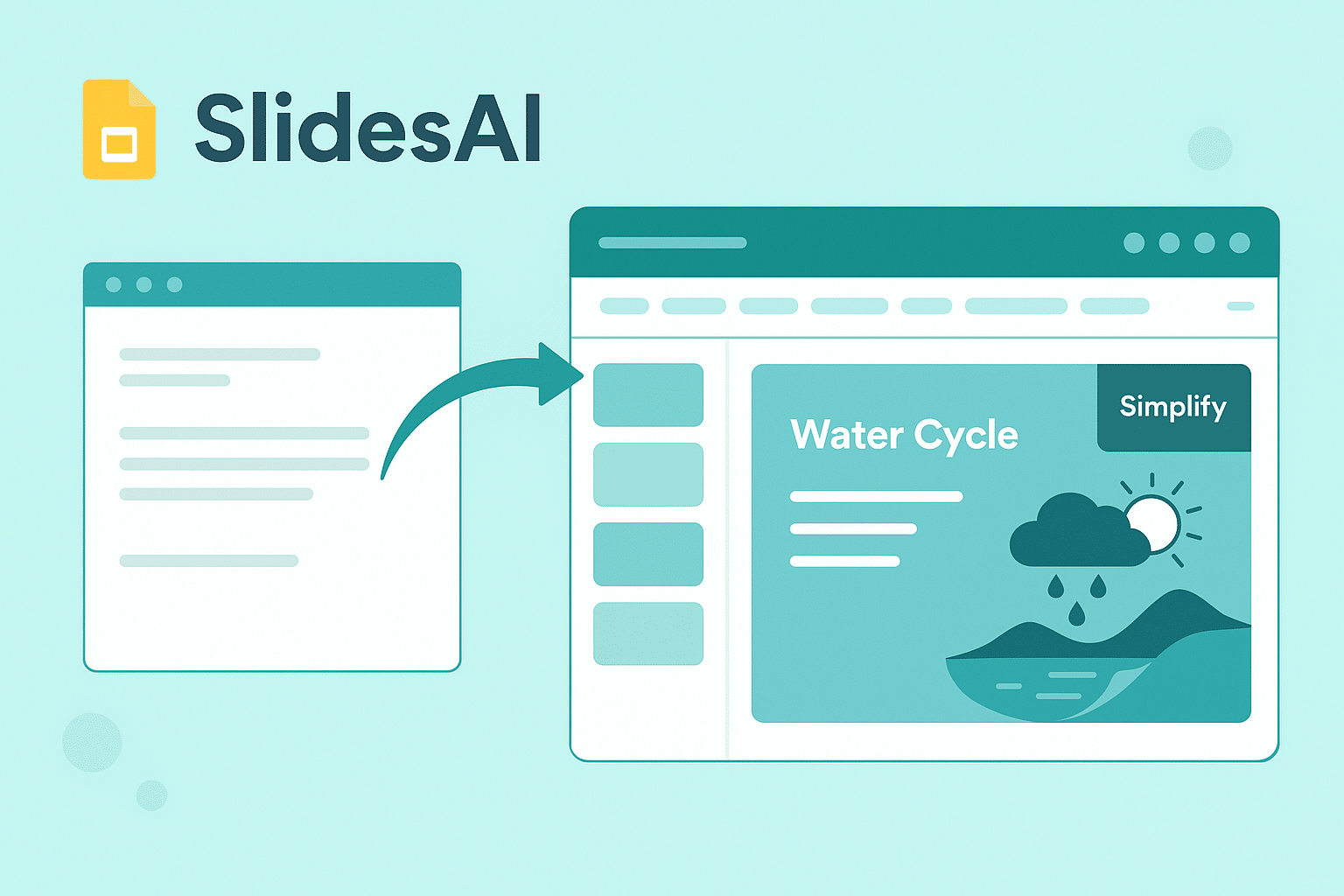
Many teachers sketch lesson plans in Google Docs and then rush to build visuals. The SlidesAI add-on lifts that outline straight into Google Slides. Paste the document, and the tool converts objectives into titles, facts into concise bullets, and discussion prompts into speaker notes; no copy-paste marathon required.
Because everything happens inside Google Slides, you keep domain fonts, themes, and sharing permissions. That means no export errors and no broken links when IT removes external apps.
A standout feature is Simplify. Select dense text, press the button, and SlidesAI rewrites it at a lower reading level, which supports differentiated instruction.
Pricing at a glance, according to slidesai.io: the free Basic plan covers 12 presentations per year and up to 2,500 characters per deck, enough for occasional use. Educators who generate slides weekly can upgrade to Pro at about $8 per month (annual billing) for 120 decks and larger character limits.
If Google Slides is your everyday canvas, SlidesAI feels like a time-saving extension of the tool you already know.
Microsoft Copilot for PowerPoint: drafts slides inside Office 365
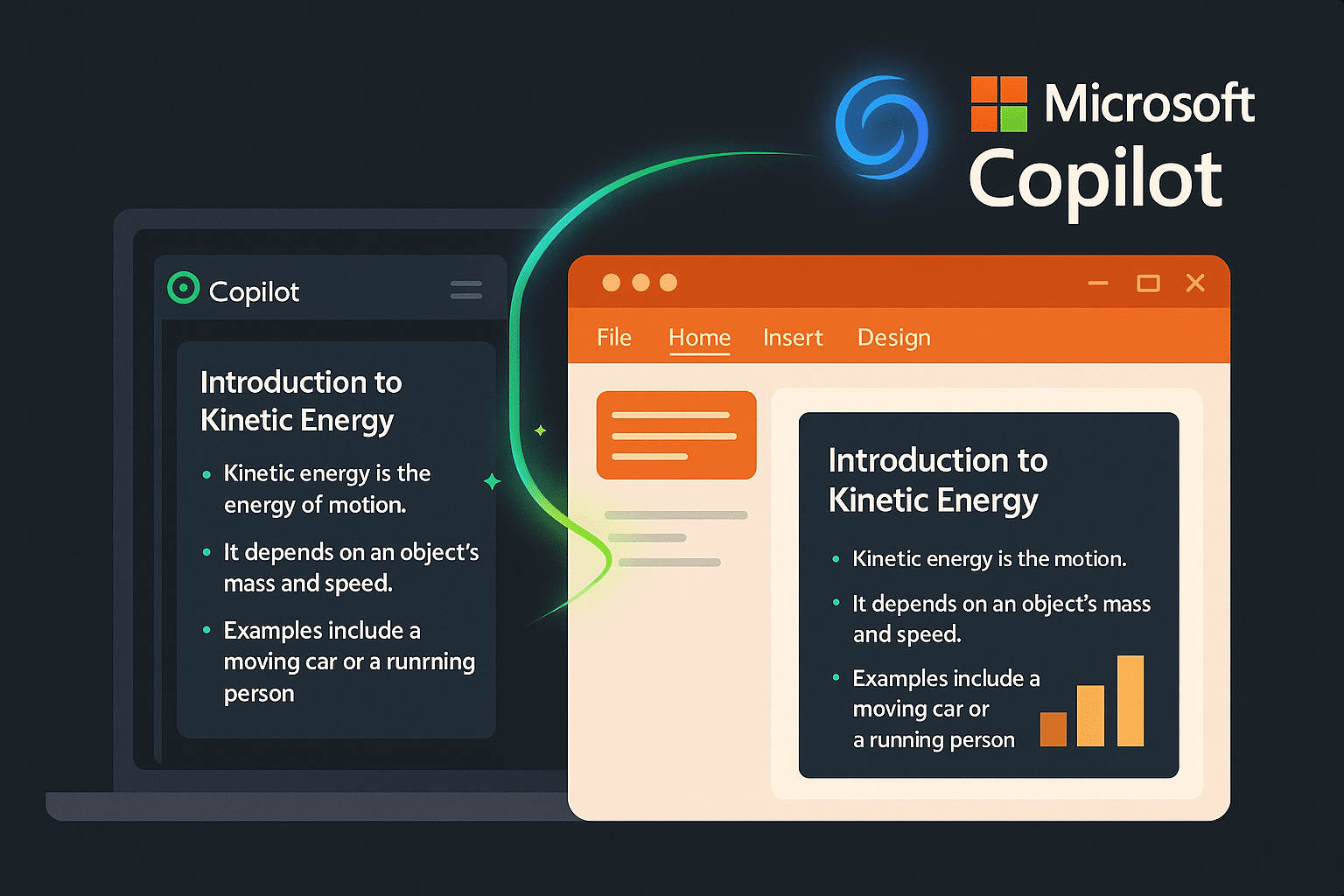
When a school runs on Microsoft 365, Copilot appears in the PowerPoint ribbon ready for a prompt. Paste an outline, and the assistant builds a deck with titles, bullets, and image placeholders, all without opening a browser.
Because Copilot reads across Word, Excel, and Outlook, you can drop in a lab report or data table and watch it suggest slides or charts that match your current theme. It also creates speaker notes automatically; one click can shorten those notes into on-screen bullets for tighter lessons.
Design variety still trails dedicated AI design tools, so you may want to swap themes or images for extra polish. The upside is compliance: content stays in your tenant under the same FERPA safeguards as the rest of Office.
Access and Pricing
- Included in some Microsoft 365 Education A5 licenses.
- Available as an add-on for other plans at $18 per user per month starting December 2025, according to Microsoft.
Early pilots show meaningful gains; Brisbane Catholic Education teachers recaptured nine hours of planning and admin work per week after adopting Copilot, according to Microsoft.
For districts already fluent in PowerPoint, Copilot works like an assistant that drafts the slides so teachers can focus on examples, questions, and demos instead of text boxes.
Google Slides with Gemini: built-in AI that writes and illustrates lessons
Tap the ✨ icon in a blank Slides deck. Gemini asks quick setup questions (grade level, slide count, image needs) and then builds a deck with concise bullets and on-theme visuals. Because the assistant lives inside Slides, it reads context from your Docs and keeps every share setting intact, so a finished deck posts to Classroom with one click.
Gemini’s image generator stands out. Prompt “water cycle, cartoon style,” and it produces original artwork that avoids copyright headaches. You still edit like normal: drag to resize, swap a background, or rewrite any paragraph for simpler wording.
Access and Cost
Starting June 30, 2025, Gemini in Classroom is free for all Google Workspace for Education editions. Districts on other Workspace tiers can add Gemini Pro tools through Google AI Pro at $19.99 per user per month, but most K-12 teachers will use the Slides features at no extra charge.
For schools already anchored in Google tools, Gemini turns Slides into an assistant that drafts content, polishes prose, and supplies custom visuals, letting you focus on the discussion questions that spark learning.
Monsha: curriculum-aligned slides that differentiate in seconds
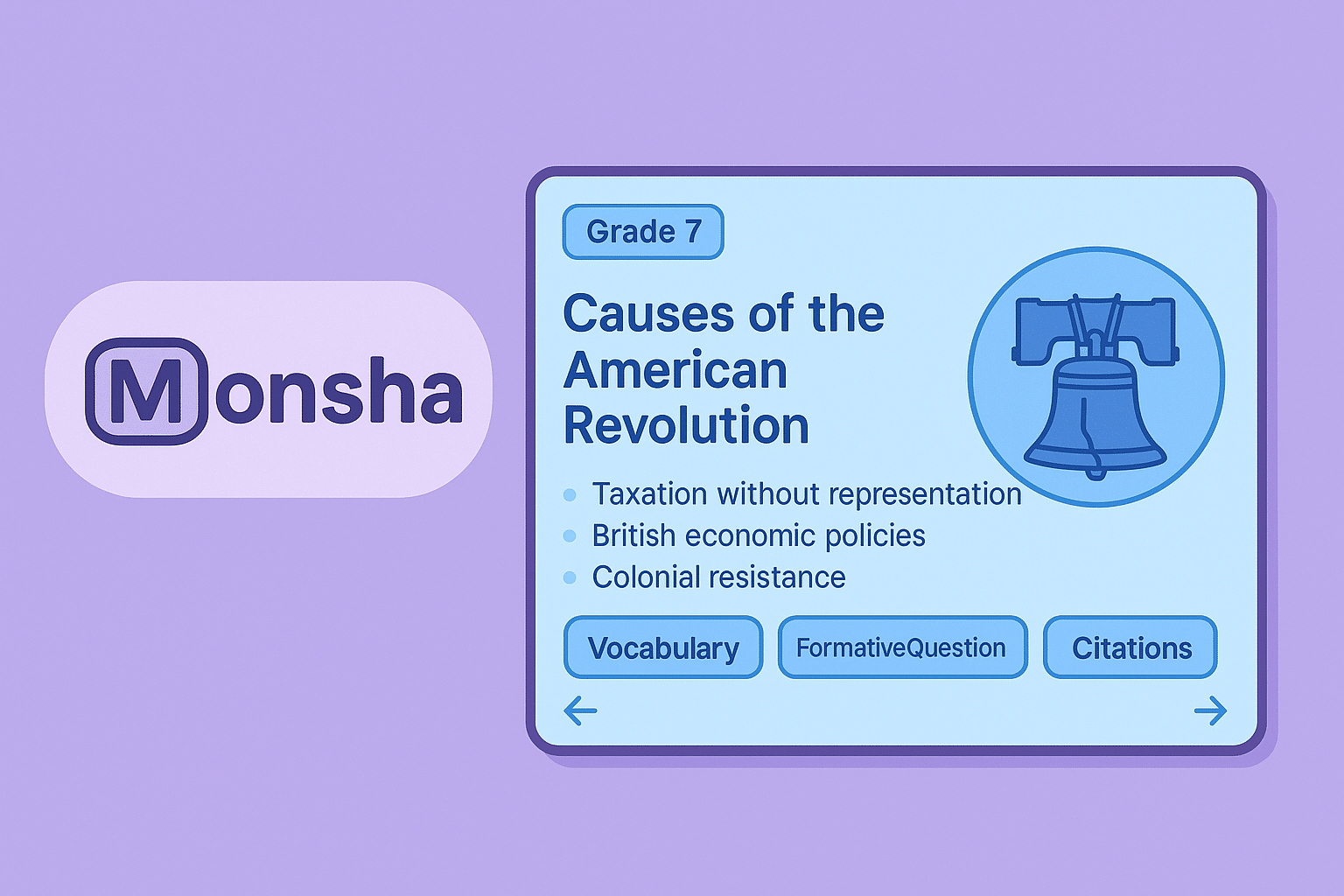
Where many AI presenters retrofit business decks for school, Monsha begins with education standards and builds visuals around them. Enter a topic such as Causes of the American Revolution, choose Grade 7, and set Depth of Knowledge 2. The tool then generates a deck that embeds vocabulary, formative questions, and citations matched to that rigor.
Need varied reading levels? A slider shifts complexity up or down in real time: higher settings add primary-source quotes and debate prompts, while lower settings replace dense text with simpler sentences and supportive images. For educators comparing other classroom-focused options, this roundup of AI presentation software for education explores several platforms built specifically for teaching needs.
Source ingestion is another strength. Upload a worksheet, textbook excerpt, or YouTube link, and Monsha anchors each slide to that material, which helps when administrators ask for evidence of alignment.
Exports stay teacher-friendly. One click sends the deck to Google Slides, PowerPoint, or Classroom, and Monsha stores every variant so the “honors” and “inclusion” versions never overwrite each other.
Pricing
- Free Basic plan: up to 10 presentations per month.
- Pro: $10 per user per month when billed annually ($20 month-to-month) for unlimited generations and advanced differentiation, according to Monsha.
For teachers juggling multiple prep levels, those prices beat the time cost of rewriting slides by hand.
Canva (Magic Design): add instant visual polish to any lesson
When a topic needs more than plain bullets, Canva’s Magic Design can add color, icons, and imagery in seconds. Type a prompt such as “Phases of the Moon, Grade 4,” and the tool suggests coordinated layouts, fonts, and graphics from Canva’s extensive media library.
Edits stay drag-and-drop simple. Swap an image by entering a new keyword, resize text boxes, or co-edit with students in real time, a plus for group projects that would otherwise bounce through long email threads.
Export is flexible: present directly from Canva, download a PPTX for archives, or send a view-only link that plays like a video slideshow. One click can also push the file to Google Drive with existing permissions intact.
Cost and Access
- Canva for Education: 100 percent free for verified K-12 teachers and students; Magic Design is included at no charge.
- Canva Pro: $9.99 per user per month for higher-ed instructors or private programs that do not qualify for the education tier, according to Canva.
Canva will not align slides to standards the way Monsha does, but when you need eye-catching visuals fast, it is a design studio that feels approachable even for non-designers.
Visme: data-heavy lessons made visually simple
When a lesson revolves around statistics or lab results, plain bullets lose impact. Visme’s AI presenter specializes in charts, timelines, and clickable widgets that turn raw numbers into stories students can explore.
Start by entering a topic such as Carbon-dioxide trends since 1900, and Visme drafts a deck with ready-made charts that update as soon as you edit the data. One click swaps a bar chart for a line graph or heat map, sparing you the usual formatting slog.
Interactivity stands out. You can embed a YouTube clip, layer hotspots on a world map, or let students click through a civil-rights timeline without leaving the deck, so no extra quiz sites or external links are needed.
The interface offers more controls than Canva, so expect a short learning curve. Science and social-studies teachers report that the extra options pay off once you master the side panel of chart tools.
Pricing
- Education plan: as low as $3 per month for verified teachers and students, according to Visme.
- Standard Pro: $29 per user per month for full template and analytics libraries, with institutional discounts available, according to Visme.
If your lessons rely on numbers and complex visuals, Visme helps students see patterns, turning columns they might ignore into graphics they will remember.
Gamma: card-based lessons for step-by-step learning
Gamma replaces the traditional slide deck with a scrolling stack of interactive cards that students tap through at their own pace. Prompt the AI with Balancing chemical equations and it breaks the concept into a definition, rules, a worked example, and a practice question—more like a guided tutorial than a lecture.
Cards are easy to edit. Drag to reorder, split when you need more space, or embed a short video without wrestling with aspect ratios. You can export the finished set to convert PowerPoint to PDF or PowerPoint, but presenting inside Gamma keeps animations fluid and navigation intuitive.
Collaboration comes baked in. Share a link and student groups can add cards for their own explanations or reflection prompts, turning the deck into a shared study guide.
Pricing and Limits
- Free plan: up to 10 cards per prompt and basic exports.
- Plus: $10 per user per month (or $8 when billed annually) unlocks unlimited AI generations, removes Gamma branding, and expands to 20 cards per prompt.
- Pro: $20 per user per month adds custom branding, advanced analytics, and up to 60 cards per prompt, according to Gamma.
For lessons that hinge on clear sequences—lab procedures, grammar drills, historical timelines—Gamma turns linear content into an interactive click-through story.
Prezi: a zooming canvas for big-picture thinking
Linear slides can mask how ideas connect. Prezi spreads every topic on one canvas and lets you zoom in for detail or out for context, so students grasp both parts and whole.
With the AI assistant, drop in an outline or a PDF and Prezi converts each heading into a topic bubble, fills in supporting bullets, and suggests a central theme image, much like a mind-map that builds itself. During delivery, click a bubble to dive deeper, then zoom back to the full view so the class never loses the roadmap.
Design polish arrives automatically: color palettes adjust as you add branches, and the built-in generator can create a custom graphic on demand, such as “DNA double helix, chalk style.”
Sharing stays simple. Send a view link for homework, present live online, or download a PDF for offline backup.
Cost for educators
- EDU Plus: $4 per user per month (billed annually) with unlimited AI generation and PPT/PDF import/export, according to Prezi.
- EDU Pro: $8 per user per month adds analytics and advanced collaboration tools, according to Prezi.
- EDU Teams: $19 per user per month for department-wide control and SSO, according to Prezi.
Use Prezi for concept maps, timelines, or any lesson where relationships matter more than sequence. It turns a static deck into an interactive path students can navigate.
Quick comparison table
| Tool | Best for | Free / edu access | Starting paid price* | Stand-out feature |
|---|---|---|---|---|
| PlusAI | PowerPoint and Google Slides veterans | 7-day free trial | $10 per month | Generates and rewrites inside native slide apps |
| SlidesAI | Turning text outlines into decks | 12 decks per year free | $8 per month (EDU annual) | One-click Simplify lowers reading levels |
| Microsoft Copilot | Districts deep in Office 365 | Included in A5 | $18 per month add-on | Drafts slides and speaker notes inside PowerPoint |
| Google Gemini | Google Workspace classrooms | Free in all EDU tiers | $19.99 per month (AI Pro) | Creates custom images directly in Slides |
| Monsha | Standards-aligned, differentiated content | 10 decks per month | $10 per month (annual) | Complexity slider linked to Bloom’s and DOK |
| Canva (Magic Design) | Rapid visual polish and templates | Canva for Education free | $9.99 per month (Pro) | AI suggests on-brand layouts and graphics |
| Visme | Data-rich, interactive lessons | EDU plan $3 per month | $29 per month (Pro) | Auto-generates live charts and infographics |
| Gamma | Step-by-step card narratives | Free, 10 cards per prompt | $10 per month Plus ($8 annual) | Card format replaces linear slides |
| Prezi | Concept maps and big-picture links | EDU Basic free | $4 per month EDU Plus | Zooming canvas keeps context visible |
*Prices published on November 19, 2025. School-wide or annual contracts may lower per-user costs.
Conclusion
AI presentation tools have moved far beyond quick slide templates—they now draft full lessons, differentiate reading levels, design custom visuals, and plug directly into the platforms teachers already use. Whether you need standards-aligned content (Monsha), rapid visual polish (Canva), or tools that stay inside Google Slides or PowerPoint (PlusAI, SlidesAI, Copilot, Gemini), there’s an option that can reclaim precious planning time without sacrificing instructional quality.
For educators juggling multiple preps, shifting student needs, and tight schedules, these nine tools offer reliable ways to turn ideas into clear, classroom-ready visuals in minutes instead of hours. Pick the tool that fits your workflow, and let the AI handle the formatting so you can focus on teaching.
FAQ
1. Which AI slide generator is best for teachers on a tight budget?
Canva for Education and Google Slides with Gemini are the strongest free options for K–12. Canva is 100% free for verified educators, and Gemini’s Slides features are free across all Google Workspace for Education tiers.
2. What should I choose if my school bans third-party apps?
Tools that run inside existing platforms—PlusAI for Google Slides/PowerPoint, SlidesAI inside Google Slides, Copilot inside PowerPoint, and Gemini inside Slides—avoid external platforms and keep everything within district-approved systems.
3. Which tool makes the most standards-aligned content?
Monsha is built specifically for curriculum alignment and differentiation. It lets you set grade levels, rigor, and reading complexity with a slider.
4. I need strong visuals and charts. What’s best?
Visme excels at data-rich lessons with live-updating charts, while Canva offers the fastest path to polished visuals. Prezi is ideal if you want big-picture, zoomable concept maps.
5. Which tool creates the most accurate or detailed speaker notes?
Microsoft Copilot is especially strong here, generating detailed speaker notes and allowing quick conversion into slide bullets.
6. Can any of these tools help differentiate lessons for varying reading levels?
Yes—Monsha has a built-in complexity slider, and SlidesAI includes a Simplify feature that rewrites text for easier reading.
7. Are these AI generators safe for student data?
Tools integrated directly into Google Workspace or Microsoft 365 (Gemini, Copilot, PlusAI, SlidesAI) inherit your district’s existing FERPA-aligned protections. For external tools like Canva, Prezi, or Visme, schools should verify compliance before district-wide rollout.
8. How accurate is the generated content?
Most tools produce accurate, well-structured slides, but teachers should always review facts, adjust examples, and check alignment with learning goals—especially in science and history topics.
9. Can I export the slides to Google Classroom or PowerPoint?
Nearly all tools support exporting to Google Slides or PowerPoint. Monsha, PlusAI, Gemini, and Canva have one-click exports to Google Classroom as well.











