
Even if Macbooks are reliable and durable, they will not perform like brand-new computers for a long time. Some models become outdated, and you are stuck with a Mac that can no longer function at an acceptable quality.
Does this mean you need to look for a replacement? Not necessarily. There are still more than enough ways to readjust the computer and make it perform again. Think of this step-by-step guide as a piece of advice that provides you with relevant information.

Step #1 – Buy a Cooling Pad
Investing some money in new hardware or accessories is a good idea. You do not have to splash for a new computer, but an addition or improvement here and there can make a difference.
A cooling pad is an excellent accessory because it helps regulate Macbook’s temperature. And it is no secret that some users use a cooling pad as a resting place for their Mac.
It is especially recommended to buy a cooling pad for those who have to use a Macbook in a poorly-ventilated room or when the temperature outside puts a significant toll on the computer’s system, and you cannot work because the hardware is overheating.
Step #2 – Create a New Profile
Some of the Macbook settings of your default Mac profile might be compromised or cluttered with outdated data. Instead of bothering to locate the issue, why not just scrap the current profile and create a new one?
Go to the System Preferences, click on Users and Groups, and add a new username with the “+” button.
Step #3 – Manage Startup Items
Startup applications are a real bother, especially when you need to restart the Macbook regularly. Restarts are recommended because you prevent memory leaks and improve the performance of your Mac.
Pay attention when you install an application. Uncheck the box that asks if you want to launch the application on the startup list. Apps you do not wish to see on the startup can be removed in the System Preferences.
Step #4 – Add More Memory
The first step in the article mentioned getting accessories and new hardware. Well, there is hardly any better option than adding extra RAM. Memory is one of the most important resources of any computer, and if your Macbook model allows it, do not hesitate and add some RAM as well.
Computer memory is relatively cheap these days, and you can find plenty of great deals if you spend some time researching ads, e-shops, or local stores.
Step #5 – Declutter Desktop
A cluttered desktop is a hindrance. Even if you prefer to keep most of your files on the desktop for the sake of convenience, remember that the Macbook has limited resources. And each icon on the desktop is rendered when you switch the tabs.
Get in the habit of keeping even your most important data in another location. Create a folder system and name your files so that you can find them using Spotlight without any problems. You will notice how much of a difference it makes to have a clutter-free desktop.
Step #6 – Remove Dust and Dirt
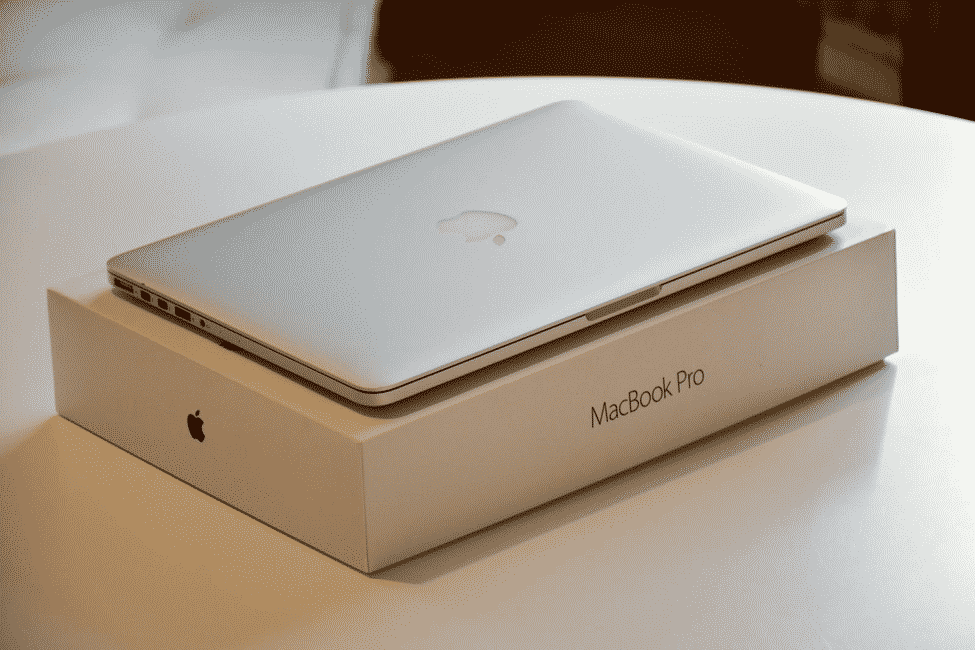
All the filth inside the Macbook is a hazard to the internal hardware. You need to clean dust and dirt regularly. Or, if you are not confident enough to take the computer apart yourself, look for a service store and leave the work in the hands of professionals.
The biggest giveaway of the problem is overheating of the computer as well as loud internal fan noises. Do not wait until things are out of control.
Step #7 – Scan for Malware
All your Macbook performance issues may be related to a virus or malware. Even an insignificant cybersecurity threat can cause a lot of problems. Some people believe that they are not prone to viruses and malware if their Macbook is for personal use. But the reality is quite different.
You need to protect your Mac from viruses and malware. Scan the system with reliable antivirus and remove any corrupted files if the software finds them. Be more careful when you surf the internet. Install an ad blocker for your browser so that it stops pop-ups that redirect to virus-filled landing pages. Use a virtual private network to protect internet privacy and secure the computer.
Keep in mind that the more of these suggestions you implement in your daily Macbook use, the more you will be protected from potential cybersecurity threats.
Step #8 – Reinstall the OS
Starting things anew could be just the idea to solve the Macbook performance issue. It is difficult to reinstall the macOS for those who have no experience, but there are plenty of resources online. You should be able to reinstall the OS by following detailed instructions.











