
If you are looking at how to use Fire Stick using easy methods, the right options that can prove to be handy and effective would involve focusing on a few of the perfect options in the long run. There are several ways you can use to set up and configure your Fire Stick. In case If you are using now tv on firestick, there are several methods for installation. We will discuss the easy steps to set up and configure the Fire Stick.
You need these things
You need the following things before you can begin setting up your Amazon Fire Stick –
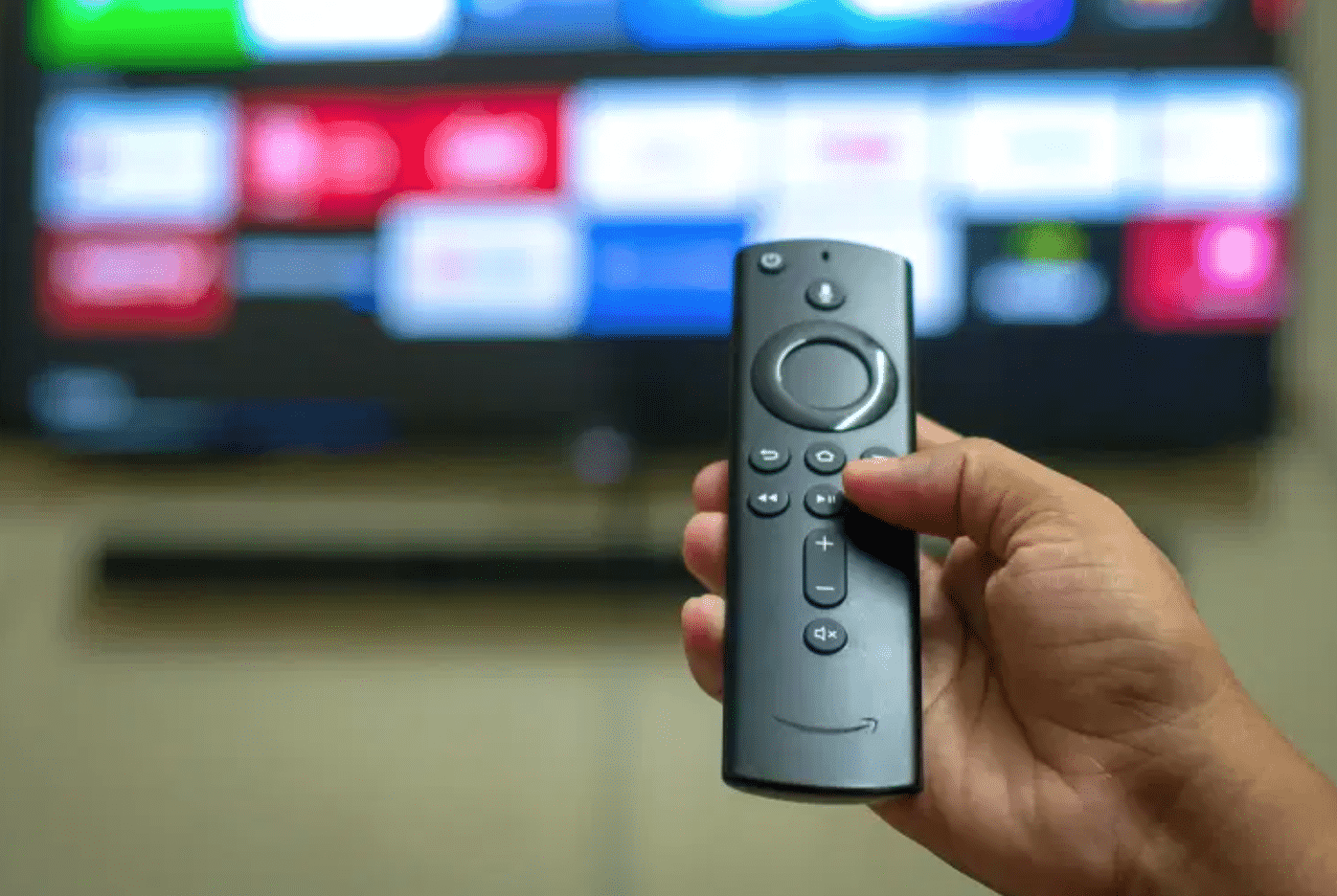
- TV with an HDMI port
- Wall Outlet Nearby
- Wireless Internet
- Amazon Account
Your Fire Stick comes with the following parts and components as part of the sales package –
- Start Guide
- Amazon Fire TV Stick
- HDMI Extender
- Micro USB Cable
- Wall Plug Power Adapter
- Amazon Alexa Voice Remote
- 2 AAA Batteries
Here is how you set up Amazon Fire Stick
Follow the steps here below to configure your Amazon Fire Stick with ease.
The Connections
- Connect the micro USB cable to your Amazon Fire Stick.
- Plugin the other end of the micro USB cable onto the wall outlet.
- Plugin the device into the HDMI port of your TV.
- If you have any issues connecting your Amazon Fire Stick onto your TV, you can even use an HDMI extender.
Tune in your TV
- Tune in your TV.
- Tune into your Amazon Fire Stick with the help of your remote
- As soon as you select the right output, you should find the Welcome Screen.
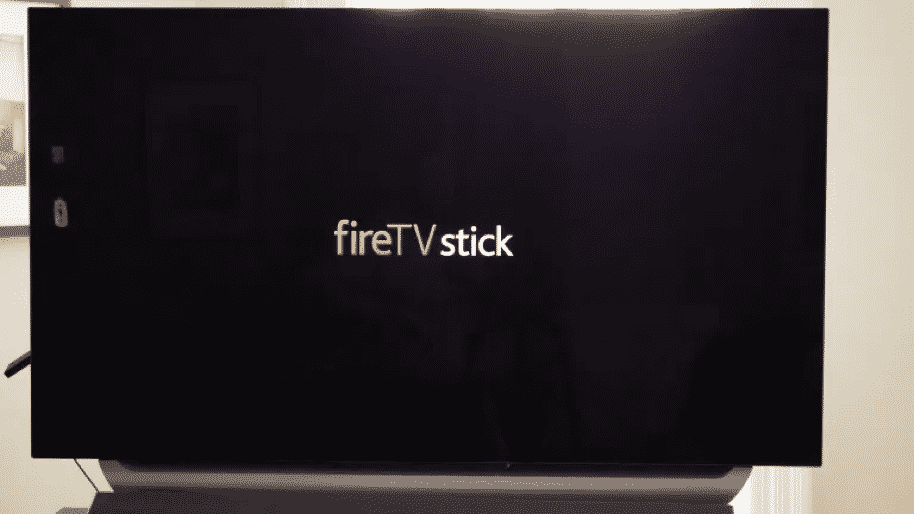
- Use the Amazon Firestick remote to control your needs in browsing through the content and programs of your choice.
Setting up Amazon Fire Stick
That completes the connections and next on would be to set up your Amazon Fire Stick. Follow the steps here to proceed with your installation and configuration –
- On the remote, press the Play/pause button to choose your preferred language
- Once that done, your Amazon Fire Stick will begin scanning your WiFi connection. Choose your network name, enter your password, and wait till the device gets connected to your WiFi connection.
- Amazon Fire Stick now scans for the updates available. If the updates are available, wait until the installation is completed. Once the updates are installed, your Amazon Fire Stick will restart.
Activate your Amazon Fire Stick
That should now complete configuring your Amazon device with your TV. Now, you will need to activate your Amazon account or login with it on your Amazon Fire Stick.
- If you already have an Amazon account, link it to your Amazon Fire Stick. If you do not have an account, you just need to create one. Creating an account with ease and simple steps.
- It would be advisable to create an account on a desktop. Once the account is created, you can simply use it to sign in on your Amazon Fire Stick with your Amazon account credentials.
Complete your on-screen setup
Go with your additional connection options. Follow the on-screen instructions to set up your account and begin using it. You can enable parental controls if needed.
Customize your Amazon Fire Stick and begin using it
Customization of your channels is something you would complete as part of your preferences. You can make use of your own configurations for your needs. You can pick your options based on what you want to get access to.
You can add your favorite streaming services to your home screen. You can even move to the APPS section and add them to your home screen.
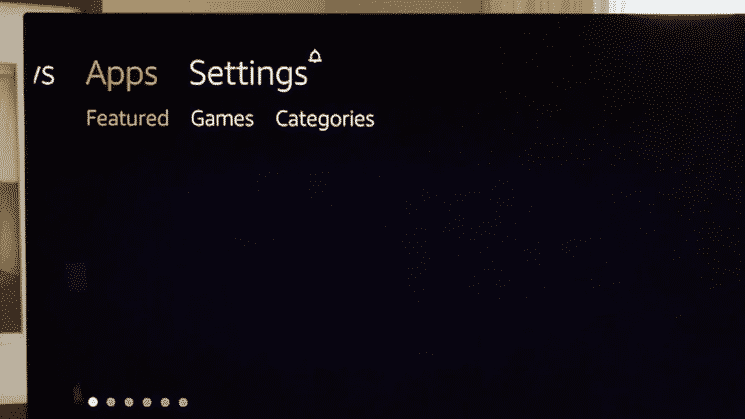
You can even search for your favorite content based on your individual preferences. You can choose what you want on the interface by moving through the different tabs – choose between Live services, movies, TV shows, apps, and your favorite shows.
The Concluding Thoughts
That was how you will be able to configure your Amazon account with ease and simple steps. The steps outlined in the above steps should help you set up and use your Fire Stick with ease and a few simple steps.
The voice remote and power and volume control offered by your product should make it yet another excellent option you would find rather impressive in every right. Amazon Fire Stick is indeed your one-stop solution for a streamlined and affordable streaming device.











