
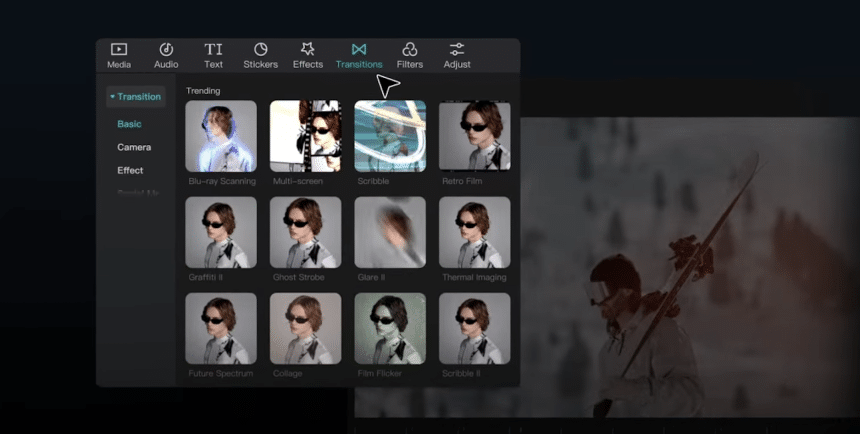
In today’s digital age, capturing life’s most memorable moments on video has never been easier. From birthday parties to family vacations, we have the tools at our fingertips to document every precious second. Yet, while the act of recording may seem straightforward, the true artistry lies in the editing process. With the abundance of powerful video editing software available, transforming raw footage into cinematic masterpieces has become more accessible than ever. Whether you’re a novice enthusiast or an aspiring filmmaker, mastering the techniques of video editing can truly elevate your content to professional levels. In this article, we’ll delve into a plethora of tips and tricks to help you edit your home videos. So, let’s get into it.
1. Plan Your Edit Before You Begin
Before diving into your editing software, take some time to plan out your video. Consider the story you want to tell, the mood you want to evoke, and the overall flow of your footage. Creating a storyboard or shot list can help you visualize how different clips will come together to form a cohesive narrative. By having a clear plan in mind, you’ll save time during the editing process and ensure that your final product communicates your message effectively.
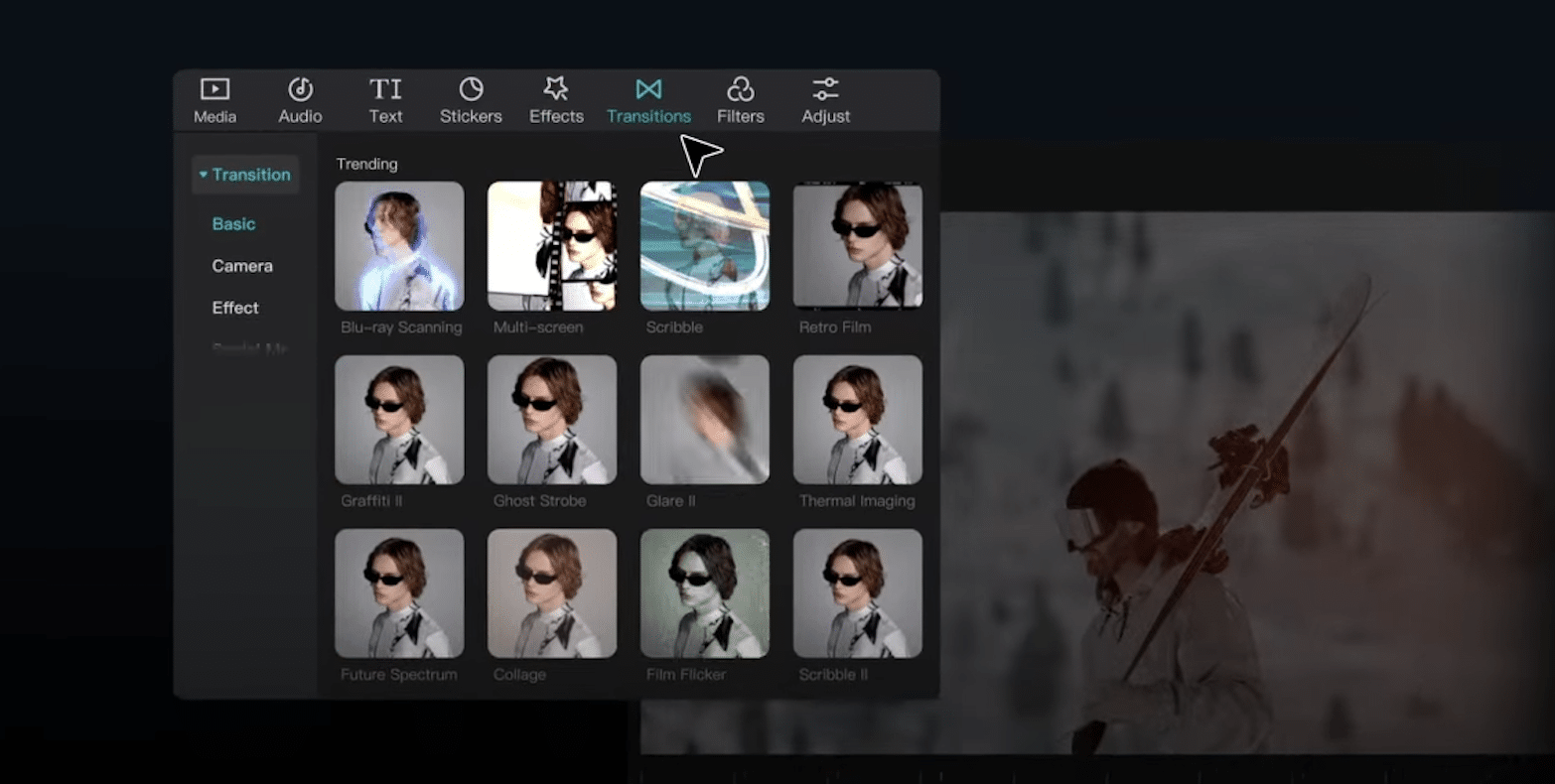
2. Organize Your Footage
Organization is key to efficient editing. Before you start piecing together your video, take the time to organize your footage into folders or bins based on categories such as scenes, interviews, b-roll, etc. This will make it easier to locate specific clips as you work and prevent you from feeling overwhelmed by a cluttered workspace. Additionally, consider using descriptive file names or adding metadata to your clips to further streamline the editing process.
3. Master the Basics of Your Editing Software
Familiarize yourself with the basic functions and shortcuts of your editing software. Knowing how to navigate the timeline, trim clips, and apply transitions will save you time and frustration in the long run. Many editing programs offer tutorials or online resources to help you get started, so don’t hesitate to take advantage of these resources to expand your skills.
4. Maintain a Consistent Style
Consistency is key to creating a polished video. Pay attention to factors such as color grading, font choices, and transitions to ensure that your video maintains a cohesive look and feel throughout. Establishing a style guide or template for your project can help you maintain consistency across different scenes and sequences.
5. Pay Attention to Audio
Don’t overlook the importance of audio in your videos. Clean, clear sound can significantly enhance the viewing experience and help convey your message effectively. Pay attention to audio levels, remove background noise where necessary, and consider adding music or sound effects to enhance the mood of your video. Invest in a good quality microphone for recording clean audio during filming, and consider using audio editing tools to fine-tune your sound during the editing process.
6. Experiment with Transitions and Effects
While it’s important to avoid overdoing it with flashy effects, judicious use of transitions and effects can add visual interest to your video. Experiment with different transition styles and effects to find what works best for your footage, but remember to keep it subtle and tasteful. Overuse of effects can distract from your content and detract from the overall viewing experience.
7. Tell a Compelling Story
At its core, video editing is about storytelling. Focus on crafting a narrative that engages your audience and keeps them invested from start to finish. Pay attention to pacing, sequencing, and emotional beats to create a dynamic and engaging story arc. Don’t be afraid to trim unnecessary footage or rearrange scenes to improve the flow of your video and keep viewers captivated.
8. Seek Feedback and Iterate
Don’t be afraid to seek feedback from others throughout the editing process. Show your work to friends, family, or colleagues and ask for their honest opinions. Constructive feedback can help you identify areas for improvement and refine your editing skills. Be open to suggestions and willing to iterate on your work until you achieve the desired result. Remember, even the most seasoned editors benefit from fresh perspectives and outside input.
CapCut Desktop Video Editor for Editing Home Videos
CapCut desktop video editor offers a user-friendly platform for editing home videos with ease and creativity. With its intuitive interface and robust set of editing tools, CapCut empowers users to transform footage into polished productions. Combined with CapCut’s editing capabilities, such as trimming, splitting, and adding transitions, the voice changer adds another layer of versatility to your video projects. Its features make it a valuable tool for both amateur and experienced editors alike.
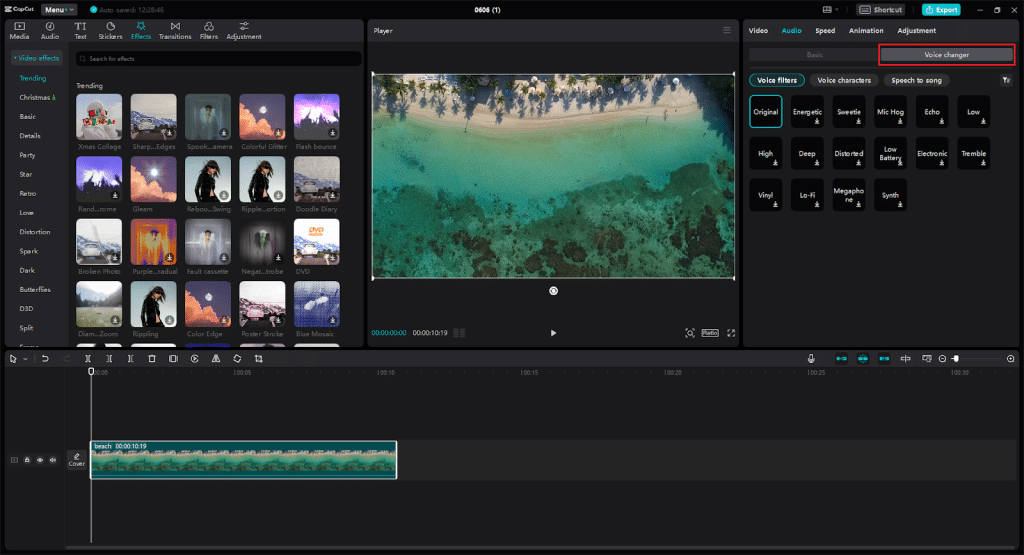
Steps to Use CapCut Desktop Video Editor
The following are the steps to use CapCut Video Editor:
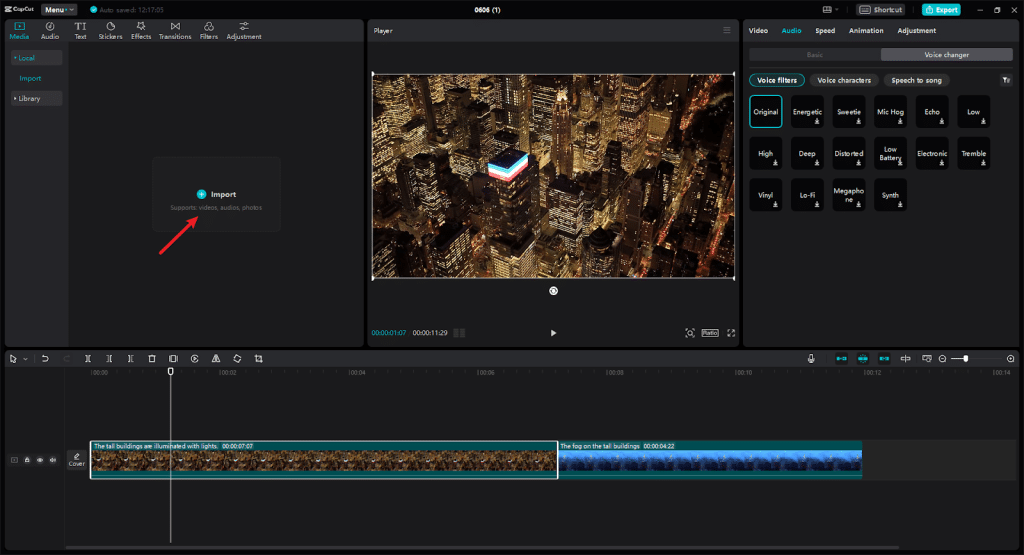
Step 1: Import
Get started with CapCut by importing your media. Drag and drop your files onto the workspace or choose from CapCut’s library of resources with just a few clicks.
Step 2: Edit
Enhance your videos with CapCut’s versatile editing tools, including basic adjustments and advanced features like AI enhancements. Explore a wealth of media resources and video effects to add that professional touch.

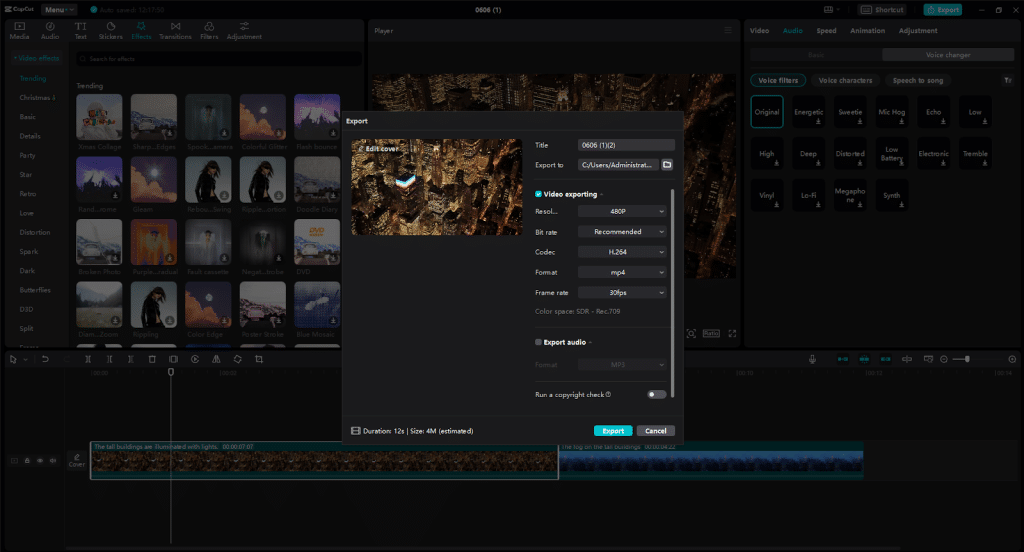
Step 3: Export
Share your creations effortlessly with export options tailored for social media platforms like TikTok and YouTube. Customize settings for resolution, bitrate, format, and more, ensuring your content looks its best.
Conclusion
Mastering the art of editing home videos like a pro requires a combination of creativity, technical skill, and attention to detail. You can elevate your videos professionally by carefully planning and organizing and experimenting with transitions and effects. For those looking for a versatile and user-friendly editing tool to bring their vision to life, CapCut Desktop Video Editor stands out as a valuable solution. With its intuitive interface, robust features, and innovative voice changer, CapCut empowers users to unleash their creativity and transform their home videos into cinematic masterpieces. So why wait? Download CapCut today and start editing like a pro.











