
More and more people value their privacy today. So, it is not strange that you want to hide or stop sharing your location on your iPhone. And many apps ask for your location permission when installing them on your devices. Besides, if you don’t want to let your parents know your specific location from Find My Friend on your iPhone sometimes, you also need to hide your location. Don’t know how to do? Read this post for 6 simple solutions to hide your location on your iOS devices.
Method 1. How to Hide My Real Location on iPhone by Changing Location
A quick way to not let others know your location on iPhone is using Aiseesoft AnyCoord to change your location. AnyCoord can help you hide your iPhone GPS location by setting virtual locations without turning off the location service. And you can finish the process in one click, which is easy and fast. After using this tool, you can set fake location on Grindr too. In addition to changing your iPhone GPS, this location changer also enables you to design a fake route for your iPhone to let it move along with the route. Then you can use this feature to puzzle others.
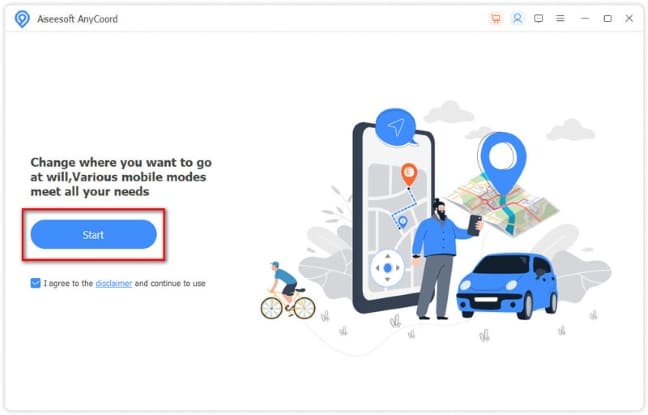
Step 1. Initially, please download and install Aiseesoft AnyCoord on your Windows or Mac computer.
Step 2. Next, you should run it and click Start to connect your iPhone to your device using a USB cable.
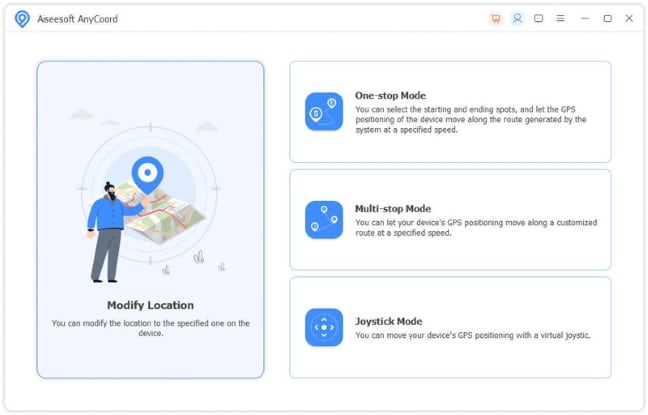
Step 3. After connecting successfully, you will enter an interface where you can select a function to mock your iPhone location. To hide your GPS position on your iPhone temporarily, you can select the Modify Location option.
Step 4. Next, the program will load a map, and you can see your current location on the map. Then please select a destination on the map that is different from your current position, click on it, and click Confirm Modify.

Step 5. Finally, you can hide your iPhone location simply by clicking the Move to button.

Method 2. Hide Location on iPhone by Turning off Share My Location
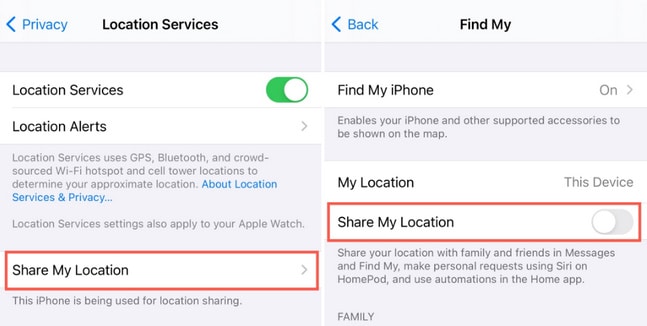
If you prefer using default ways to hide your location, you can disable Share My Location on your iPhone. But before trying this way, you must ensure your iPhone runs iOS 8 or later.
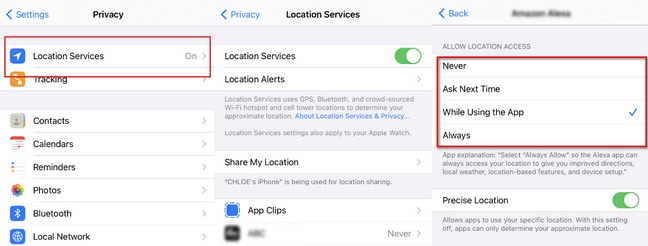
Step 1. Select Privacy in the Settings application on your iPhone.
Step 2. Then please go to Location Services and tap on Share My Location to enter the Find My screen to stop sharing your location with others.
Method 3. Turn off Location Services for All Apps to Hide Location on iPhone
Another solution to block your iPhone location from others in the Location Services is disabling Location Services in each app on your iPhone. This method is adjustable and humanized but a little time-consuming if you need to turn all your app location services off.
Step 1. Go to Settings > Privacy > Location Services on your iPhone.
Step 2. Select the app you want to change its location access settings. Then you can see there are 4 options on the screen: Never, Ask Next Time, While Using the App, and Always.
Step 3. As you need to hide the location on your iPhone, you can select Never or Ask Next Time.
Method 4. Hide Location on iPhone in System Service
Suppose you tend to turn off your location access from apps completely. You can modify your iPhone settings in System Services.
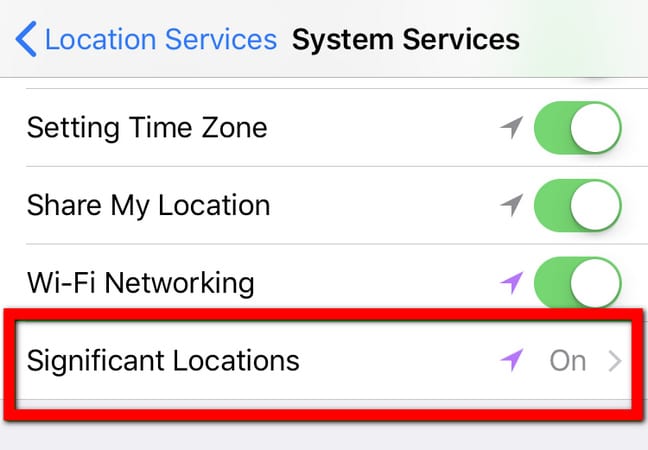
Step 1. Go to Settings > Privacy > Location Services on your iPhone.
Step 2. After that, please enter the System Services screen and tap the Significant Locations option.
Step 3. You can directly turn off Significant Locations or tap Clear History to erase collected locations of apps on your iPhone.
Method 5. Hide Location on iPhone by Enabling Airplane Mode
If you think modifying your iPhone settings is still complex, you can turn on Airplane Mode on your iPhone to stop sharing your location. However, this way may be inconvenient when you can use the data network only.
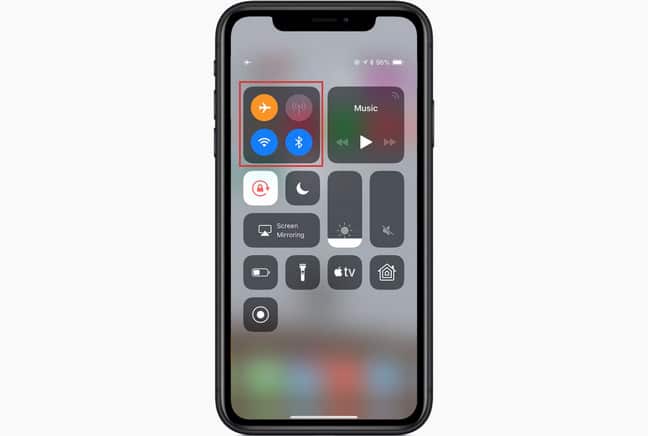
Step 1. To access the Control Center on your iPhone X or later, swipe down from the top right corner of the screen.
Step 2. Then you can enable Airplane Mode by tapping the airplane icon.
Method 6. Disable Share My Location in Find My Friends
If you hide your location for you don’t want to share your location with your friends, you can turn off Share My Location in the Find My Friends app.
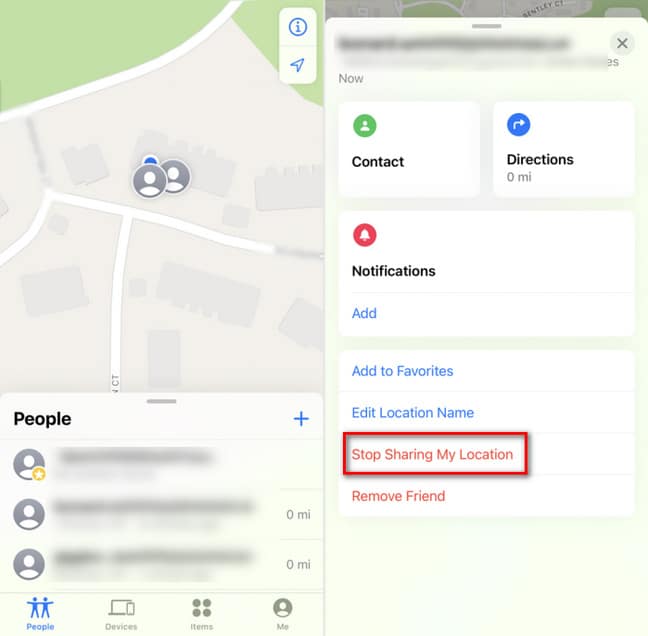
Step 1. Launch Find My Friends on your iPhone, tap People at the bottom of the screen, and select the contact with whom you don’t want to share the location.
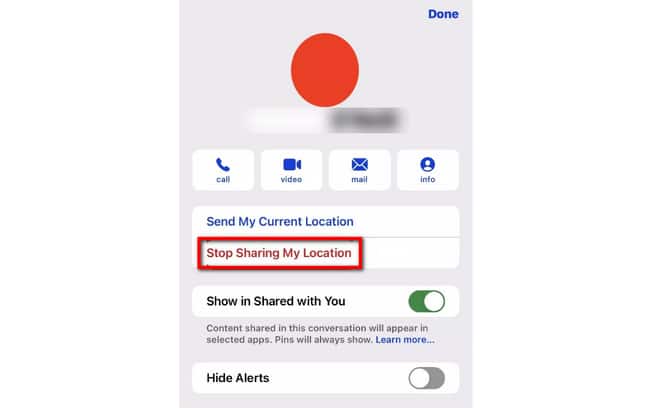
Step 2. Later, select the Stop Sharing My Location option. Then you can hide your iPhone location from your friends successfully.
Method 7. Stop Sharing Your Location in iMessage
Have you ever shared your location with friends in iMessage on your iPhone? Want to stop sharing your location from the iPhone without them knowing? Check the steps below for how to hide your location in iMessage.
Step 1. Run iMessage and enter any conservation.
Step 2. Tap the i icon on the top right corner, select Stop Share My Location, and tap Done.
You must have learned how to hide location on your iPhone. You can choose from these 7 ways based on your needs. If you prefer to set a virtual location for your device to hide your real location and need an easy-to-use tool, you can download Aiseesoft AnyCoord and have a try.











