
Most of us probably have our iPhone and iPads locked with a passcode. After all, our smartphones contain our private and personal lives, and a pin is necessary to protect them from prying eyes.
But what happens when this feature is turned against you? It’s easy to forget or input the password incorrectly when you’re in a hurry, and suddenly you’re staring at an ‘iPhone is disabled for X minutes’.
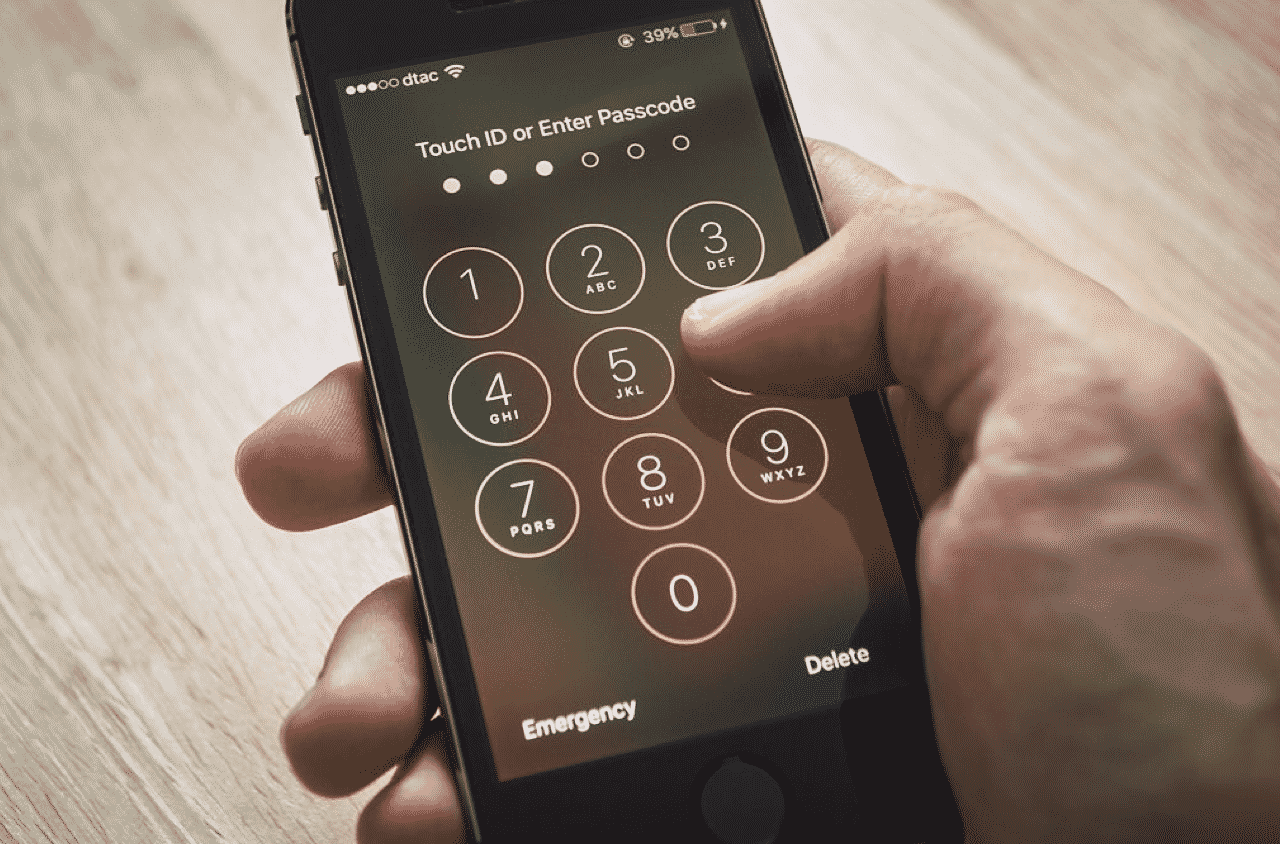
You’ll certainly be tempted to panic, but don’t worry- here are 5 ways on how you can unlock your iOS device and get back to the daily grind.
Method 1. Use the ‘Find My iPhone’ Feature
The feature ‘Find my iPhone’ can help you unlock your iPhone without a password. You will need another device where you can sign in your iCloud account to get it running.
Once logged in, choose ‘All Devices’ then select iPhone. Tap or click on ‘Actions’, then confirm the decision to ‘Erase iPhone’.
The downside here is that your iPhone data will be erased and you’ll have to get them all back using iTunes or your iCloud backup.
Method 2. Use iMyFone LockWiper
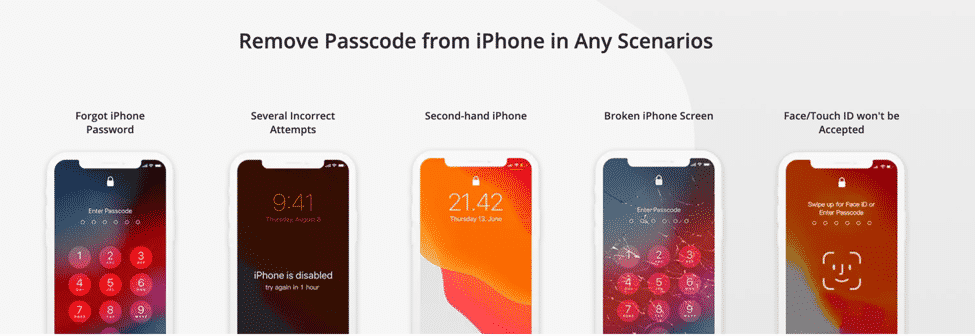
iMyFone LockWiper is a handy software that can remove lock mechanisms on your iPad, iPod Touch or iPhone quickly. When you’re in a hurry and need to retrieve important data, iMyFone LockWiper can get you there.
The steps to is easy. It allows you to bypass the iOS lock screen even when you’ve forgotten your iPhone passcode.
First, install iMyFone LockWiper and choose the unlocking mode depending on your scenario. Then, connect your iPhone to the computer and wait until it’s recognized. After a moment, the display will show ‘Unlock Complete’ and you’ll have your phone working again.
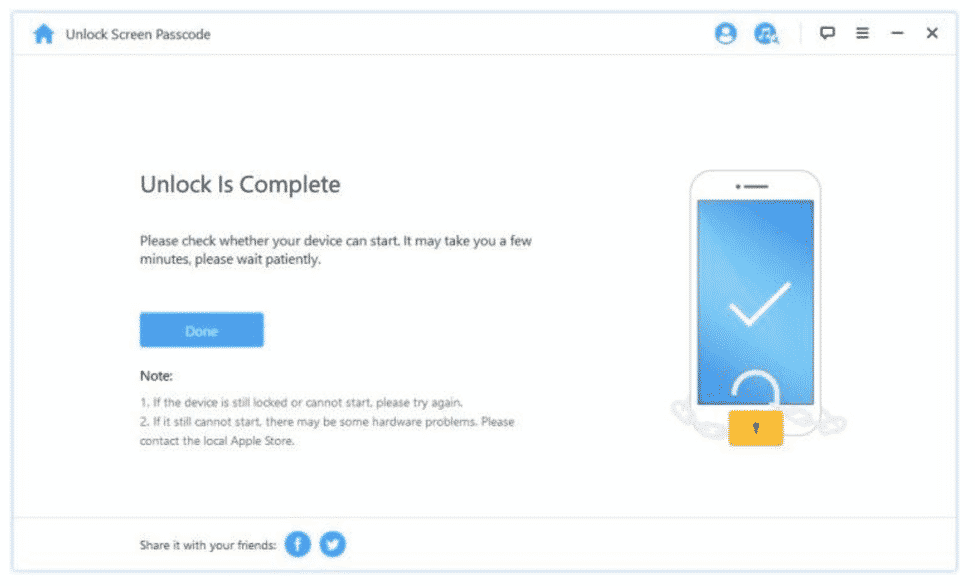
Aside from being able to unlock Apple ID, iMyFone LockWiper can also remove Screen Time Passcode, bypass MDM activation lock and other iOS restrictions.
LockWiper has an for those who are locked out of their Android-based devices. You can enjoy this convenience now and save $40 by entering the coupon code F487SA, which gives you the 1-year plan for only $29.95 instead of the original price of $69.95.
Method 3. Use iTunes

iTunes is more than just a front-end for managing iOS device data. It can save you from iPhone lock screens and a disabled iPad, as well as give you factory reset options.
Connect your iPad via cable to the computer and launch iTunes. Put your device on Recovery Mode so the software can detect it. A message in iTunes will appear, which says ‘a problem has been found, a restore or update is needed’.
Choose to restore and wait for iTunes to do its job. After that, your iPad is unlocked and ready to be used again.
There’s a downside to going this route, though. iTunes will proceed to delete all the data on your iPad or iPhone, including the settings, information and passwords. Also, if it shows an error that your iPhone is locked and you need to enter the password on the device, then you’re out of luck and will need a different approach.
You can via iMyFone LockWiper. It’s fast, easy and there’s no prerequisites involved.
Method 4. Use Recovery Mode
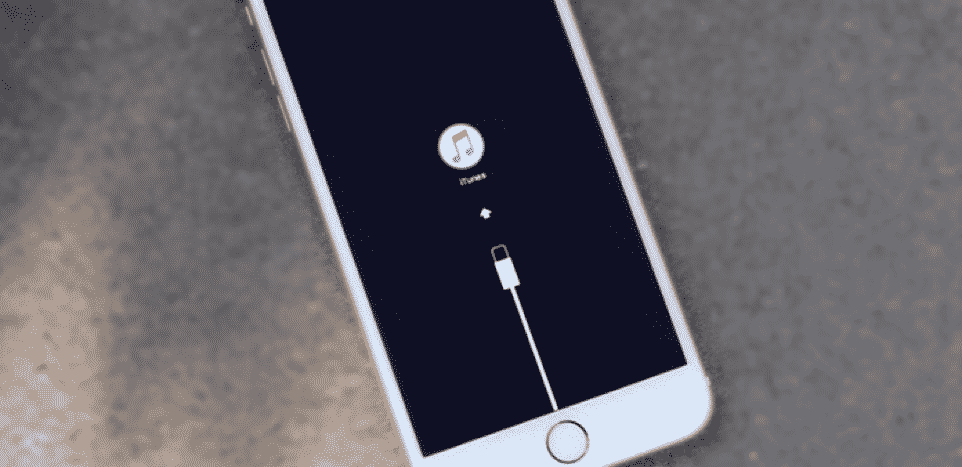
If you somehow disabled then ‘Find My iPhone’ feature, then one viable solution is to utilize Recovery Mode. However, you will need to make sure your device was recently synced to iTunes.
Begin by updating iTunes to the latest version. Launch the software then connect your iPhone via cable. Force your iOS device to go into DFU by checking the manual or looking at the information online.
iTunes will then proceed to wipe the device and restore it to a fresh one. Reset to factory and voila! the passcode is now removed. Afterwards you may want to transfer backup data to the iPhone.
iMyFone also has a software called “Fixppo” and it has a free function “”. You will find this software very much useful when going to recovery mode.
Method 5. Use Siri

There’s a trick to unlocking your iPhone by talking to Siri.
Press and hold your iPhone’s home button and ask her what time it is. Tap on the clock icon and you’ll be taken to another interface. You will want to tap on the ‘+’ icon on the top right part to add another clock; proceed to name it and tap the ‘Select All’ option, then ‘Share’.
Share via Message and tap on Return to call up the ‘Create New Contact’ screen. Choose to ‘Add Photo’ and ‘Choose Photo’, which should take you to the photo library.
Exit from there by pressing the Home button. Now you’re back to your iPhone default screen!











