
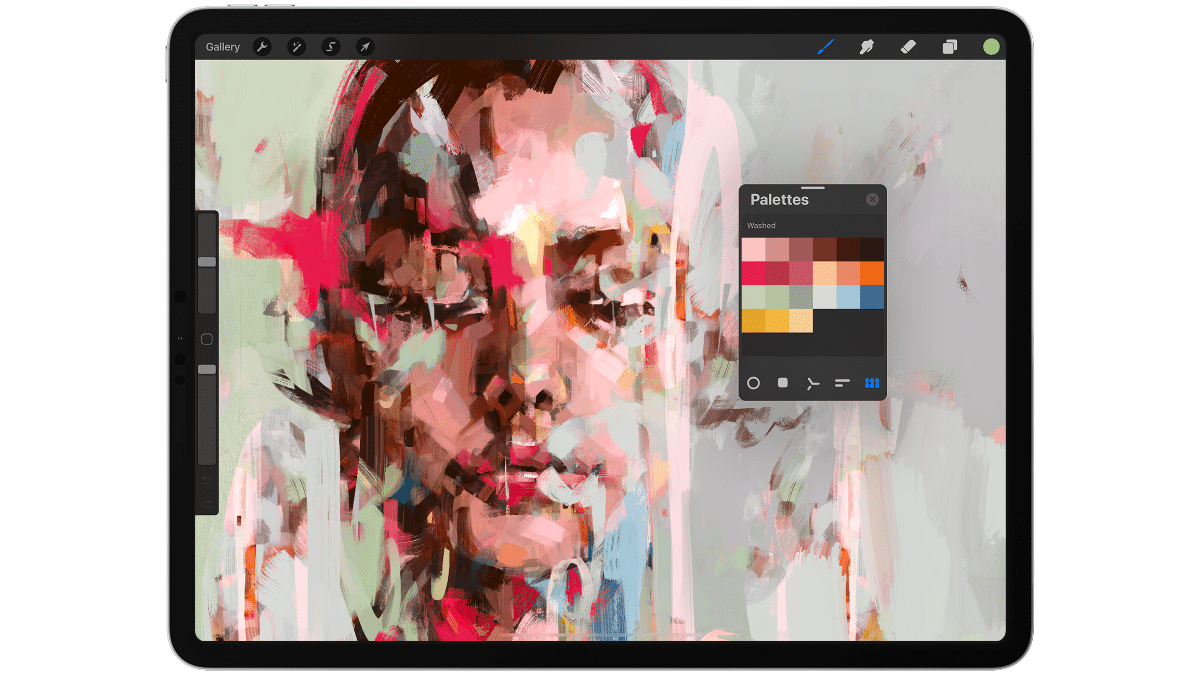
If you love creating art, Procreate is a top app that can transform your iPad into a full-fledged art studio. However, there are so many iPad models out there. Which one will be a suitable option for Procreate?
In this article, we’ll break down five key factors you should think about when choosing the Right iPad for Procreate. Let’s get straight into them!
1. Choose the Right Generation
Selecting the appropriate generation of an iPad is a critical factor when considering it for Procreate. Opting for the latest model guarantees better performance and future software updates but can be heavy on the wallet.
On the other hand, older generations are more budget-friendly but might lack the latest features and support for new updates. A good middle-ground is to go for an iPad that’s one or two generations old. Although, you should look for excellent performance and future-proofing without exceeding your budget.
2. Choose Between WiFi and Cellular
Another aspect to consider when choosing an iPad for Procreate is the connectivity option: WiFi-only or WiFi + Cellular. If you mostly work from a place with a stable WiFi connection, like home or office, a WiFi-only model should suffice.
Besides, if you’re a traveling artist or find inspiration in different locales, an iPad with cellular capabilities allows you to work and upload your projects from virtually anywhere.
Although a cellular model comes at a higher initial cost, the convenience of on-the-go connectivity might make it a worthwhile investment for you. That’s why you should choose based on your lifestyle and work habits.
| Model | Generation | Cellular Capability | Wi-Fi Capability |
| iPad Pro 12.9‑in. | 6th generation | 5G | Up to 2.4 Gbps |
| iPad Air | 5th generation | 5G | Up to 1.2 Gbps |
| iPad (10th generation) | 10th generation | 5G | Wi-Fi 6 |
| iPad (9th generation) | 9th generation | Gigabit-class LTE | Fast Wi-Fi |
| iPad mini | 5th and 6th generation | 5G | Yes |
3. Screen Size Matters
Procreate artists often underestimate the impact of screen size on their work. A larger screen offers you a bigger canvas and potentially higher resolution. However, it’s crucial to note that larger screens limit the number of layers you can use in Procreate.
More advanced iPads may allow more layers for the same resolution compared to older or less powerful models.
Portability is another factor. If you travel often, a smaller screen size is more convenient. The trick is to find a balance between your need for canvas space and your type of use.
| Model | Generation | Screen Size |
| iPad Pro 12.9‑in. | 6th generation | 12.9-inch |
| iPad Air | 5th generation | 10.9-inch |
| iPad (10th generation) | 10th generation | 10.9-inch |
| iPad (9th generation) | 9th generation | 10.2-inch |
4. Consider RAM
One feature often overlooked when choosing an iPad for Procreate is RAM. The amount of Random Access Memory (RAM) dictates the number of layers you can have in a Procreate project. In simple terms, the more RAM, the more layers.
If you’re a digital artist, pay close attention to RAM when picking an iPad. Go for the highest RAM you can afford. Unlike other features, you can’t upgrade RAM later on. So, it’s crucial to get it right from the start. You might think about saving money by using less RAM, but not having enough RAM can affect your creativity.
5. Look For The Right Storage Capacity
While Procreate files are relatively small, it’s easy to underestimate how much storage you’ll need. If you use the iPad alone, you could run along with less storage.
However, bear in mind that internal storage on iPads is not expandable. You should also consider the iPadOS, apps, and other media files that will consume storage. Plus, if you plan to edit videos or use other storage-intensive applications, go for at least 256 GB.
| Model | Generation | Storage Options |
| iPad Pro 12.9‑in. | 6th generation | 128GB, 256GB, 512GB, 1TB, 2TB |
| iPad Air | 5th generation | 64GB, 256GB |
Conclusion
Choosing the right iPad for Procreate requires a variety of considerations. The generation of the iPad plays a pivotal role in determining performance and future software updates. Connectivity options like WiFi-only or WiFi + Cellular should align with your work environment and lifestyle. Screen size is another crucial aspect, affecting both your canvas space and portability. RAM is often overlooked but is vital for handling multiple layers in Procreate. Lastly, analyze your storage needs as well. By considering these factors carefully, you can make an informed decision that meets your artistic requirements and fits your budget too.
For those looking to stay updated with technology, Bravotello offers a comprehensive guide that covers everything from software to hardware. The platform provides practical information on performance, efficiency, and features, making it easier for users to make informed choices.











