
An Excel or XLSX file is a spreadsheet that stores lots of data in a tabular form and is used by numerous people and organizations regularly.
Sometimes, one or more Excel files on our computer may get corrupted or damaged, and in that case, it becomes crucial to repair corrupted Excel files to prevent valuable data loss.

So, in this guide, we’ll inform you about the common reasons for XLSX file corruption and offer the best repair solutions that we know.
Causes of Excel File Corruption
1. Interruption during File Transfer
One of the most common reasons for data corruption is improper download due to bad internet or closing the downloader before finishing the download. A similar outcome may happen if an interruption occurs during data transfer from an external storage device.
2. Virus Infection
A malware attack on a computer may corrupt the data on its hard drives. It is recommended to scan your system regularly for potential threats.
3. Abrupt System Shutdown
Forced or sudden shutdown of the computer may corrupt a file that was being used.
4. Corrupted Excel Editor
Trying to open an XLSX sheet with a non-XLSX editor may corrupt it. Alternatively, using a corrupted Excel editor may damage the files opened using it.
5. Damaged Storage or Intentional Corruption
A damaged or corrupted storage device may corrupt the data it holds. Also, sometimes people forcefully change the file extension for protecting the data, but this process often damages its contents.
Common Methods to Repair Corrupted Excel File
If your system has encountered any of the above circumstances that resulted in corrupted XLS files, don’t worry. We’ll guide you on how to repair corrupted Excel sheets using some straightforward methods.
Remember to make a separate copy of the damaged file before starting any repair process.
1. Re-Download the Excel File
The first method you have to try to repair corrupted Excel file is to try downloading it from a backup copy if that exists. In case the item is downloaded from the web, download it again if you have the link.
Alternatively, if you transferred the XLSX item from any external storage, then re-transferring it may solve the problem iff the item is not already corrupted in the external source.
2. Check the Excel File Opener
A corrupt file opener may often corrupt the data opened using it or cannot access the file contents. So, try to open the XLSX file using a different application. The best two XLSX file readers are Microsoft Excel (both online and offline) and Google Sheets (online only).
First, try to open the Excel sheet using the built-in Microsoft Excel application on your computer. If it doesn’t work, then try using the online version of MS Excel or Google Sheets. Upload your file to any of the online editors and check if your item is readable or not.
If the XLSX sheet is not accessible even from the online viewers, then your file itself is corrupted and need to be fixed. Otherwise, your Microsoft Excel application is corrupted and must be repaired.
To fix MS Excel:
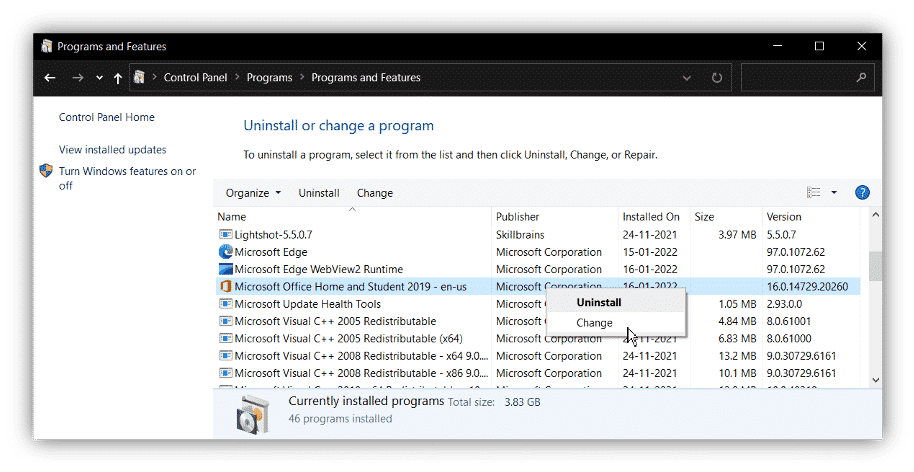
- Go to Control Panel -> Programs -> Uninstall a Program.
- Right-click on Microsoft Office and select the ‘Change’ option.
3. Now, press ‘Yes’ on the pop-up window.
4. From the next screen, select either Quick Repair or Online Repair and click on ‘Repair’.
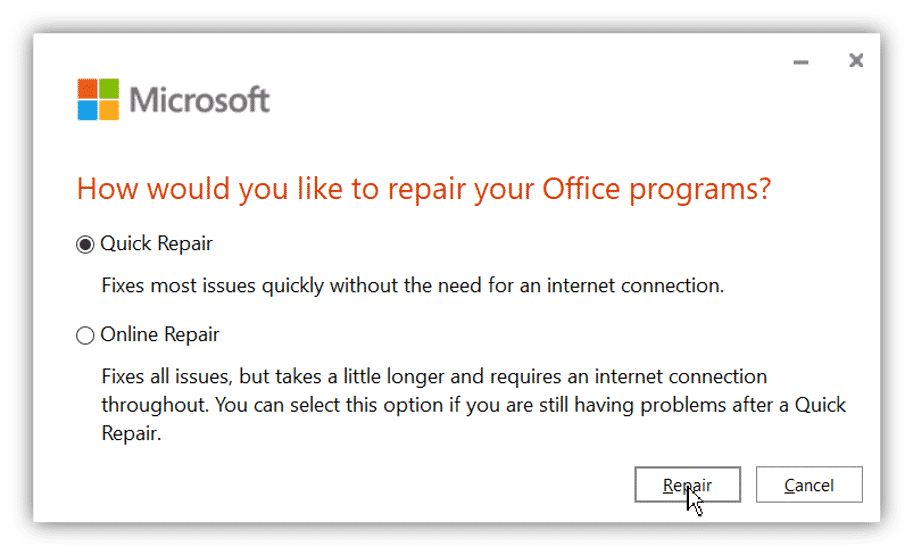
5. Now, follow the click-through process and fix your MS Office. If Quick Repair doesn’t work, then try again with Online Repair.
After the MS Office is fixed, try to open your sheet using MS Excel. It should open now, considering the sheet is not corrupted.
3. Use Microsoft Excel’s File Repair Feature
Microsoft Office has an in-built document repairing tool that can repair corrupted Excel files on your computer. But it works only for minor damages and doesn’t help when the corruption is moderate to severe.
Fixing Excel sheets with this tool can be done in a few simple steps:
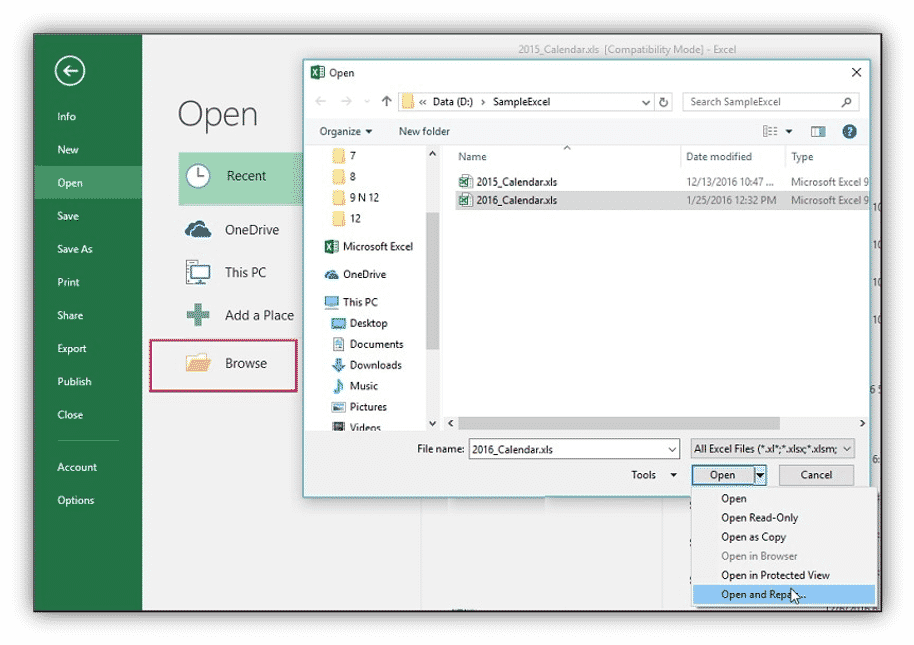
- Launch MS Excel and click ‘Open’.
- Locate the XLSX file you want to fix from the file browser that pops up. (Don’t open it).
- Right-click on the file and select ‘Open and Repair.’
4. Wait until the application finishes the repair.
When the file is fixed, try to open it. If the damage was minor, this might solve the issue. Otherwise, move forward to the next step.
4. Check for Malware attack
If there is a malware infection in your system, your file may get corrupted, and you can only access the files once the malware is eradicated from the computer.
You can perform system (or file) disinfection easily using the Microsoft Defender, the pre-installed security software in Windows.
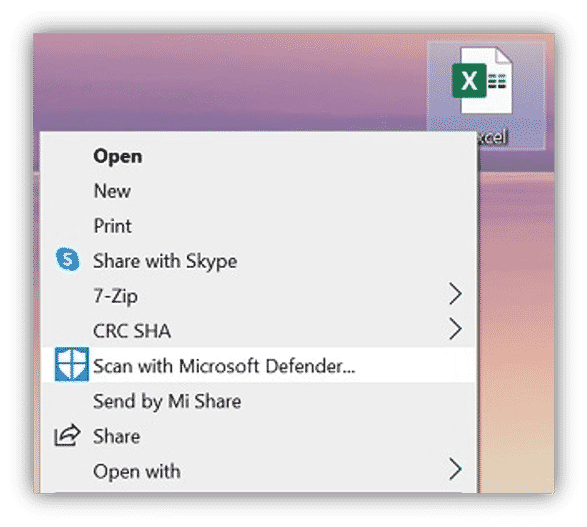
To scan an XLSX file, right-click on it and select the ‘Scan with Microsoft Defender’ option (or if you have any other Anti-virus software installed, it will replace the Microsoft Defender in the option).
As soon as the scan is complete, you’ll get notified. Now, check whether the file is accessible or not. If the data corruption was due to a virus attack that caused minor damage, then the file will be fixed and will work normally.
Repair Excel File using Wondershare Repairit
If none of the above methods could repair excel files that were corrupted, then the damage may be severe, and you need to use a software that can repair corrupted excel files that are heavily affected. We recommend using Wondershare Repairit File Repair Tool for the problem at hand.
It is the best file repair software that we’ve found so far. It is an offline application that can repair corrupted Excel files, Docs, Pdf, Video, Image and various other kinds of files, and is available on both Windows and Mac systems.
First, download and install Wondershare Repairit for Desktop from the official webpage. Now, with just 3 easy steps, you can repair Excel files using Repairit.
Steps to Repair Excel Files using Repairit
- Launch the Repairit application and click on the ‘File Repair’ option from the repair-type list on the left. Click on ‘+Add’ to start uploading the corrupted excel sheets to the software. Its batch processing feature can even repair numerous files at once.

After adding all the corrupt items, the app will show them on the screen. Now, you can add or remove items or check each item’s metadata.
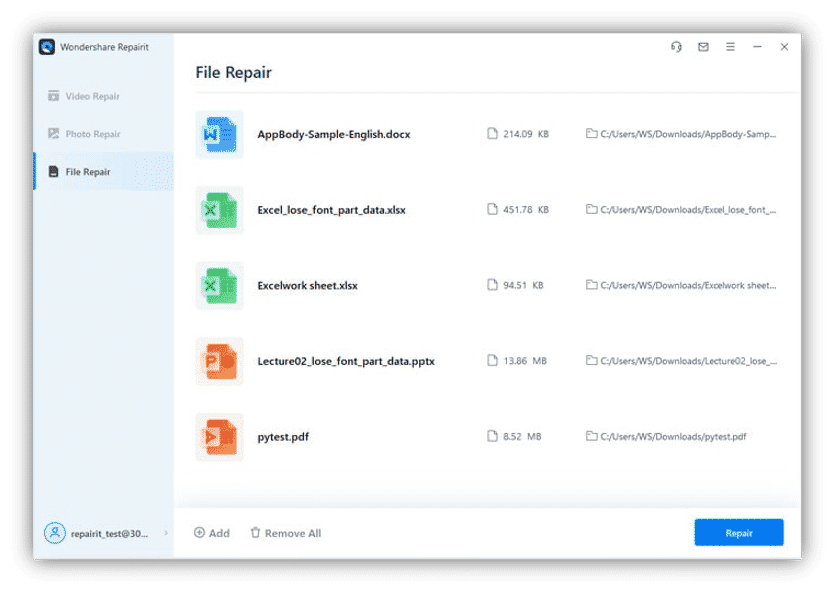
2. Press the ‘Repair’ button once you’ve added all the files you want to fix. As the process goes on, you can check its real-time progress and the repair status of every item. You can even cancel the process any time you want.
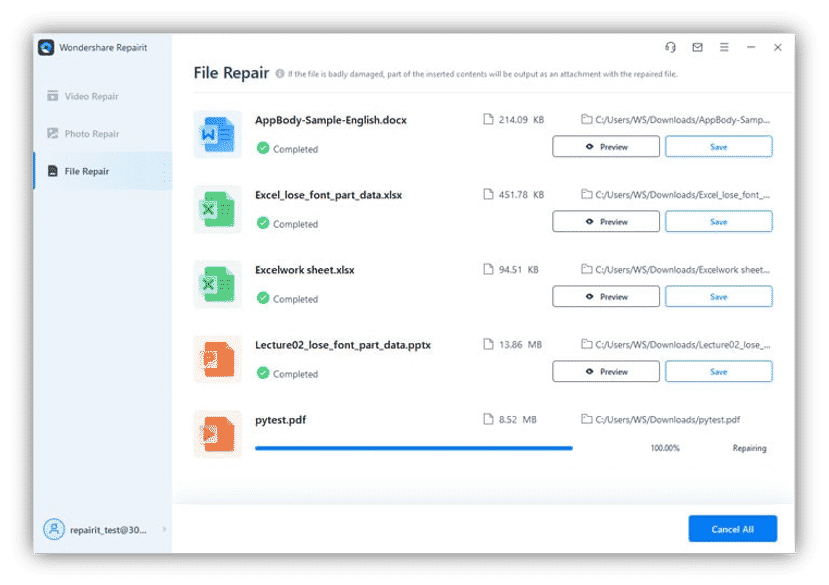
A ‘Completed’ sign will appear below its name when an item is successfully repaired. After the entire batch of items is processed, a pop-up showing the total number of repairs will be displayed.
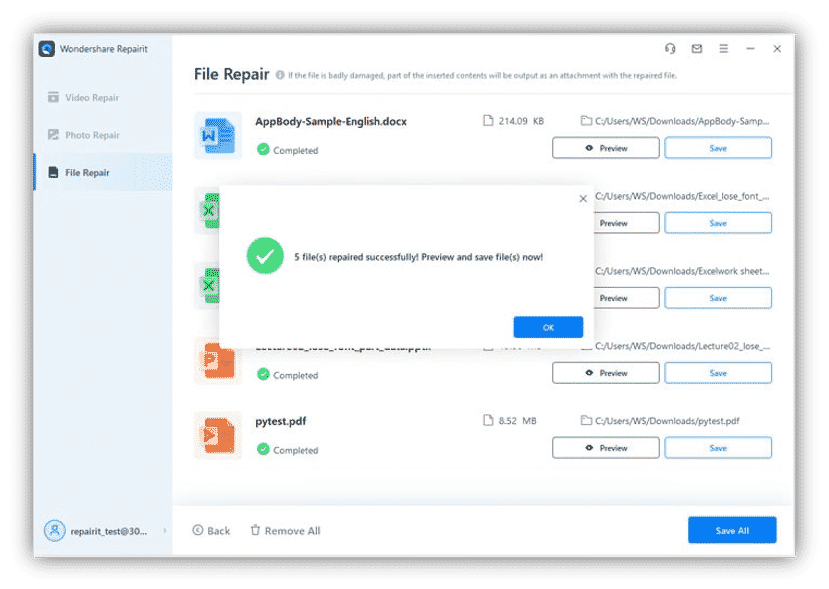
3. Now, you may want to preview the items before saving them on your system. Press the ‘Preview’ button in the item details to do so.
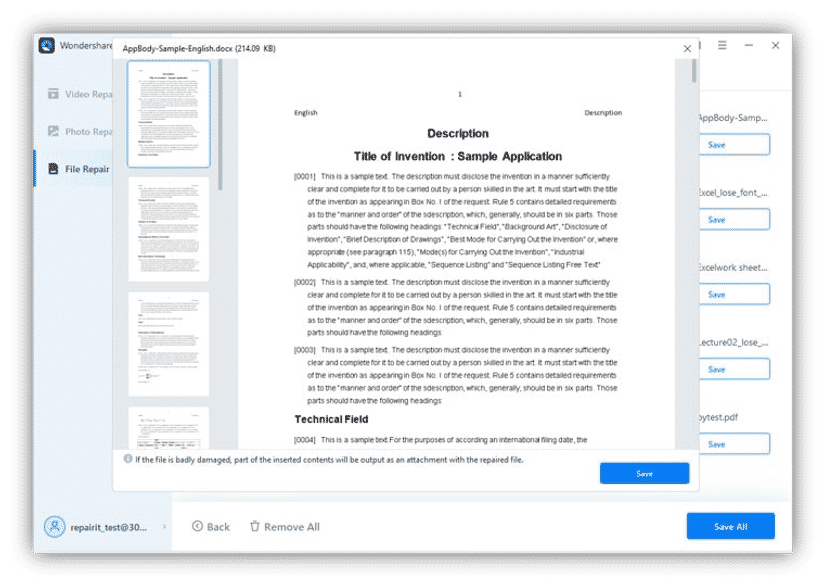
You can individually save each item or save all of them at once by clicking the ‘Save All’ button. Finally, select the location for saving the items.

Now, navigate to the save folder and open the XLSX files with a non-corrupted XLSX sheet viewer.
NOTE: If any severely corrupted item is not repaired after using Repairit, you can contact the experts at Wondershare, and they’ll gladly help you repair Excel file.
Wondershare Repairit can repair all the corrupted stuff in your computer in just a few minutes. It is free to use and can repair any image, video, or document in just 3 simple steps.
It supports the repair of all the popular file types stored on external drives, cameras, smartphones, and various other devices.
By buying a subscription, you can unlock unlimited file repairing along with the Advanced Repair feature that can repair severely damaged images and videos.
It also has an online repair tool that offers 200 MB of free repair.
Conclusion
After trying the methods from this guide, we hope that you’re able to repair Excel files on your computer. Some of the common fixes mentioned above work only for mild damages and corruption. For any severe damage, we recommend using Repairit for a quick and successful repair.











