
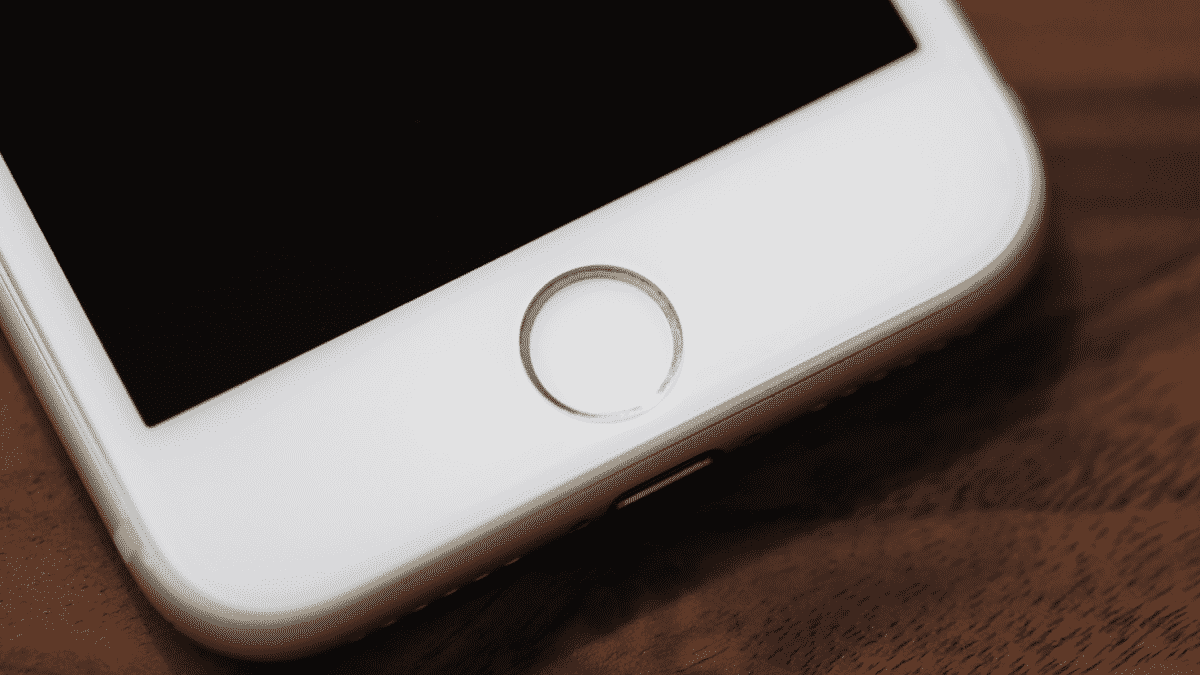
No matter how serious you are about keeping your iPhone intact, there’s still a possibility that your home button will suffer the impact of wear and tear caused by continuous use. The iPhone 5 that featured a change in the anatomy of its home button may help address this issue. However, Apple’s iPhone models that came before are still vulnerable to this kind of problem.
Several issues can cause your iPhone home button to malfunction. If your iPhone device is under warranty, the best approach is to allow the nearest Apple store to fix it. Otherwise, there are quick fixes that you can do to repair it by yourself.
Read on if you want to know how to fix a malfunctioning iPhone home button and continue using it for your personal or business-related activities.
1. Clean The Home Button
Along with constant use of your device, it’s most likely that it will accumulate a buildup of dirt and grime. Those kinds of buildup might clog the phone’s mechanism, causing temporary or permanent damage—a possible cause for your device’s home button to malfunction.
The steps to clean it are:
- Put some isopropyl alcohol on a cotton bud.
- Quickly wipe it around the home button where the crack is located.
- After that, stop for a couple of minutes so that the button will dry. Test the home button.
- Likewise, you can also make use of a can of compressed air-press and hold the button and blow it into the device’s charging dock. This can erase any dirt present, which may allow your iPhone’s home button to function well.
Sometimes, you can’t do the iPhone repair by yourself, so it can be good to look for mobile phone repair services to help you, and you can find out this here.
2. Calibrate And Restore Your iPhone
This step isn’t a fast approach to keep your iPhone’s home button working again, but it still might be the quickest way to address it. Most of the time, problems with software or firmware might be why your phone’s home button isn’t working.
Hopefully, you can fix this issue by calibrating and restoring such a device. The first step you have to take is to ensure it has the latest iOS update. But before restoring your iPhone and upgrading the iOS software, you must back up its data on iCloud, Finder, or iTunes.
After that, you can use the DFU (Device Firmware Update) mode to restore such a device. When you do such, it erases all data from your iPhone. Likewise, you have to wait for, at least, an hour. Using DFU mode to restore your phone rewrites all your software and firmware.
As using the DFU mode is vital, the problem is that you’ll not find the instructions on how to DFU restore your iPhone on Apple’s site. It’s the deepest kind of iPhone restoration out there. So, you have to search online to find the instructions.
You can reload your personal information from your iTunes, iCloud, or Finder backup after using DFU. Finally, you can use your home button without a problem after doing all these steps.
3. Use Assistive Touch
You can find many accessibility features on your iPhone, some of which are hidden. One of these is called Assistive Touch, and it’s a helpful alternative to your home button when it’s not working. It was designed so that people can have another option besides the phone’s physical button.
There are steps to activate Assistive Touch. These are:
- From the home screen, search for the device’s settings
- Scroll down and select Accessibility
- Select Touch
- Now click Assistive Touch and toggle it on to use it.
In older versions of iOS, the steps are to:
- Search for Settings
- Scroll to find General
- Then tap on Accessibility
- After that, you can search for Assistive Touch
After enabling Assistive Touch, you’ll notice a small circle popping up on the screen. You can drag it as you please from every area of the screen for convenience. Tapping on that small circle can allow you to access options such as the Control centre, Home, Siri, and more. Likewise, you can tap on Home after tapping on the Assistive Touch to lead you to the home screen. You can also use Assistive Touch as a home button alone, so you no longer have to open a menu.
The Bottom Line
There’s a chance that your iPhone’s home button will suffer wear and tear due to continuous use. However, you can bring such a device to your chosen Apple store to solve it, especially if it’s still under warranty.
Otherwise, if you think you want to fix it yourself, there are many ways that you can do such. Some are found above, and you can take note of them to address your issue.











