
For those who are not aware, Morse code is still a viable means of communication and a great way to encode languages. The first Morse code message, sent in 1844 via a telegraph, was literally the first text message. That day the world went from sending messages by horse and train to near-instant communication.
In this article, we will cover three reasons to text Morse code, how morse code works, and exactly how to do it for free.

Here is why you should try texting in Morse code!
1. Sending Unique Messages
Next time the opportunities arise, send a special message in Morse code and see what reactions you get. You can change things up and stand out a bit by sending “Happy Birthday” or “I Love You” in Morse Code.
When they reply with something like “huh?” just let them figure it out. Once they realize what it means, you will probably get called a nerd, but at least you will know you spiced up their day.
It shouldn’t take too long for most people to catch on, and you can have a little fun while you are at it.
2. Learning Morse Code
In reality, learning Morse code through texting is easy and possibly even the best way to get the basics down. Morse code is becoming less prevalent as communication technology advances, but it is unique enough to never become obsolete. The code can be sent in so many ways that it is a valuable emergency communication tool.
Morse can be sent by radio, blinking, tapping, and even with light. Texting is an entertaining way to start the learning process, but you still may need some practice with timing to send the code in other ways.
3. Secretive Communication
Someone can read a text message over your shoulder or one that pops up while you might not be around. If it is in Morse code, that concern will most certainly be mitigated.
Texting in code will not be practical with every conversation, but it can be very beneficial for sending sensitive information.
You can also use Morse to encode your messages completely.
While someone can translate your coded messages with a quick google search, there is a way to combat that. You can make your own Morse code key and share that with the person you are texting.
Making your key can be accomplished simply by assigning your own dot-dash combination to each letter and number. It may sound complicated, but I tried this myself and was able to do it in 5-10 minutes.
Once you’re done, if the message is intercepted or read by someone else, they will have a heck of a time figuring it out.
How Morse Code Works
To learn how to start texting in it, you should first understand the basics of Morse code.
The two essential signals of the code are dots and dashes, and they look exactly as they are named.
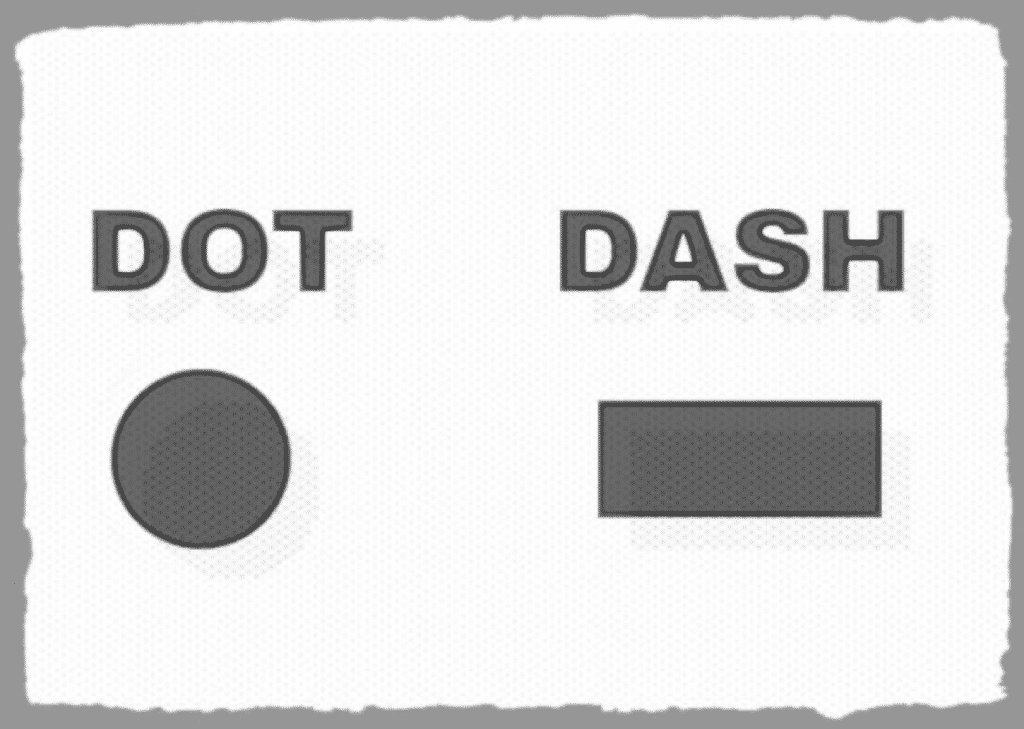
Every letter, number, and even some punctuation is assigned a dot and dash combination.
Morse code works by implementing pauses and timing rules with these dot and dash combinations.
The morse code timing rules are:
- Dot = 1 unit of time
- Dash = 3 units of time
- The gap or space between dots and dashes for a character = 1 unit
- The gap between the characters of a word = 3 units
- The gap between two words = 7 units
These timing rules are critical when sending an audio or visual message in Morse code but not so much when texting.
Now that you have an idea of how the code works, let’s look at how you can get started texting in the code.
How To Text in Morse Code
If you want to send messages in Morse, you will simply just need to find a Morse code alphabet chart.
Once you have the chart to go by, you can translate your message into the code.
Then you can just start sending your text messages by using the dots and dashes on your phone keyboard.
Here are three basic rules to follow to keep your Morse code readable:
1. Put a space after each letter.
2. Put a forward slash (/) or vertical slash (|) after each word.
3. Treat punctuation as a letter in a word.
For example, if you are sending the message “hello it’s me,” it would look like this:
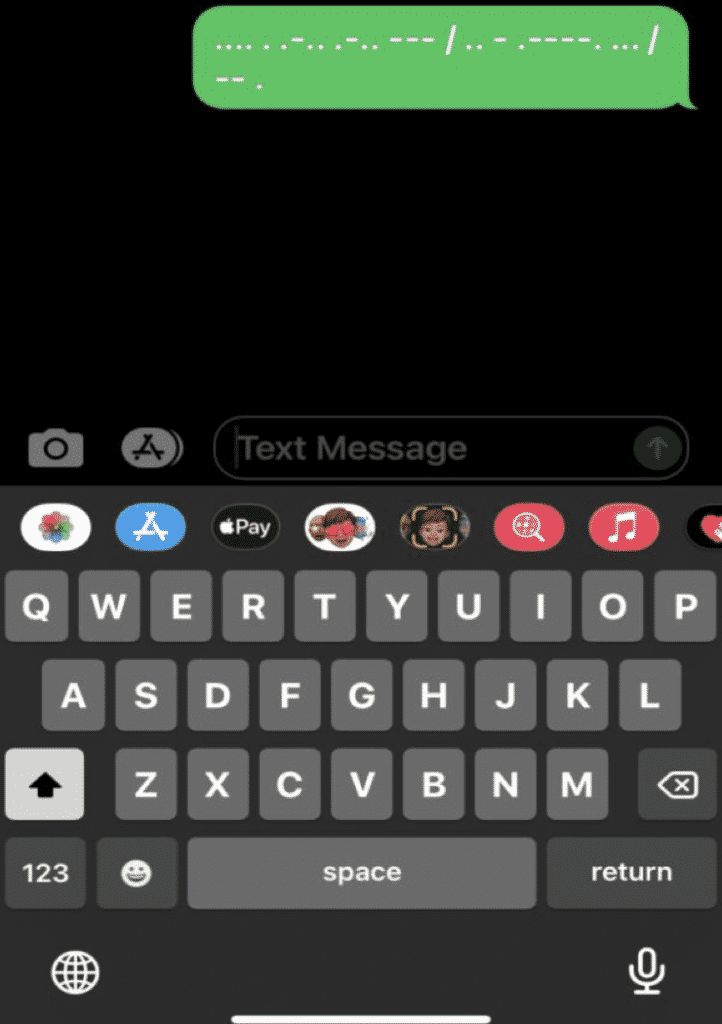
An alternative way to text the code is to spell out the dot and dash signals you want to send.
A dot is spelled “di” unless it is the last character in the letter, then it is “dit.”
A dash is always spelled “dah,” and you just separate all the signals with a dash (-).
So the same message as above spelled out is “di-di-di-dit dit di-dah-di-di di-dah-di-di dah-dah-dah / di-dit dah di-dah-dah-dah-dah-dit di-di-dit / dah-dah dit.”
As you can see, the first option is much easier and the preferred method for writing or texting the code.
If you want to type in Morse Code and have it automatically translated to English, you can download the Gboard app.
To Add Morse Code to English on your Apple Device:
1. Download the Gboard app from the App Store.
2. Open the app and tap “Languages.”
3. Tap on “Add Languages.”
4. Scroll to the bottom, then find and click on “Morse Code – English (United States).
To Use Morse Code to English on Your Apple Device:
1. Go to somewhere you can type text.
2. Tap where you enter text to pull up the keyboard.
3. Tap on the globe symbol until the Morse keyboard appears.
4. Start typing with the dot and dash options.
To Add Morse Code to English on Your Android Device:
1. Download the Gboard app from the Google Play Store.
2. On your device, then open up the settings app.
3. Tap on “System” —–> Then tap “Languages & input.”
4. Tap on “Virtual Keyboard” —–>Then tap “Gboard.”
5. Tap on “Languages”—–> Then tap “English (U.S.).
6. Scroll through the options and tap “Morse Code.”
7. Tap on “Done.”
To Use Morse Code to English on Your Android Device:
1. Go to somewhere you can type text.
2. Tap where you enter text to pull up the keyboard.
3. Tap on the globe symboluntil the Morse keyboard appears.
4. Start typing with the dot and dash options.
From there on out, it will just require a little practice and patience until you memorize the Morse code signals for each letter.
Happy Coding!











