Taking into account the huge number of requests, screen recording on Apple devices is a much-in-demand schtick. Most of all, it’s needed for bloggers, people who want to visually demonstrate some iPhone gimmicks, witness a bug, or share the gameplay.
In any case, one day, you may need to record what’s happening on your iPhone’s screen, so let’s unveil how you can do it.

Method #1. Activate iPhone pre-defined tool
Back in 2017, iOS 10 didn’t have standard screen recording functionality. Therefore, iPhone owners have to use third-party services. Until they got iOS 11 that implemented a built-in screen recording option.
How to enable it?
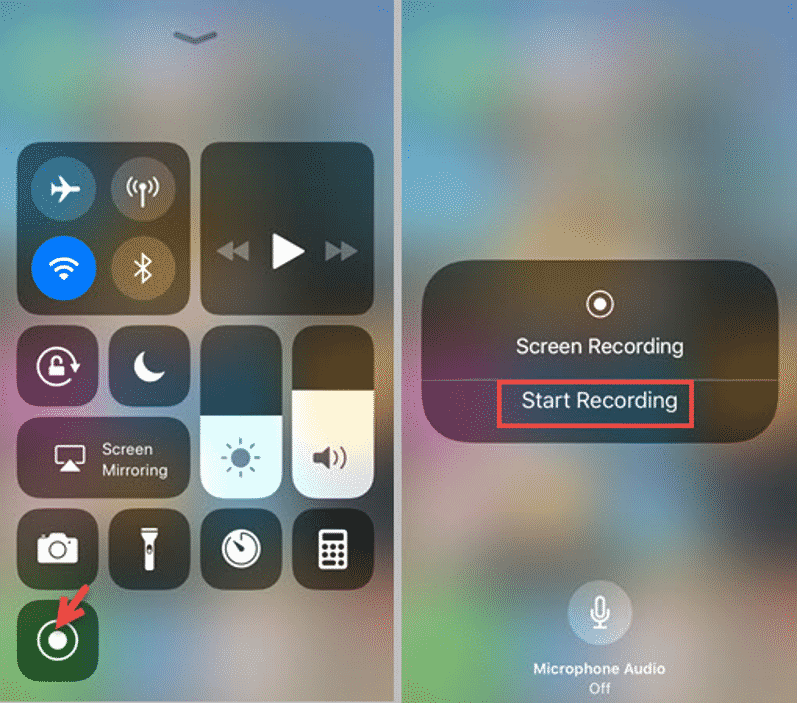
- Unlock your gear, go to System Preferences – Control Center – Customize Controls. Then tap the “+” sign on the opposite of the Screen Recorder.
- Open the dashboard by swiping up the screen (or swipe down if you have the latest models). Among other iPhone widgets, you’ll find a square sign with a dot in the middle. Tap it (the recording will begin after a three-second countdown).
- Activate the microphone by tapping an icon at the bottom of the screen.
Keep in mind that the footage is saved in the “Photos” section in MOV format. This is a fairly common file extension that can be played by most modern video players.
Bonus tip: to eliminate internal sounds and notifications, put your smartphone in do not disturb mode, and then start recording.
Method #2. Use your laptop or PC
1. Guide for macOS owners
Mac owners will need just a cable to record the iPhone screen. After connecting the device to the MacBook, open QuickTime Player and choose the File tab. Then create a new video.
You’ll see the webcam recording. At this stage, switch it to your phone screen recording in the menu. Also, identify the source of the sound.
When you’re done recording the iPhone screen, click File and Save.
2. Guide for Windows adherents
If your PC runs Windows, then you will have to install extra software that receives broadcasts via AirPlay. Download the LonelyScreen AirPlay Receiver utility, and follow these steps.
- Launch the program.
- Unlock iPhone and go to the dashboard. Select screen broadcasting.
- Find the LonelyScreen in the list of available devices and tap it. After that, everything that is happening on the iPhone will be displayed on the PC screen.
- Record video on PC using VideoSolo, Vimeo’s tools, or any other screen recording app you wish.
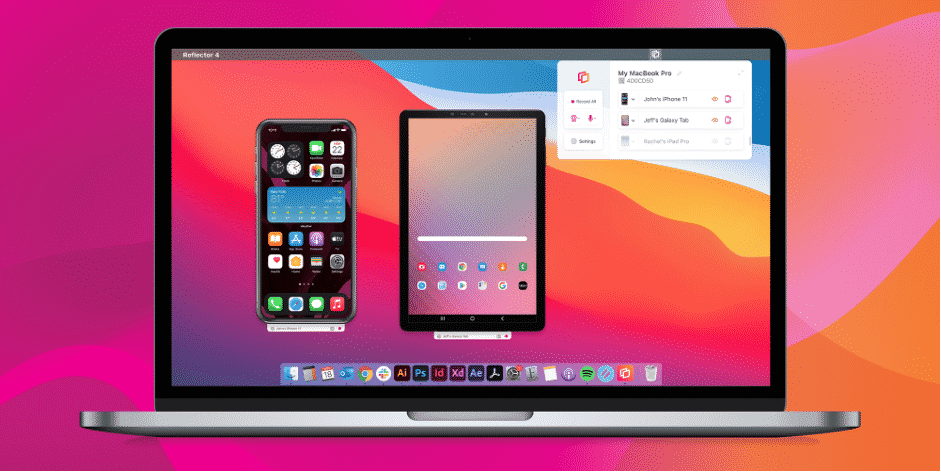
A versatile alternative is Reflector – a simple software available on both Windows and iOS PCs. The program emulates Apple TV, thanks to which a screencast from any Apple device is displayed on your computer or laptop via AirPlay. All you need is to connect the PC and the iPhone to the same Wi-Fi network.
Method #3. Use apps from App Store
It would seem, why go the hard way if there is a built-in tool? The answer is simple – you can additionally edit the material, for example, make a vertical video horizontal and vice versa, process an audio track or put music, apply effects to a video. All this is crucial for a “sweet” video presentation.
- Screen Recorder+ can help to capture gameplay, tutorials, or other screen videos, as well as your live reactions from the front camera.
- The Record it! app helps to record reactions while capturing the phone screen. By the way, here, you can define the shape, position, and size of your reaction.
- DU Recorder offers editing options and dozens of filters. It also enables live broadcasting from your device screen to Facebook, YouTube, or Twitch.
- And with Screen Recorder Pro, you can boost the appealing look of your video. Just apply stickers and paint with the brush tool to highlight something like on Instagram.
Final words
You should have no doubts that Apple gears’ screen recording is an easy-peasy process, especially if you have a gadget of the newest iPhone version. But don’t feel sad if you own an old iPhone. There are plenty of apps and software on the App Store that can help you out.