
AI photo enhancers have changed the way we edit images today. You no longer need advanced software or professional skills to fix blurry photos, restore old images, or improve picture quality. With the right AI tool, you can upgrade any photo in seconds using just your phone, computer, or browser.
This guide highlights the top ten free AI photo enhancers across desktop, mobile, and online platforms. So, if you’ve been looking for free ways to improve your photos, keep reading.

Part 1: 10 Best Tools to Enhance Photos with AI (Ranked)
You already know how powerful AI can be for fixing and upgrading your images. That’s why, after careful consideration, we’ve come up with the ten best AI photo enhancers for free that are easy to use and are available on desktop, mobile, and online.
1. HitPaw FotorPea (PC and Mac)
HitPaw FotorPea is one of the most powerful and easy-to-use AI photo enhancers. What makes it stand out is how natural the results looked after increasing the resolution. Instead of simply sharpening edges or stretching pixels, HitPaw FotorPea’s AI rebuilds real details, textures, and tones.
The final images look clearer and more lifelike, almost as if they were taken with a better camera. With this tool, you can enhance photos, restore old portraits, remove noise, fix blur, correct colors, and even replace objects with AI.
Key Functions
- AI Enhancement: Fix blurry faces, soft edges, and low-quality images with clean, natural detail recovery.
- Smart Replace: Add or change objects in a photo while maintaining realistic lighting and shadows.
- Photo Restoration: Repair old portraits, faded colors, and damaged vintage photos.
- High-Quality Output: Export up to 4K, ideal for printing, posters, and professional use.
- De-blur and Denoise: Remove motion blur and digital noise without making the image look over-edited.
- Color Correction: Restore natural tones, bright skies, and accurate lighting in seconds.
How Can You Enhance Photos with HitPaw FotorPea?
Here’s how you can use HitPaw FotorPea to enhance any image within seconds:
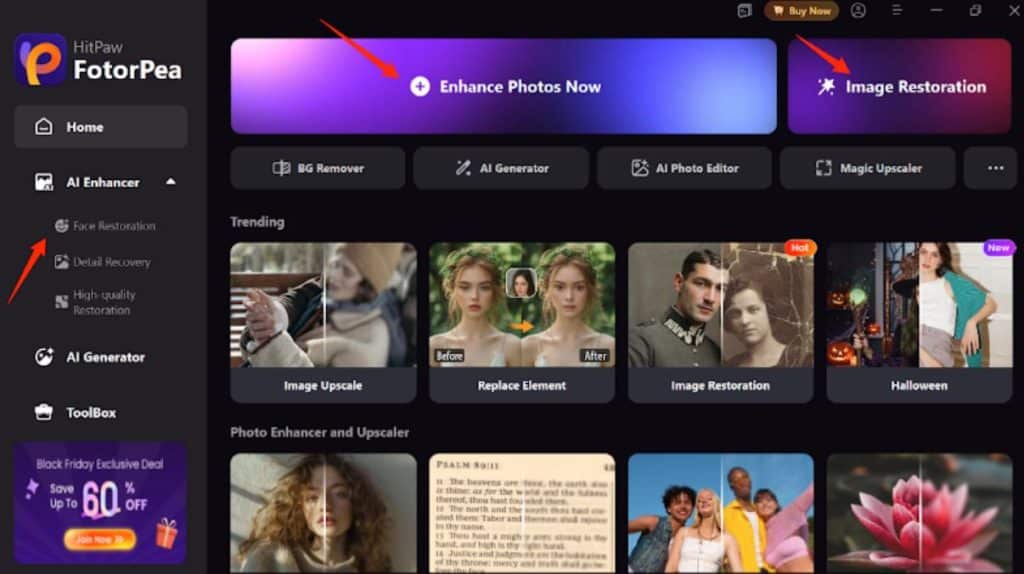
Step 1: Download and install HitPaw from the official website, open the program, and click “Enhance Photos Now.” For old pictures, you can also choose the “Image Restoration” option.
Step 2: Drag and drop your image into the workspace or click to upload. The tool accepts most formats, including JPG, PNG, and TIFF.
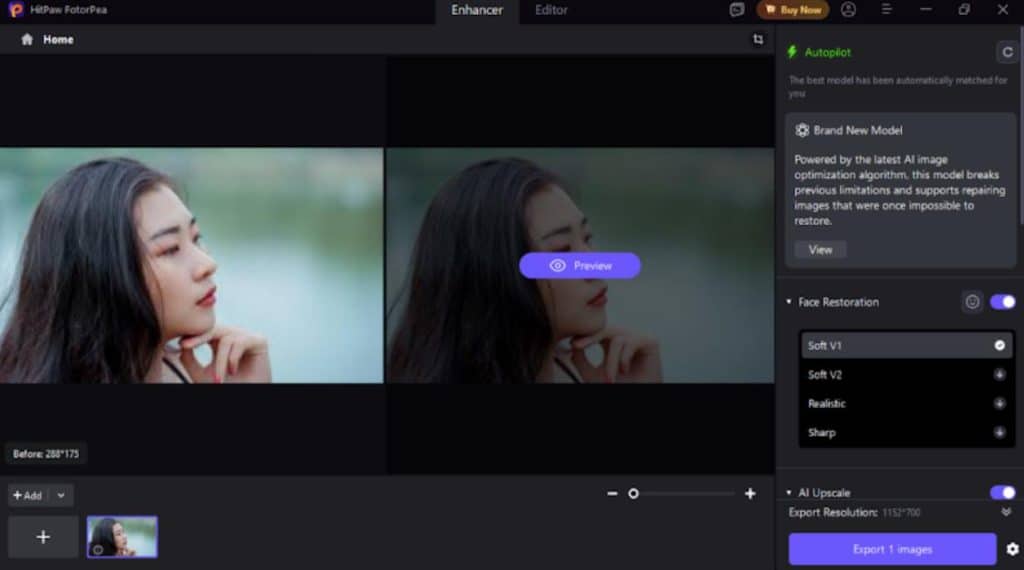
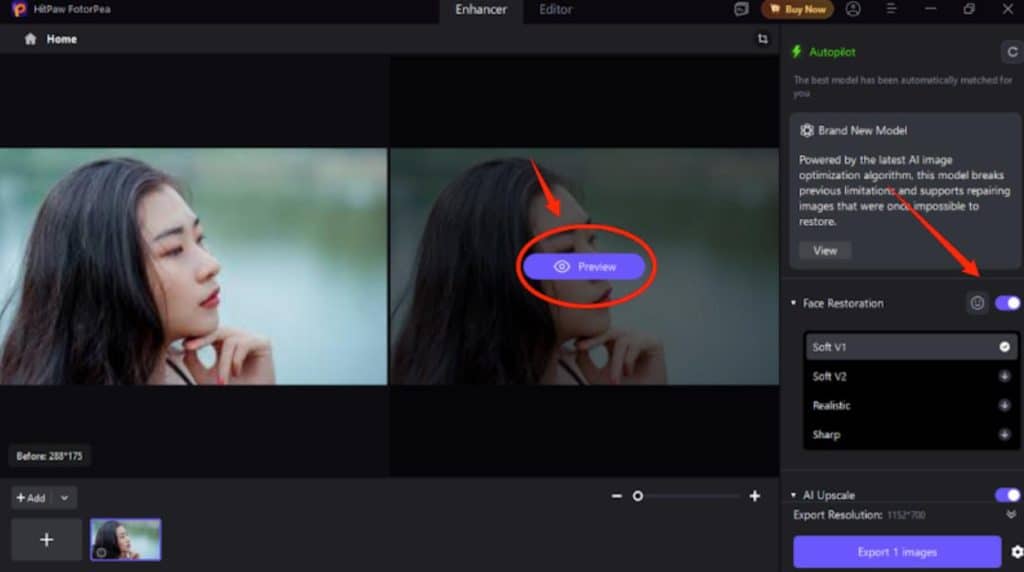
Step 3: Enable the face restoration function, then click “Preview” to let the tool work its magic. You can also use the right-hand panel to make further adjustments.
Step 4: Once satisfied with the improved quality, click “Export.” Your final image will be saved in high resolution.
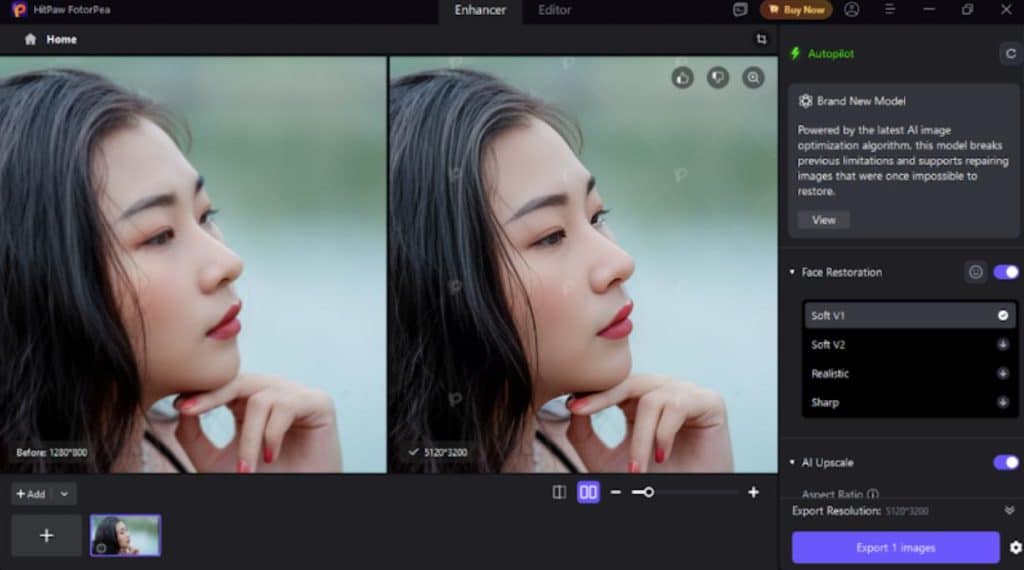
HitPaw FotorPea quickly restores blurry photos, enhances portraits, and exports images in high resolution, all in one easy-to-use interface. Its smart replacement tool adjusts lighting and shadows naturally, making edits look seamless. The process is fast, simple, and perfect for those who want lifelike results without complicated software.
2. VanceAI (PC)
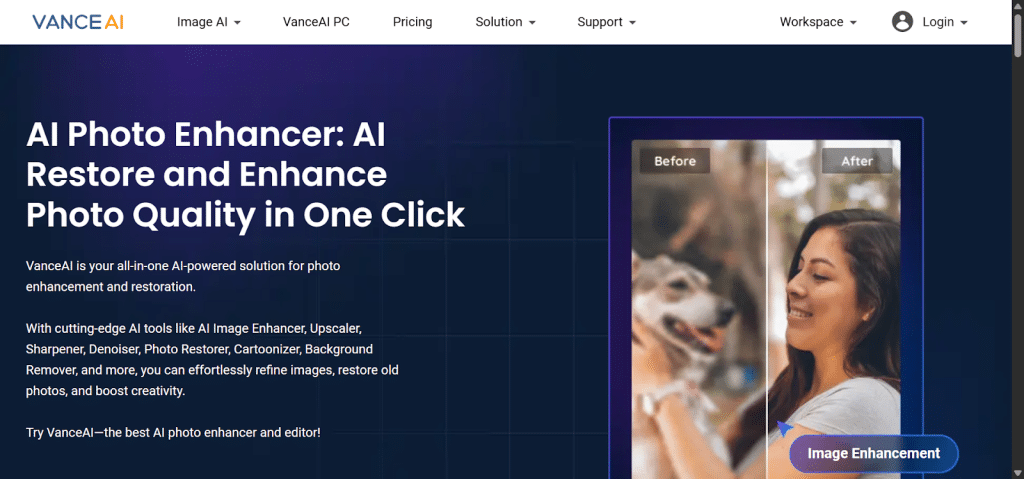
VanceAI is a desktop-based photo enhancer that uses AI for upscaling, denoising, sharpening, and restoration to improve image quality offline. It supports enlargements of up to 40x and is trained to retain textures, such as fur or skin, while removing noise.
The software also supports batch processing, making it ideal for users who manage large numbers of images simultaneously. Just remember that many of its strongest AI features are only available with a paid plan, and the free version is limited.
3. Topaz Photo (PC and Mac)
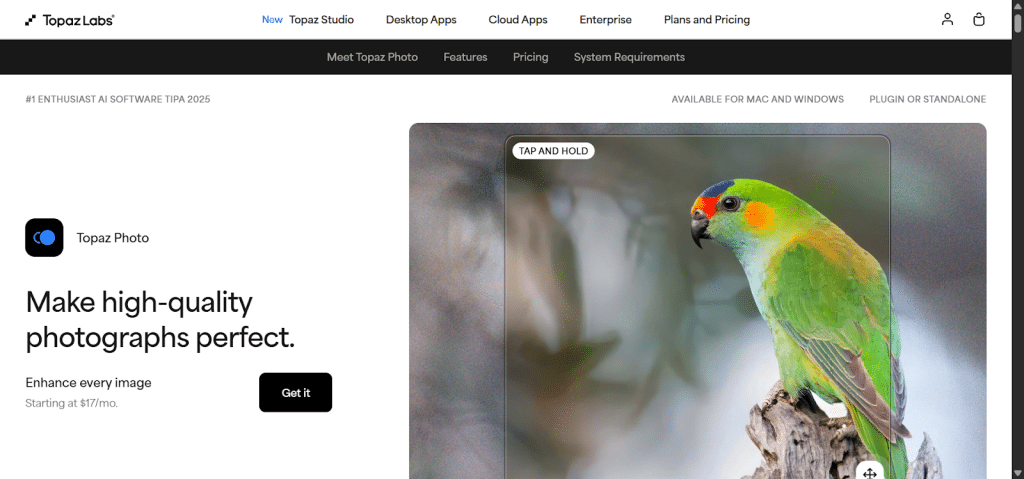
Topaz Photo is a professional-grade AI tool that combines sharpening, denoising, and upscaling in a single app. This tool is widely used by photographers who want clean, high-resolution results with realistic texture.
The software excels at recovering details from soft or motion-blurred shots and produces some of the best quality enhancements available today. It requires a powerful computer and comes with a higher price compared to most other tools.
4. Evoto AI (PC and Mac)

Evoto AI specializes in portrait enhancements, providing features such as skin smoothing, lighting correction, body reshaping, and batch retouching tools. Due to its bulk retouching capabilities, this tool is popular among studio photographers.
The interface is clean and easy to use, which makes complex portrait corrections simple for beginners. This tool is designed mainly for portrait and beauty editing, so it’s not ideal for landscapes or general photo enhancement.
5. Fotor (PC and Mac)
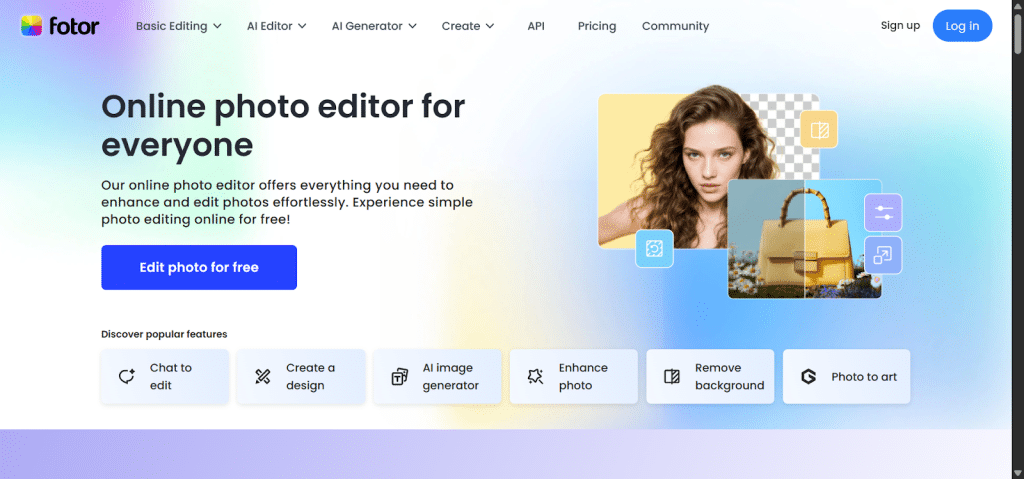
Next one on the list is Fotor. It is a simple and lightweight photo editor that offers AI-enhanced features, filters, color adjustments, beauty retouching, and collage options. For users seeking rapid improvements, this tool is one of the best options.
It has a beginner-friendly desktop app that works well for everyday photo fixes, social media posts, and light creative tasks. However, many advanced AI features are locked behind the paid Pro version.
6. YouCam Enhance (Android and iOS)
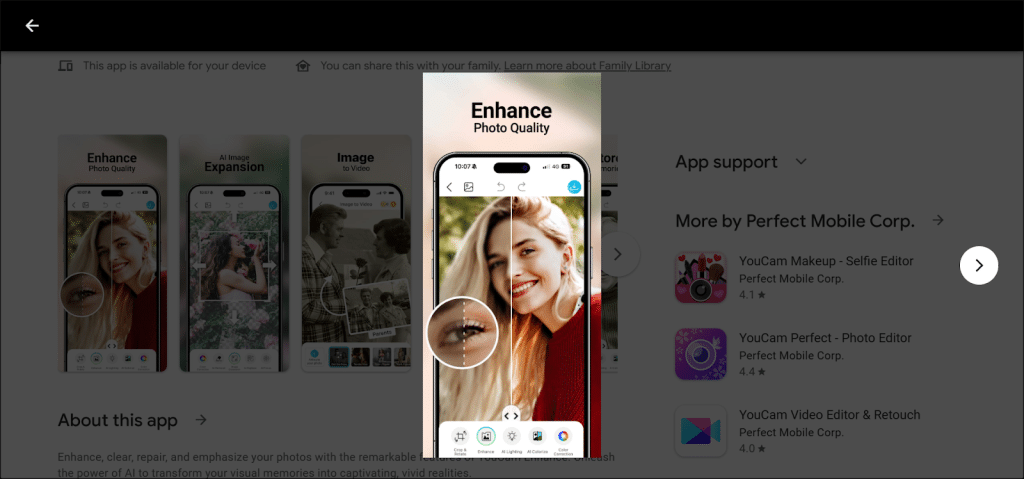
YouCam Enhance upgrades photo quality on mobile by unblurring images, sharpening details, and restoring clarity with AI. It works well for enhancing selfies, travel photos, and old gallery images directly on your phone.
Anyone can easily download the app on their Android or iOS devices. The app is perfect for quick on-the-go improvements. Free users are subject to daily limits and lower export resolution unless they subscribe.
7. PhotoDirector (Android and iOS)

PhotoDirector is a mobile photo editor loaded with AI tools, effects, filters, sky replacement, and enhancement options. If you’re looking for both quality and artistic effects, you can download this app on your Android or iOS device.
As for the interface, it’s polished, and the AI tools handle tasks such as sharpening, noise reduction, and lighting fixes with ease. Beginners may find the interface slightly complicated.
8. YouCam Perfect (Android and iOS)
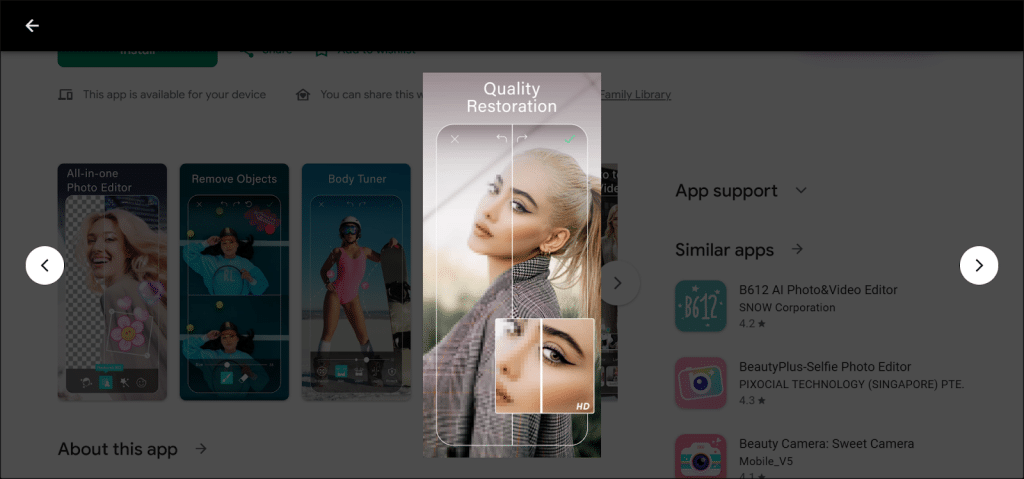
The last mobile app on the list is YouCam Perfect, an editing app mostly focused on selfies and creative edits. It offers beauty retouching, object removal, background blur, body toning, and AI enhancement.
For social media posts and quick photo cleanup, YouCam Perfect is the smarter, easier-to-use choice. Nevertheless, if you want a tool for high-resolution or professional image enhancement, this might not be the best option.
9. PhotoGrid (Online)
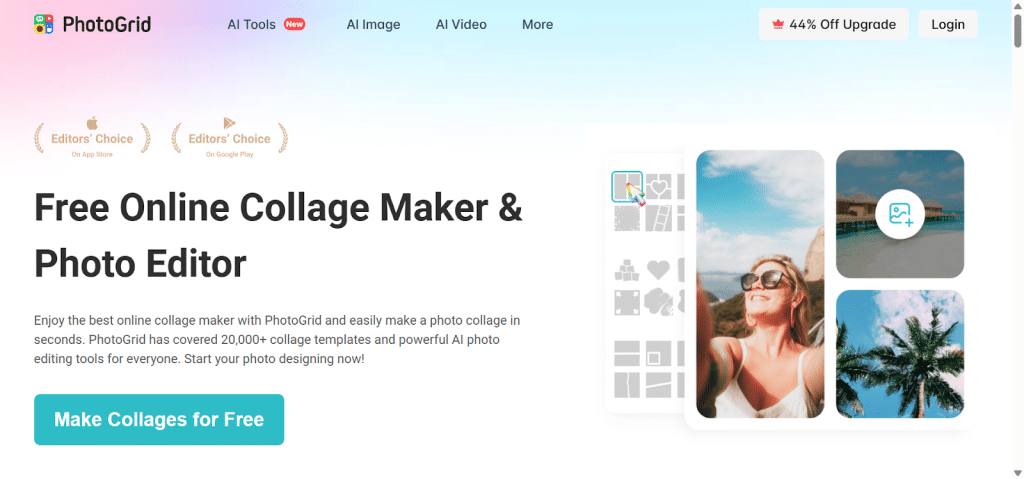
PhotoGrid offers an AI photo enhancer online for free, allowing users to upscale images to 4K, sharpen details, and fix blur directly in the browser. This makes it an excellent choice for quick edits, with no watermark or account needed.
The tool is ideal for users who want simple, yet instant improvements without needing to install any software. But online tools rely on internet speed and lack the precision of professional editing.
10. Cutout.pro (Online)
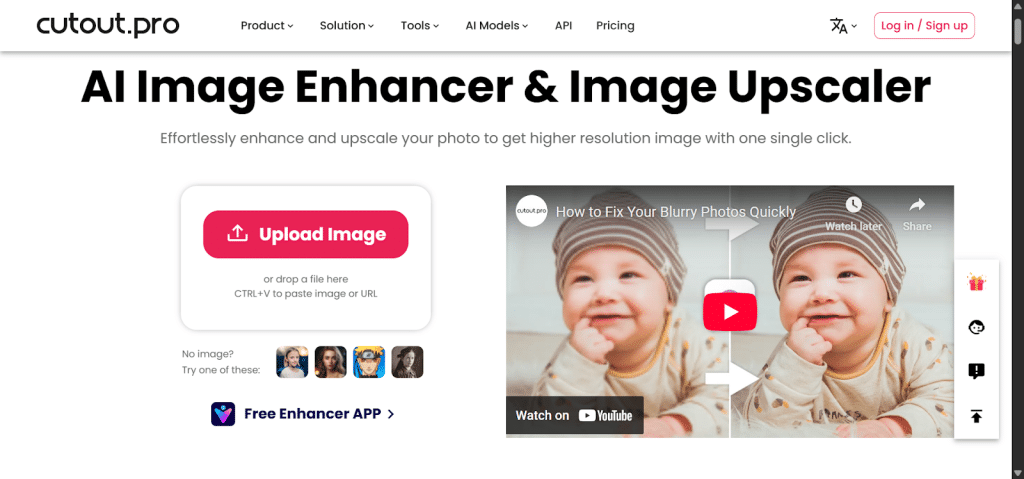
The last tool on our list is Cutout.pro, an online AI platform offering image sharpening, face enhancement, and upscaling. If you’re looking for an AI photo enhancer online for free, then this option helps boost the clarity of your photos.
It’s simple, fast, and perfect for users who want to edit or enhance photos easily, directly in their browser. The only issue with it is that the free plan limits resolution and the number of daily enhancements.
Part 2: How to Choose An Ideal AI Photo Enhancer?
The best AI photo enhancer isn’t the one that has all the features; it’s the one that solves your specific problem with the least effort. Here are the factors that matter most when choosing AI tools to enhance photos.
1. Match the Tool to Your Photo Type
Not all AI photo enhancers work the same way. Use the guidelines below to select the best tool for your needs, and always pick one designed for the type of photos you edit most frequently.
- Portraits: Select a tool with face enhancement, skin smoothing, and detail recovery features.
- Old Photos: Look for restoration tools that repair cracks, reduce noise, and restore faded colors.
- General Images: Use AI upscalers that add texture and sharpen edges naturally.
2. Check the Output Quality (2K, 4K, or Higher)
If you plan to print, post professionally, or crop heavily, you need high-resolution output. Choose tools that support:
- 1080p for basic use
- 2K for social media
- 4K for prints and commercial work
3. Compare Free vs. Paid Limits
Free tools often work well, but may limit resolution or the number of exports that can be processed. To make sure you don’t have to face those issues, always check for:
- Watermarks
- Daily limits
- Lower export quality
- Restricted tools
You can use the free versions for tests, then upgrade only if the results are worth it.
FAQs
1. Will an AI enhancer Work On Very Low-Quality Or Tiny Images?
Most AI tools can improve small or blurry images, but results depend on the starting quality. Extremely pixelated images may improve, but won’t look perfect. Select an enhancer with robust AI reconstruction capabilities for optimal results.
2. Can an AI enhancer Fix Photos Taken In Bad Lighting?
Yes, many enhancers can brighten dark photos, recover shadows, and balance exposure. Look for features like auto-tone, color balance, and lighting correction. The tool should enhance lighting without making the photo look artificial.
3. How Do AI Enhancement And AI Upscaling Differ?
AI upscaling increases image size by generating new pixels. Meanwhile, AI enhancement improves clarity, color, lighting, and texture without resizing. The best tools combine both to produce a larger, more visually appealing image.
Conclusion
With the right AI photo enhancer, even old, blurry, or low-quality images can come back to life. However, with numerous AI photo enhancement tools now available, it’s quite challenging to select one that truly stands out.
If you’re looking for a simple, fast way to clean up everyday images, apps like YouCam Enhance or online tools like PhotoGrid work incredibly well. However, if you want something truly versatile, then HitPaw FotorPea takes the lead among other AI photo enhancers.
It enhances images naturally, restores details intelligently, and produces high-resolution quality without the struggle.











